Blog · Dynamic SVG
The 12 best dynamic SVG valves for WinCC Unified and WinCC V8 (free)
We opened every valve in the HMIx catalogue, 28 dynamic SVGs in October 2026, looked at each render up close, read every product sheet and kept the twelve dynamic SVG valves we would happily drop into a WinCC Unified or WinCC V8 screen tomorrow. All free, all in .svghmi format, from clean P&ID valve symbols to realistic butterfly, ball, gate, solenoid and mix-proof valves.
- Dynamic SVG
- SVGHMI
- WinCC Unified
- WinCC V8
- TIA Portal
- Valve symbols
- P&ID symbols
- HMI graphics
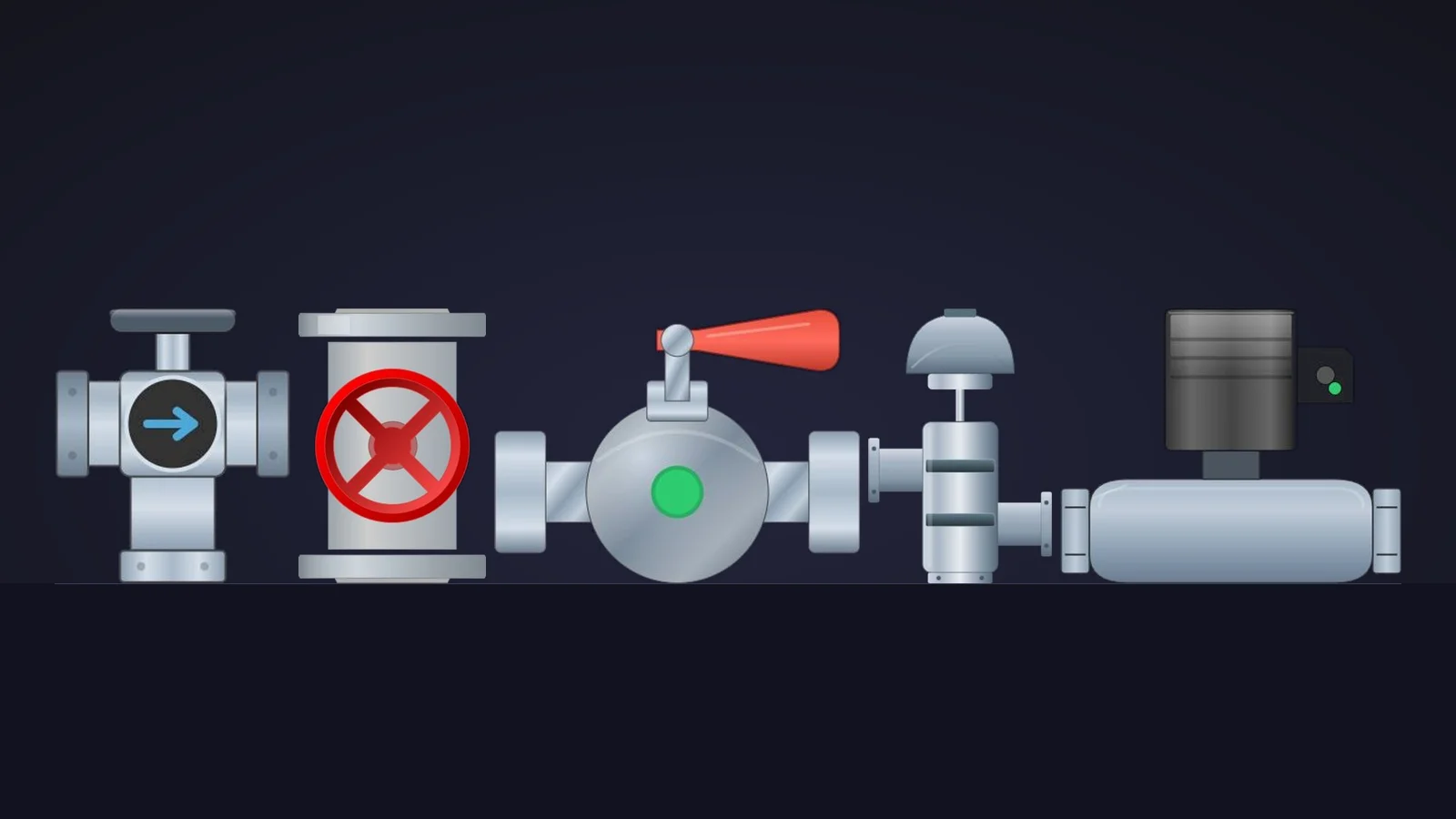
Quick picks
Short on time? Jump straight to the valve you need.
- 01Best overallMotorized Valve Symbol
- 02Best minimal valve for dense overviewsWater Valve
- 03Best valve symbol with status iconsActuated Valve Symbol
- 04Best 3-way valve symbolModern 3-Way Valve Symbol
- 05Best realistic 3-way valve3-Way Valve
- 06Best automated butterfly valveButterfly Valve
- 07Best manual (lever) butterfly valveButterfly Valve
- 08Best ball valveProcess Ball Valve
- 09Best manual gate valveHandwheel Gate Valve
- 10Best control (modulating) valveProportional Valve
- 11Best solenoid valveSolenoid Valve
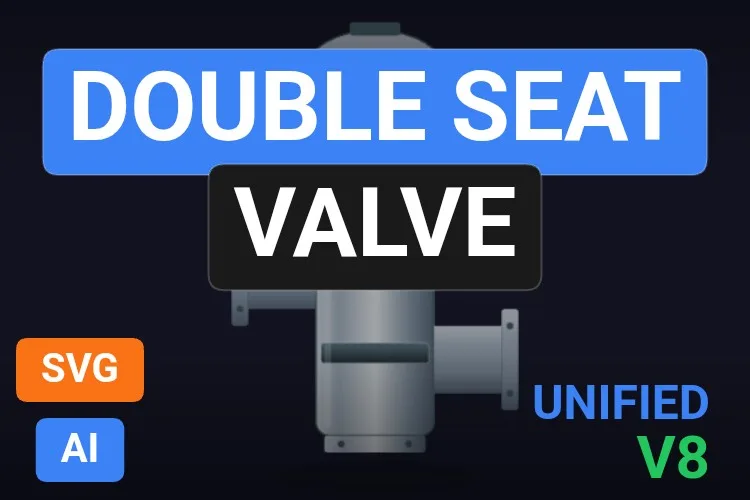
- 12Best hygienic (mix-proof) valveDouble Seat Valve
Why valve symbols deserve more care than they get
Count the objects on any process screen and valves win by a mile. A water plant, a CIP skid or a humble dosing line can easily carry thirty of them, and the operator has to read every single one: open or closed, in auto or in manual, healthy or faulted. A valve symbol that is hard to read is not a cosmetic problem; it is a wrong decision waiting to happen.
That is where a dynamic SVG valve earns its place. In WinCC Unified (TIA Portal) and in WinCC V8, a dynamic SVG, the .svghmi format, is a vector drawing that exposes properties such as ValvePosition or StatusColor. You drag it onto the screen, bind those properties to HMI tags and the drawing reacts: the disc turns, the lever moves, the body changes colour and the status icons appear when they matter. No scripts, no JavaScript, and it stays sharp at any size, from a 7-inch Unified Comfort Panel to a control-room wall.
What makes a dynamic SVG valve worth downloading
Before the list, the yardstick. This is what we looked for, roughly in order of how much it annoys us when it is missing:
- A recognisable type. An operator should tell a butterfly from a ball valve, and a motorised valve from a hand valve, without reading a label. Schematic symbols should look like the bow-tie shapes engineers know from P&ID drawings.
- State you can bind. A position, an opening angle or a stroke, plus a colour for the status. A valve that can only be one colour is just decoration.
- Readable when small. Valves are the smallest objects on most screens; a symbol that turns into grey noise at 40 pixels is no good.
- Honest looks. Clean shapes, a transparent background and colours you can tone down for high-performance screens in the ISA-101 spirit.
- Variety. Instead of twelve versions of the same bow-tie, we picked one champion per job: P&ID symbols, status symbols, 3-way, butterfly, ball, gate, control, solenoid and hygienic valves.
How we picked them (and what we did not do)
We went through the 28 dynamic SVG valves published on HMIx in October 2026. For each one we looked at its real render (the drawing itself, not the catalogue cover with the big title on top) and read its product sheet to see which properties it exposes. Downloads and reviews only worked as tie-breakers, because a valve published last month has not had time to collect either.
We left out a near-duplicate (two butterfly valves share the same drawing), a near-twin of the Control Valve Symbol whose sheet describes status icons that do not match its render and one whose preview is a small bow-tie with a single colour property. A fair warning, too: for this article we judged drawings and documentation; we did not run all 25 valves in a live Runtime. They were generated with AI and every product page reminds you to test them in your own TIA Portal project before production. We would say the same about anything you download from anywhere.
The 12 best dynamic SVG valves, one by one
Each entry shows the real SVG render, what we liked, what to keep in mind and the properties you can bind, followed by the catalogue thumbnail: click it to open the product page and download the valve for free.
01Best overall
Motorized Valve Symbol

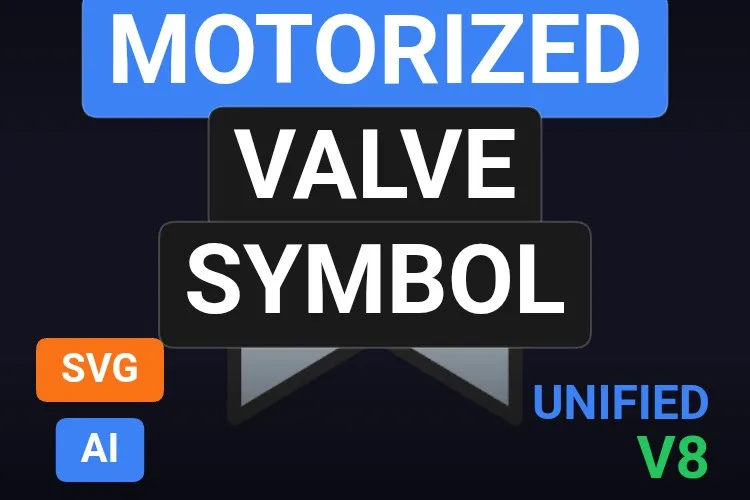
If we could only keep one, it would be this one. It is the symbol every engineer knows from P&ID drawings: a bow-tie body with thick dark outlines and a circular actuator with a bold M. Its sheet says it follows ISA-101 and ISA 5.1, and it looks it: calm, high-contrast and readable at a glance.
Five properties do everything. ValveState takes an integer from the PLC for the process state, BasicColor and MotorColor carry the colours, StrokeColor adapts the outline to dark or light screens, and ShowMotor turns the same symbol into a plain manual valve. One download covers both kinds of valve on your P&ID.
What we like
- The standard P&ID look, perfect for overviews
- Manual and motorised valves from one symbol with
ShowMotor - Outline colour adapts to dark and light themes
Keep in mind
- Check which
ValveStatevalues the file maps to open, closed and transition before binding - No status icons: add an alarm indicator next to it if you need one
Bindable properties
- ValveState
- BasicColor
- MotorColor
- ShowMotor
- StrokeColor
02Best minimal valve for dense overviews
Water Valve

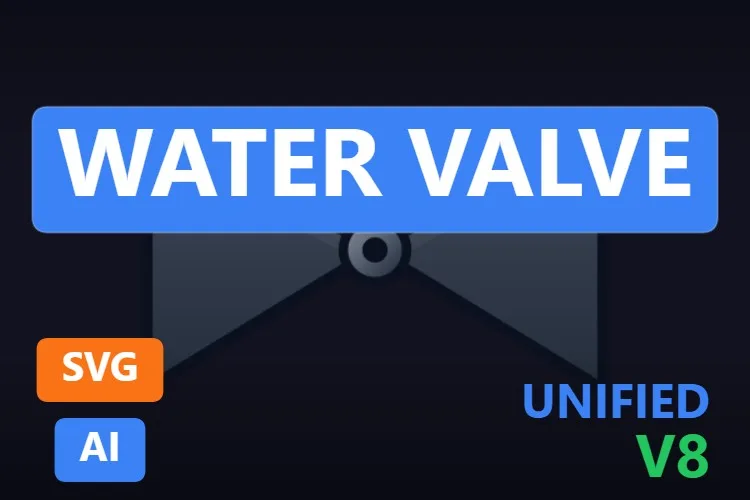
Sometimes less is more. This is the leanest valve on the list: two slate triangles with subtle gradients meeting at a small ring. On a plant overview with forty valves, that restraint is exactly what you want.
It has only four properties, and they are well chosen. LeftTriangleColor and RightTriangleColor colour each half separately, so you can show state or medium on each side, BasicColor paints the central ring, and Rotation turns the symbol to sit on vertical pipes or at an angle.
What we like
- Tiny visual footprint, ideal for crowded overviews
- Each half can carry its own colour
Rotationfits it to vertical lines
Keep in mind
- The default slate grey blends into dark backgrounds: set brighter colours
- No actuator or position: it is a state symbol, nothing more
Bindable properties
- LeftTriangleColor
- RightTriangleColor
- BasicColor
- Rotation
03Best valve symbol with status icons
Actuated Valve Symbol

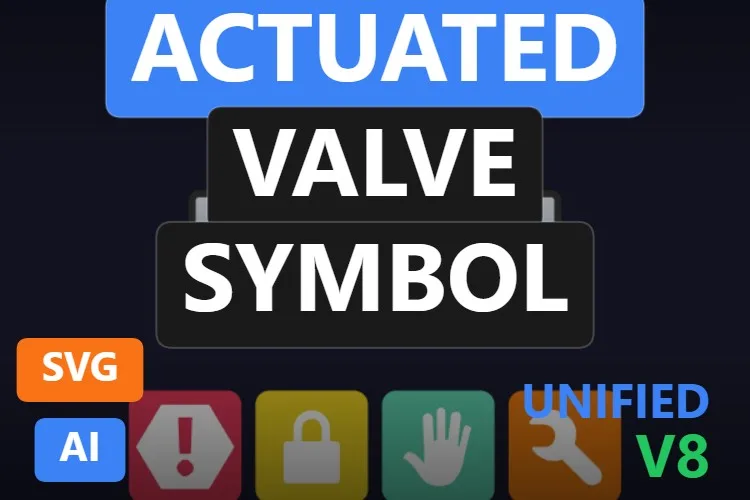
For overviews built on high-performance HMI ideas, this symbol packs a lot into one object: a dark actuator box with a green status lamp, a round body between tapered pipe stubs with flanges and, underneath, four status icons for alarm, interlock, manual and maintenance.
Its sheet announces eleven properties and names nine. StatusIndicatorColor paints the lamp, BasicColor and ActuatorColor handle the drawing, ShowIconAlarm, ShowIconManual, ShowIconLock and ShowIconMaintenance switch the icons, and ColorAlarm and ColorMaintenance colour them. An operator scanning a manifold sees at once which valve is in manual or locked.
What we like
- Equipment state at a glance, without extra symbols
- Clean, semi-realistic style that reads well when small
- Fully configurable colours
Keep in mind
- No position property is listed in its sheet: open and closed are shown with colour
- The default icon colours are loud on grey palettes
Bindable properties
- BasicColor
- ActuatorColor
- StatusIndicatorColor
- ShowIconAlarm
- ShowIconManual
- ShowIconLock
- ShowIconMaintenance
- ColorAlarm
- ColorMaintenance
04Best 3-way valve symbol
Modern 3-Way Valve Symbol
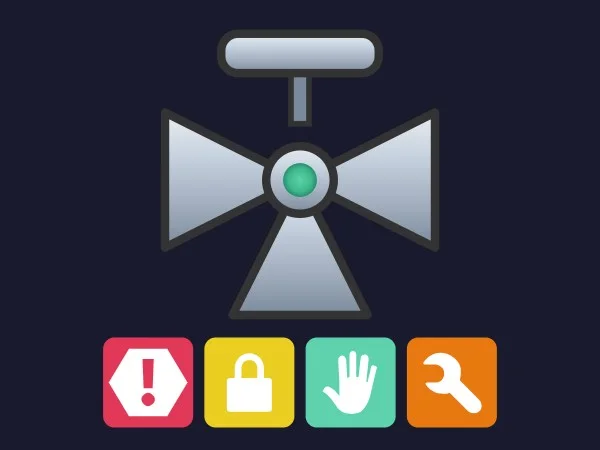
Diverting and mixing valves are everywhere in CIP routing, heating circuits and bypasses, and most libraries only offer a bow-tie with a third triangle glued on. This one is drawn properly: three metallic triangles meeting at a ringed centre with a green indicator, a bar actuator on top and, underneath, the familiar row of four status icons. In October 2026 it was also one of the most downloaded valves in the catalogue.
Its sheet announces twelve properties and names ten. ValveRotation reflects the position of the plug, BasicColor, ActuatorColor and IndicatorColor handle the look, and ShowIconAlarm, ShowIconManual, ShowIconLock and ShowIconMaintenance switch the status icons, with their own colours such as ColorLock and ColorMaintenance.
What we like
- A true 3-way shape, readable at a glance
- Alarm, interlock, manual and maintenance states in the same object
- Separate colours for body, actuator and indicator
Keep in mind
- Check in TIA Portal what
ValveRotationturns before you promise a flow-path animation - The icon row needs room under the symbol
Bindable properties
- ValveRotation
- BasicColor
- ActuatorColor
- IndicatorColor
- ShowIconAlarm
- ShowIconManual
- ShowIconLock
- ShowIconMaintenance
- ColorLock
- ColorMaintenance
05Best realistic 3-way valve
3-Way Valve
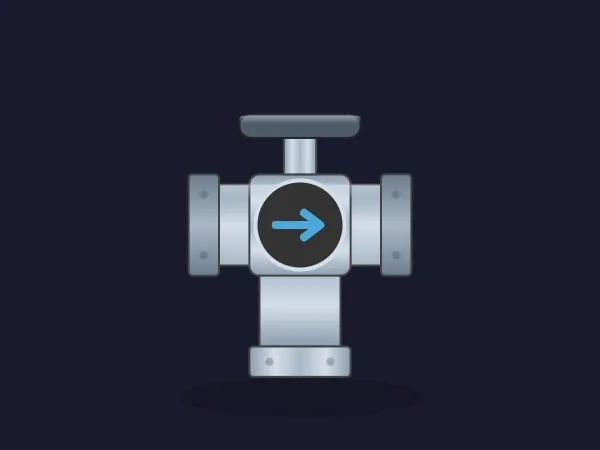
Where the symbol above is schematic, this one is equipment: a T-shaped brushed-steel body with bolted flanges on three sides, a flat actuator on top and a round dark window with a blue arrow showing where the flow goes.
Its five properties are all about routing. FlowDirection turns the internal diverter, FlowColor paints the medium, ShowIndicator hides the arrow, and BasicColor and FlangeColor match your piping standard. On a mixing or bypass screen, the arrow says more than any label.
What we like
- Flow direction visible at a glance
- Medium colour separate from the body
- Solid, realistic metal finish
Keep in mind
- The arrow is the only position cue: it must stay readable at your size
- A soft shadow under the body can look odd on flat screens
Bindable properties
- FlowDirection
- FlowColor
- ShowIndicator
- BasicColor
- FlangeColor
06Best automated butterfly valve
Butterfly Valve
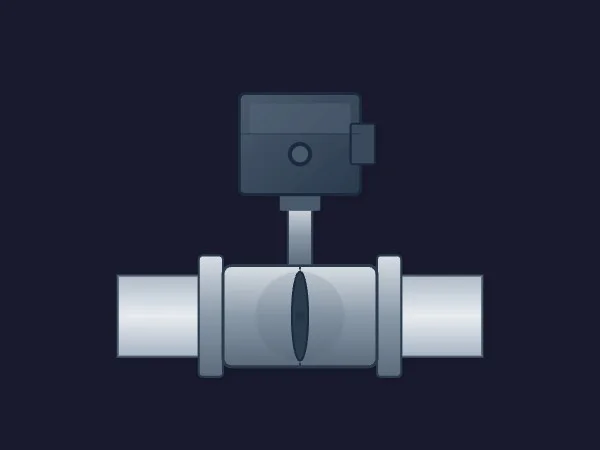
The butterfly valve you want on a water treatment or HVAC screen: a dark electric actuator with a round indicator and a side box, a short stem, a flanged body between two pipe sections and the disc visible edge-on inside. It looks like the real thing without being cluttered.
All seven properties are named in its sheet, which we love. ValvePosition turns the disc, StatusColor drives the status light, ShowActuator removes the actuator if your valve is manual, and BasicColor, PipeColor, DiscColor and ActuatorColor match it to your plant colours.
What we like
- Every property documented by name
- Status colour built in
- Actuator can be hidden for manual valves
Keep in mind
- The disc is seen edge-on, so position changes are subtle: test them at the size you will use
- The pipe stubs make it wider than a schematic symbol
Bindable properties
- ValvePosition
- StatusColor
- ShowActuator
- BasicColor
- PipeColor
- DiscColor
- ActuatorColor
07Best manual (lever) butterfly valve
Butterfly Valve
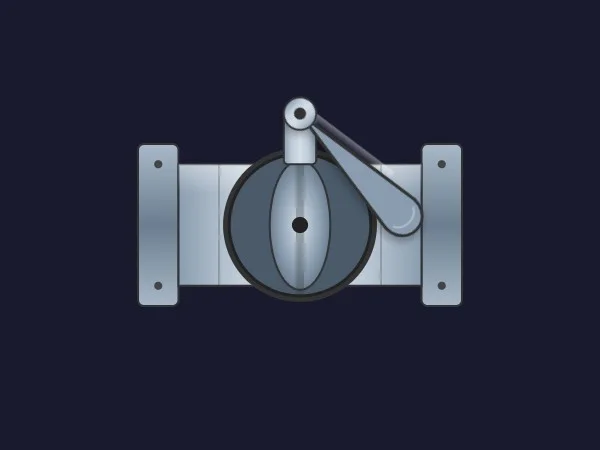
If your butterfly valves are operated by hand, this is the one. A flanged body with bolt holes, a dark circular disc with a cutaway effect and a steel lever on top, drawn in clean metallic tones.
It splits the movement into two properties: DiscOpeningAngle (0 to 100 %) for the disc and LeverRotation for the lever, so you can keep them in step or show a lever that does not match the disc. ShowLever hides the lever for gear-operated valves, and BasicColor and DiscColor set the palette.
What we like
- The disc opening is a simple 0–100 % value
- Lever can be hidden
- Compact and tidy, good for dense screens
Keep in mind
- Two properties for one movement: bind both, or the lever and the disc will disagree
- No status colour of its own
Bindable properties
- DiscOpeningAngle
- LeverRotation
- ShowLever
- BasicColor
- DiscColor
08Best ball valve
Process Ball Valve
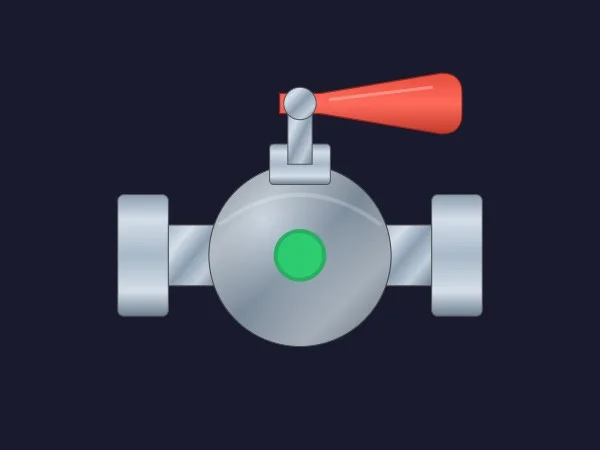
A ball valve that looks like a ball valve: a round chrome body, chunky flanged ends, a stem and a red lever handle on top. A green status circle in the middle of the body tells you its state from across the room.
Five properties, all named. ValvePosition rotates the handle from 0° to 90°, the natural quarter turn of a ball valve; StatusColor and ShowStatus control the indicator, and BasicColor and HandleColor finish the look.
What we like
- Quarter-turn range that matches the real valve
- Status indicator built into the body
- Only five properties: bound in a minute
Keep in mind
- A red handle can read as an alarm on ISA-101 screens: change
HandleColor - The lever turns in a front view, so treat the movement as a hint, not a measurement
Bindable properties
- ValvePosition
- StatusColor
- ShowStatus
- BasicColor
- HandleColor
09Best manual gate valve
Handwheel Gate Valve

Manual isolation valves rarely get a good drawing, and this one is a pleasant surprise: a steel body seen from the front, two wide flanges and a big red handwheel with four spokes that you cannot miss. It is the valve you put next to a pump suction to remind everyone that somebody has to walk there and turn it.
The handwheel faces the viewer, so ValveRotation turns it in the plane of the screen, which is exactly how a real handwheel moves. With nine properties it is also very adjustable: HandleColor, FlangeColor, SealColor, AdapterColor and BasicColor for the look, and ShowFlanges, PipeVisibility and ReflectionVisibility to strip it down for denser screens.
What we like
- The handwheel rotation is physically believable
- Plenty of visibility switches for detailed or simple views
- Unmistakable at any size
Keep in mind
- Drawn on a vertical run of pipe, so it fits vertical lines best
- The bright red handwheel shouts on grey ISA-101 screens: tone it down with
HandleColor
Bindable properties
- ValveRotation
- BasicColor
- HandleColor
- AdapterColor
- SealColor
- FlangeColor
- ShowFlanges
- PipeVisibility
- ReflectionVisibility
10Best control (modulating) valve
Proportional Valve
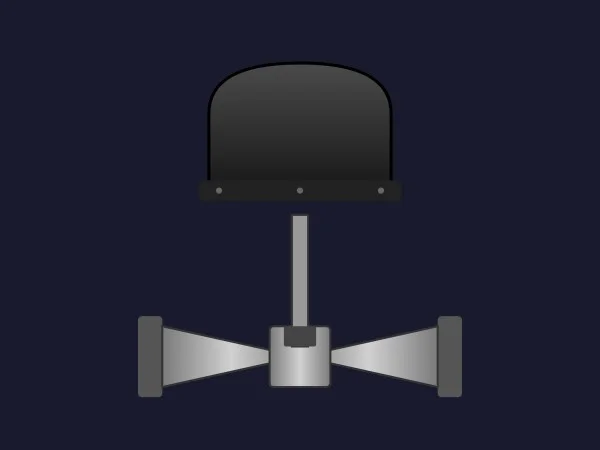
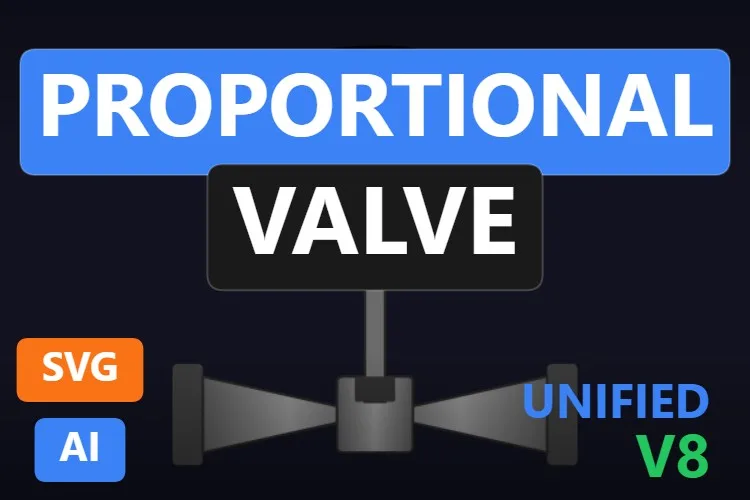
Control valves are the ones operators watch most closely, because their position tells you what the loop is doing. This is the classic picture: a black diaphragm actuator with its bolts, a long stem and a slim bow-tie body between two flanges.
ValvePosition moves the stem assembly, so the stroke follows your controller output. ShowActuator hides the top for a plainer valve, and BasicColor, ActuatorColor, StemColor and BoltColor let you colour every part separately.
What we like
- The textbook control-valve silhouette
- Stroke animation driven by a single value
- Colour for every part, bolts included
Keep in mind
- The black actuator is dark on dark themes: lighten it with
ActuatorColor - The body is small next to the actuator, so the stroke is easier to read on detail screens
Bindable properties
- ValvePosition
- ShowActuator
- BasicColor
- ActuatorColor
- StemColor
- BoltColor
11Best solenoid valve
Solenoid Valve
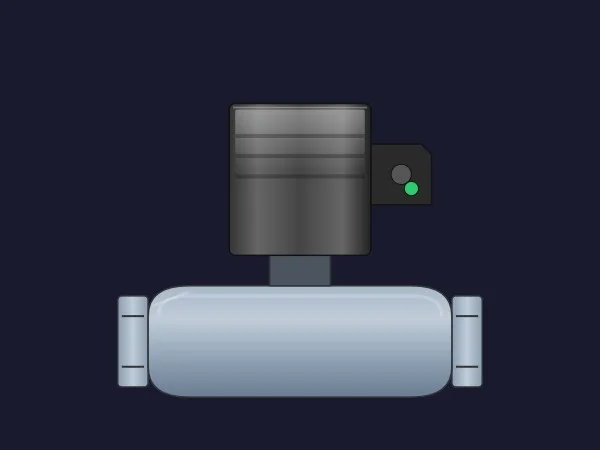
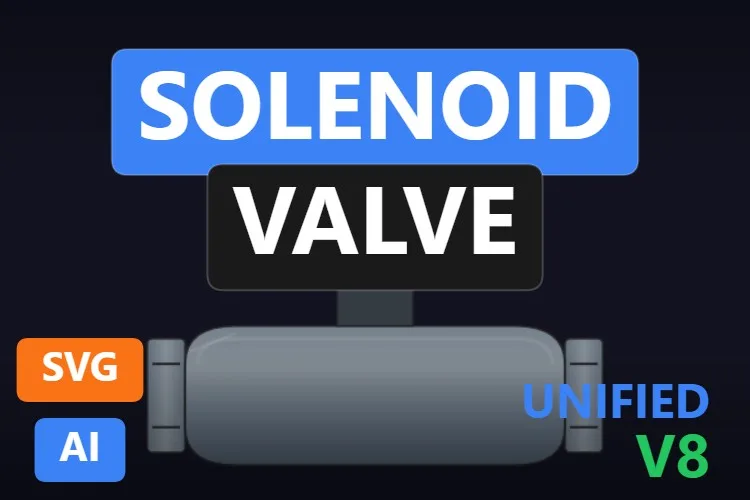
On/off solenoid valves on dosing, air and cooling lines deserve their own look, and this is the best we found: a dark coil housing on top, a DIN-style connector with a green LED and a horizontal metallic body with flanged ends.
StatusLedColor drives the LED, so energised and de-energised are obvious; ValvePosition animates the actuator; ShowConnector removes the connector for a simpler shape; and BasicColor and ActuatorColor colour the body and the coil.
What we like
- Immediately recognisable as a solenoid
- LED colour for the energised state
- Connector can be hidden for dense screens
Keep in mind
- A solenoid is on or off: check the
ValvePositionrange in TIA Portal and drive it with two values - The dark coil needs a lighter
ActuatorColoron dark backgrounds
Bindable properties
- ValvePosition
- StatusLedColor
- ShowConnector
- BasicColor
- ActuatorColor
12Best hygienic (mix-proof) valve
Double Seat Valve
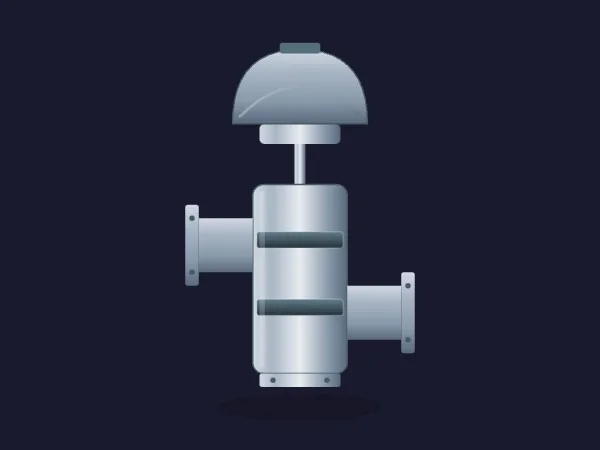
Dairies, breweries and juice plants live on mix-proof valves, and they are almost impossible to find as ready-made graphics. This one nails the silhouette: a dome actuator, a vertical stainless body with two dark bands marking the seats, two flanged ports at different heights and a soft shadow underneath.
ValveStroke moves the stem with your PLC value, while ShowInternalView, ShowActuator and ShowDetails decide how much of the valve you see. PortColor and InternalSeatColor let you paint the product path, which is handy when the same manifold carries product and cleaning solution.
What we like
- A rare, recognisable mix-proof shape
- Internal view and details on demand
- Port and seat colours for product routing
Keep in mind
- According to its sheet a single
ValveStrokedrives the stem: seat-lift positions for cleaning are not separate properties - The floor shadow can clash with very flat screens
Bindable properties
- ValveStroke
- ShowInternalView
- ShowActuator
- ShowDetails
- BasicColor
- ActuatorColor
- PortColor
- InternalSeatColor
Honourable mentions: 13 more valves worth a look
They did not make the top twelve, usually because a better sibling did, but each one has a good reason to exist. Click any thumbnail to open its product page.
Control Valve Symbol
In October 2026, the most downloaded valve in the catalogue: a bow-tie with a green status disc, a top bar and the four status icons. Its sheet describes eleven properties without naming them, so check the interface in TIA Portal.
View product
Motorized Valve
The sibling of the Actuated Valve Symbol with an M actuator box,
View productValveRotationand thirteen properties including the status icons.
3-Way Valve Symbol
A 3-way symbol with a diaphragm top and the status icon bar, with ten properties. A pneumatic alternative to our favourite 3-way symbol.
View product
Pneumatic Valve Symbol
A diaphragm actuator over a bow-tie, with
View productShowActuatorand the four status icons. A good fit for pneumatic on/off valves.
Electrical Valve Symbol
A bow-tie under an actuator box with a lightning bolt and an LED, plus status icons. Twelve properties, not named one by one in its sheet.
View product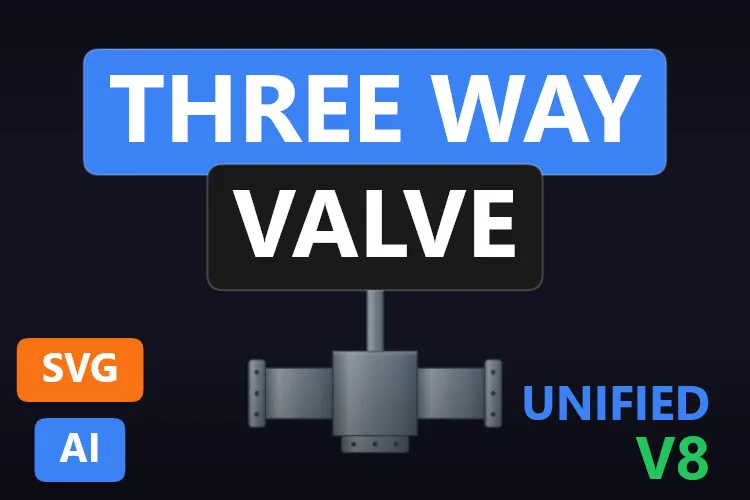
Three Way Valve
An electric drive with a small dial whose needle follows
View productValvePosition, a status LED andFlowIndicatorOpacity.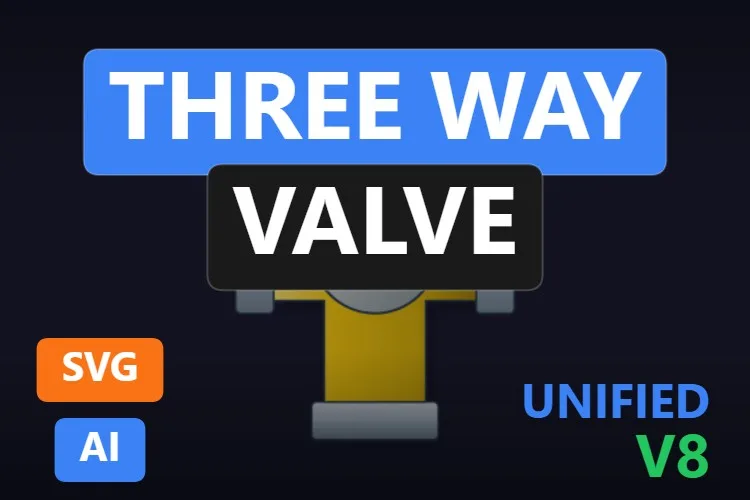
Three Way Valve
A high-visibility yellow T-body with a red arrow indicator turned by
View productValvePositionand an optional shadow.
Globe Valve Symbol
A dome-topped 3-way style symbol with fourteen properties, including separate colours per triangle and fail-safe return indicators.
View product
Hand Valve
A polished chrome hand valve with a round handle,
View productShowFlangesand even aWeldSeamColor. Elegant on detail screens.
Pressure Hand Valve
A big flanged body with a front handwheel that
View productHandleRotationturns from 0 to 360 degrees, andShowHandleto hide it.
Butterfly Control Valve
A flat-style actuator with a nameplate over a round butterfly body, with
View productHandwheelRotationandShowNameplate. It has a near-identical twin, product 629.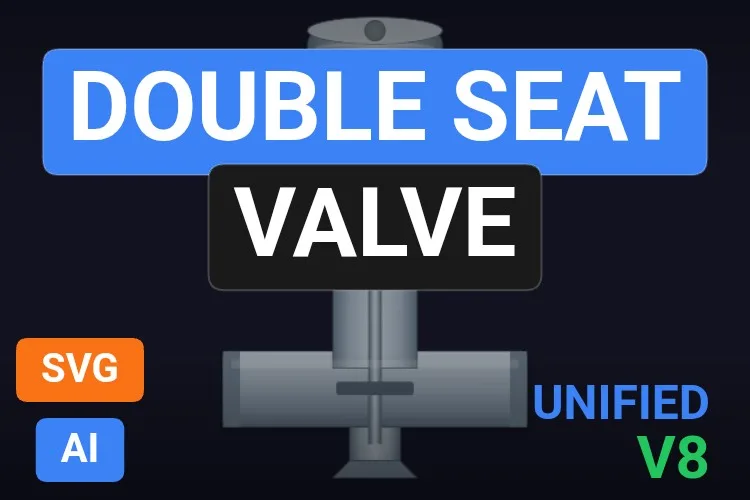
Double Seat Valve
A slimmer mix-proof valve between two horizontal pipes, with
View productValvePosition,SeatColorandShowSheen.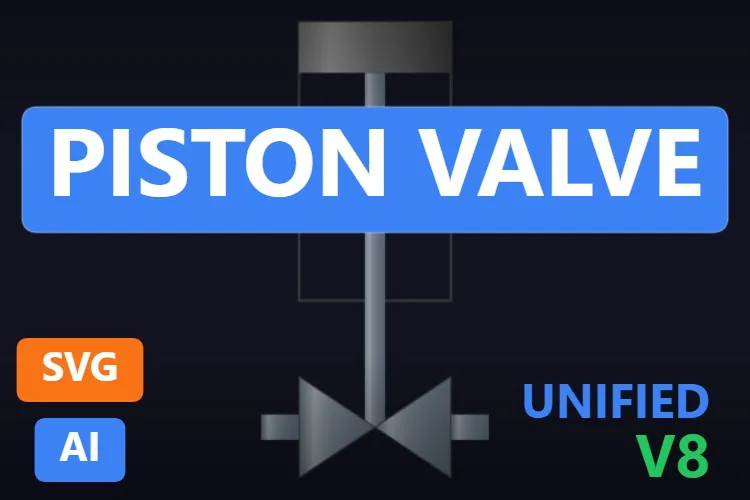
Piston Valve
A linear actuator frame over a bow-tie body;
View productValvePositionmoves the stem. Light and schematic.
Didn't find your valve? Make your own (or remix one) with AI, for free
A confession: every valve in this article was created with the HMIx AI generator. That is why we can say this without blushing: if none of them is exactly what your plant needs, you can generate your own in minutes.
Describe the equipment in plain words (for example, "pneumatic angle seat valve, ISA-101 grey, with open and closed limit switch lamps") and the generator walks you through it step by step: the drawing, the properties you will bind in WinCC, a simulation to try values and the final .svghmi package for WinCC Unified and WinCC V8. The same tool builds Custom Web Controls when you need numbers, buttons or logic that an SVG cannot provide.
- Remix any valve on this list: on its product page, the "Edit in AI Generator" button opens it straight in the generator, ready for you to ask for changes such as "make it ISA-101 grey", "add a fault colour to the actuator" or "draw it on a vertical pipe". The "Edit it with AI" links in this article do the same.
- Free to try: you can start without an account, with a small daily allowance of credits, and the Community plan is free.
- The result is yours to use: download the package and drop it into your TIA Portal project like any other valve on this page.
How to use a dynamic SVG valve in WinCC Unified (and WinCC V8)
The short version, for when you have already picked your valve. Our dynamic SVG guide covers every step with diagrams and screenshots.
Download the .svghmi file
Open the product page, sign in with your free account and download the file. All the valves in this article are free.
Copy it into your TIA Portal project
In WinCC Unified, put the file in your project folder under
UserFiles\SVGControls(create both folders if they do not exist). Back in TIA Portal, refresh Dynamic widgets in the Tools task card and drag the valve onto your screen.Bind the properties
Select the valve and, in the Inspector window, find its position and status properties (
ValvePosition,DiscOpeningAngle,ValveState,StatusColor… each valve names them its own way) and bind them to your HMI tags. Do the same with colours and switches if you need them.Test before connecting the PLC
Bind the position to an internal tag, add an I/O field for that same tag and start Runtime: type a few values and watch the disc, lever or stem move. Only then switch to the real PLC tag.
On WinCC V8
WinCC V8 also supports SVGHMI dynamic graphics, which you configure in Graphics Designer. The file is the same; the engineering steps are those of that environment.
Pro tip: the position properties do not all use the same scale. According to their sheets, the lever butterfly's DiscOpeningAngle goes from 0 to 100 %, the ball valve's ValvePosition from 0° to 90° and the Pressure Hand Valve's HandleRotation from 0 to 360 degrees. Check the range of the valve you picked and scale your PLC value to it, or the drawing will show a valve half open when it is fully open.
Frequently asked questions
Are these dynamic SVG valves really free?
Yes. Every valve in this article is published as a free product on HMIx. You only need a free account to download them.
Do they work on WinCC Unified Comfort Panels and on WinCC V8?
Their product pages list compatibility with WinCC Unified and with WinCC V8. As with any AI-generated graphic, test the behaviour in your own project and on your target device, such as a Unified Comfort Panel, before going into production.
Should I use P&ID valve symbols or realistic valves on my HMI?
For plant overviews, schematic P&ID-style symbols such as the Motorized Valve Symbol or the Water Valve are easier to scan and fit high-performance HMI guidelines. Realistic valves shine on detail screens and for operators who know the equipment by sight. Many projects mix both: symbols on the overview, realistic valves on the unit screen.
How do I show open, closed and fault states with a dynamic SVG valve?
Bind the valve's position property to the feedback from the PLC and its colour properties to the state. A common approach is to drive StatusColor or BasicColor from a tag that changes with the state, and to use the status icons (alarm, lock, manual, maintenance) where the symbol has them.
What is the difference between a dynamic SVG and a Custom Web Control for a valve?
A dynamic SVG is a lightweight drawing whose properties (position, colours, visibility) you bind to tags; it cannot show changing text or contain logic. A Custom Web Control is a small web application (HTML, CSS and JavaScript) that can display numbers, react to clicks and run logic, for example an open/close panel. For a valve that only has to show position and state, the SVG is simpler and lighter. Our Custom Web Control guide explains how they work.
Can I modify one of these valves?
Of course. You can open the .svghmi file in any text or vector editor, or press "Edit in AI Generator" on the product page and ask for the changes in plain language. The second option is usually faster, because the generator takes care of the properties and the packaging.
Our verdict
If you only download one, make it the Motorized Valve Symbol: it is the P&ID valve every operator already knows, and ShowMotor covers your manual valves too. For crowded overviews, the Water Valve; for status at a glance, the Actuated Valve Symbol; for routing, the Modern 3-Way Valve Symbol or the 3-Way Valve; and for detail screens, the Butterfly Valve, the Process Ball Valve and the Double Seat Valve.
And if your valve is stranger than all of these (angle seats, pinch valves, that one damper nobody has drawn yet), remember that the generator that drew them is just one click away.