Blog · Custom Web Controls
The 6 best gauge Custom Web Controls for WinCC Unified and WinCC V8 (free)
We opened every gauge Custom Web Control in the HMIx catalogue in October 2026, nine dials and a couple of digital meters, looked at each preview up close, read every product sheet and kept the six we would happily drop into a WinCC Unified or WinCC V8 screen. All free, all packaged as a CWC ZIP, and all with properties you can bind to your tags.
- Custom Web Control
- CWC
- WinCC Unified
- WinCC V8
- TIA Portal
- Gauge
- HMI dashboard
- SCADA widgets
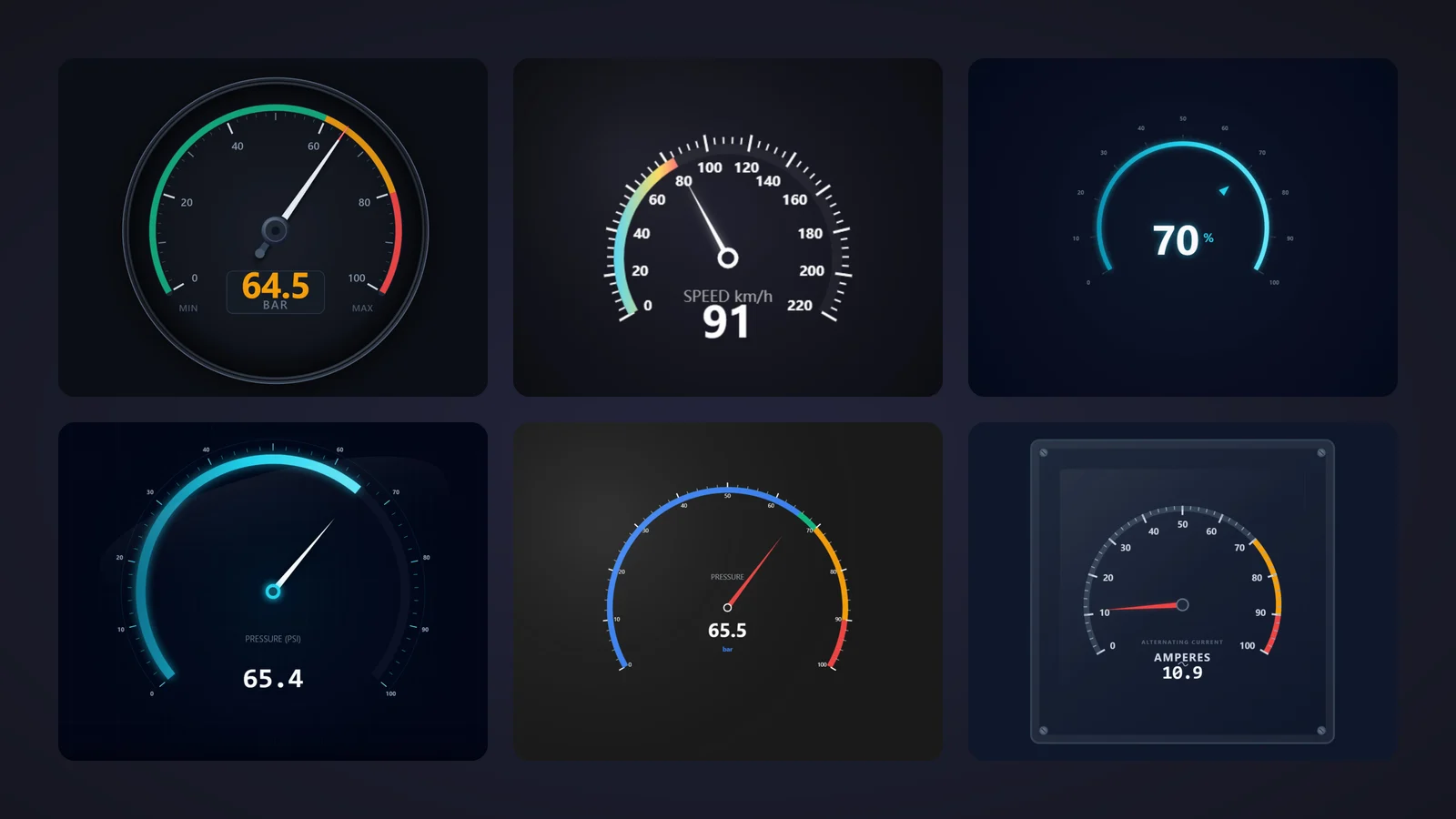
Quick picks
Short on time? Jump straight to the gauge you need.
Why a gauge Custom Web Control is worth it
A gauge is the oldest trick in the instrumentation book, and it still works. An operator sees where a needle sits inside a green, amber or red band long before reading the number, which is exactly why pressure, speed, current and temperature keep ending up on a dial in WinCC Unified screens.
A gauge Custom Web Control (CWC) takes that idea further than a static drawing. It is a small web application, HTML, CSS and JavaScript packaged as a ZIP, that WinCC Unified (TIA Portal) and WinCC V8 run inside the screen. It exposes an interface of properties such as minValue, maxValue or warnThreshold that you bind to HMI tags, and unlike a dynamic SVG it can draw the live number, animate a needle and fire events such as a limit being exceeded.
What makes a gauge Custom Web Control worth downloading
Before the list, the yardstick. This is what we looked for, roughly in order of how much it annoys us when it is missing:
- A readable value. A needle is great for trends, but the operator still wants the number. The best gauges pair the dial with a clear digital readout and its unit.
- Zones and limits you can configure. Warning and alarm thresholds, setpoint markers or coloured zones turn a pretty dial into an instrument that tells the operator when to worry.
- A documented interface. Properties named on the product sheet, so you know what you will bind before you open TIA Portal. Sheets that only say "nine properties" did not make the top six.
- Calm looks. Dark, flat backgrounds, legible scales and colours you can tone down for high-performance screens in the ISA-101 spirit.
- Variety. Instead of six copies of the same dial, we picked one champion per job: all-rounder, highly configurable, speed, multi-zone process values, pressure with setpoint and a minimal gauge for small panels.
How we picked them (and what we did not do)
We searched the HMIx catalogue for every free gauge, meter and dial published as a Custom Web Control in October 2026. For each one we looked at its real preview (not the catalogue cover with the big title on top) and read its product sheet to see which properties, events and methods it documents. Downloads and reviews only worked as tie-breakers, because a gauge published last month has not had time to collect either.
Gauges whose sheets do not name their properties went to the honourable mentions, even popular ones, because we refuse to tell you to bind properties we cannot name. One more thing: the Gauge with the minimal arc is published on a tall, mostly empty canvas, so we cropped the empty background for this page without touching the drawing. And a fair warning: we judged previews and documentation; we did not run these controls in a live Runtime. They were generated with AI and every product page reminds you to test them in your own TIA Portal project before production.
The 6 best gauge Custom Web Controls, one by one
Each entry shows the real preview, what we liked, what to keep in mind and the properties named on its product sheet, followed by the catalogue thumbnail: click it to open the product page and download the gauge for free.
01Best overall
Circular Analog Gauge
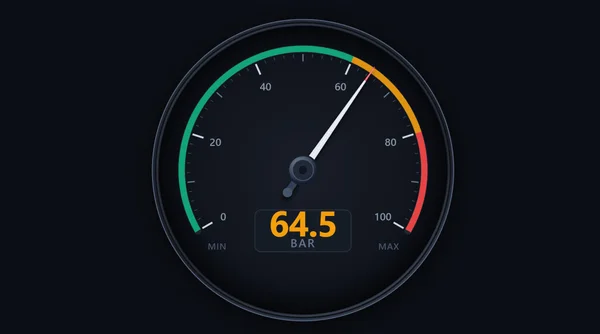
If we could only keep one, it would be this one. A round instrument with a dark bezel, a 240-degree scale from 0 to 100 painted green, amber and red, a metal needle with a proper hub and, below it, a tabular digital readout showing 64.5 in amber over the unit "BAR", flanked by MIN and MAX. It looks like a real panel instrument, not like a web chart.
What sells it is that the interface reads like an instrument datasheet: value for the process value, minValue and maxValue for the range, warnThreshold and alarmThreshold for the limits, and safeZoneColor, warnZoneColor, alarmZoneColor and backgroundColor to match your palette, dark or light. A ThresholdExceeded event fires when the value crosses a boundary, and setValue and resetLimits are there if you want to drive it from scripts.
It is also the newest gauge on the list, published in September 2026, so its download count is still modest. Don't let that fool you.
What we like
- Analog needle and digital readout in one instrument
- Warning and alarm thresholds with an event
- Zone colours you can adapt to a grey, ISA-101 style palette
Keep in mind
- The round bezel needs a square area: it wastes space in wide, short slots
- Its sheet mentions a customisable unit string without naming the property: find it in the Interface list in TIA Portal
Bindable properties
- value
- minValue
- maxValue
- warnThreshold
- alarmThreshold
- safeZoneColor
- warnZoneColor
- alarmZoneColor
- backgroundColor
02Most configurable gauge
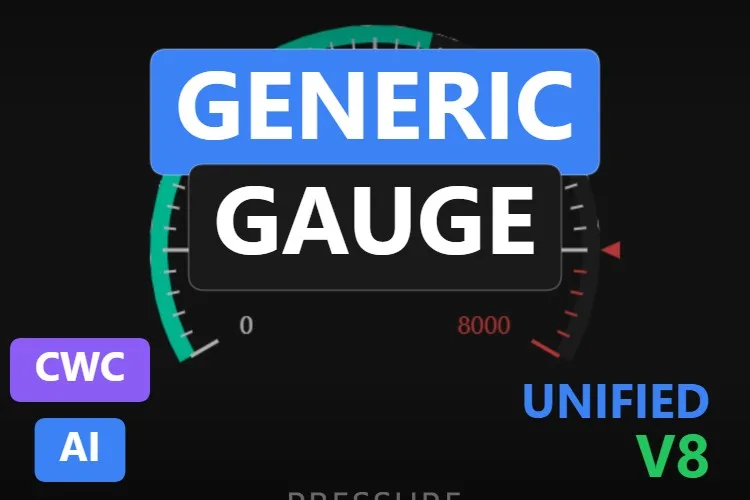
Generic Gauge
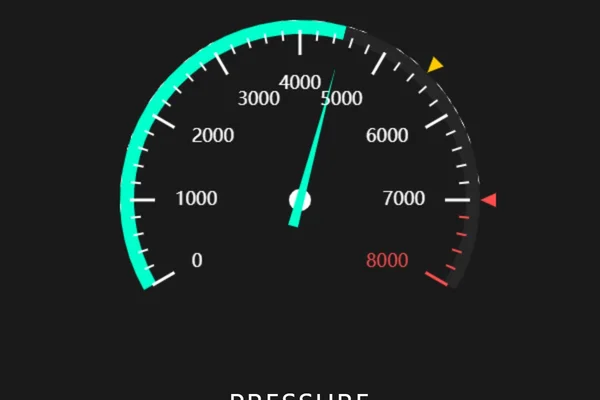
If you like to tune every tick, this is your gauge. A bold cyan arc grows along a scale from 0 to 8000 with large, readable numbers, the top of the range turns red, and two small triangles, one yellow and one red, mark the setpoint and the limit. It feels like the tachometer of a well-designed machine.
It has 40 properties and almost all of them are named on its sheet. minScale and maxScale set the range, minAngle and maxAngle the sweep, setpointValue and limitValue place the markers, and setpointVisible and limitVisible switch them on or off. tickWidth and tickLength let you go from a delicate instrument to a chunky one, it can turn clockwise or counter-clockwise, and a LimitExceeded event can start an HMI script when the value goes too far.
What we like
- Setpoint and limit markers you can show or hide
- Very readable large scale numbers
- Typography, ticks and layout fully adjustable
Keep in mind
- In the published preview the "PRESSURE" label is cut off at the bottom and no digital value shows: adjust the padding properties and check it in your project
- Forty properties take a while to set up the first time
Bindable properties
- minScale
- maxScale
- minAngle
- maxAngle
- setpointValue
- limitValue
- setpointVisible
- limitVisible
- tickWidth
- tickLength
03Best for speed and RPM
Speedometer Gauge
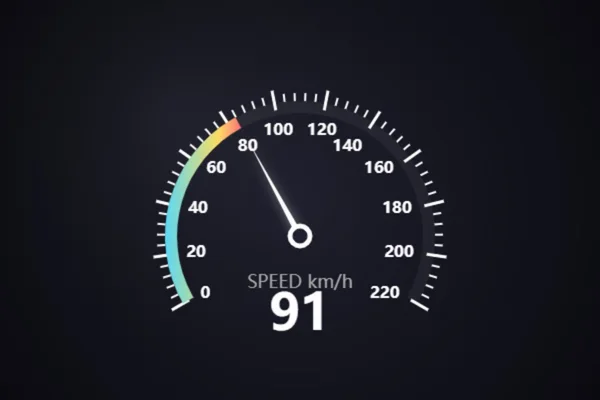
The car dashboard of the list. A dark dial with a dense scale from 0 to 220, a progress arc that fades through colours as the value rises, a white needle and a big digital readout under the label "SPEED km/h". You know what it measures before you read a single word.
Its sheet documents 23 properties. currentValue drives the needle, startAngle and endAngle shape the scale, the zones array splits it into coloured regions and unitText swaps km/h for rpm, m/min or whatever your conveyor speaks. showGlassEffect adds a radial glass overlay, and a HighLimitReached event plus setValue and resetToZero methods are there for scripting.
What we like
- Instantly recognisable as a speed or RPM indicator
- Big, legible digital value
- Configurable zones and unit text
Keep in mind
- The colourful gradient arc is loud on a grey, ISA-101 style screen
- Its sheet names the maximum (
maxValue) but no minimum property: check the full interface in TIA Portal
Bindable properties
- currentValue
- maxValue
- startAngle
- endAngle
- zones
- progressColor
- showGlassEffect
- unitText
- valueFontSize
04Best for colour-zoned process values
Gauge
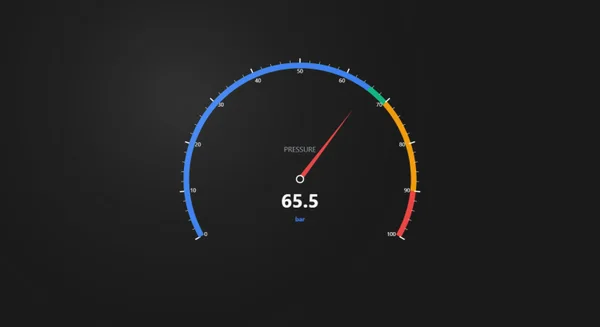
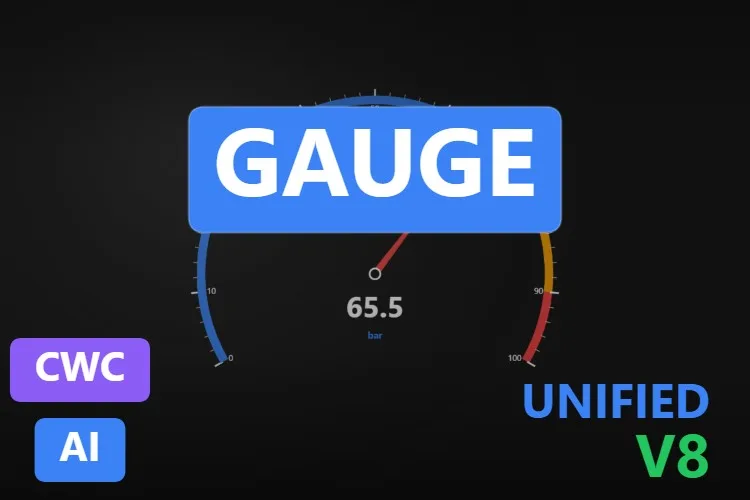
A clean, modern dial for any process value. A blue scale from 0 to 100 hands over to green, amber and red bands near the top, a slim red needle points at the value and the centre shows "PRESSURE" with a 65.5 bar readout. Sober, tidy and very much at home on a dark control-room screen.
With 36 properties, it is the one to choose when you want zones without fuss. currentValue, minValue and maxValue set the range, progressColor and pointerColor keep the value readable, and splitNumber and subdivisionCount decide how dense the scale is. Its sheet also lists ValueChanged and HighLimitReached events and setValue and resetToZero methods.
What we like
- Clear multi-colour zones out of the box
- Fine control over scale density
- Restrained look that suits dark HMI themes
Keep in mind
- The scale numbers are small in the preview: check them at your real screen size
- Its sheet describes the zones but does not name the property that defines them
Bindable properties
- currentValue
- minValue
- maxValue
- startAngle
- endAngle
- progressColor
- pointerColor
- showGlassEffect
- splitNumber
- subdivisionCount
05Best for setpoint and high-limit markers
Pressure Gauge
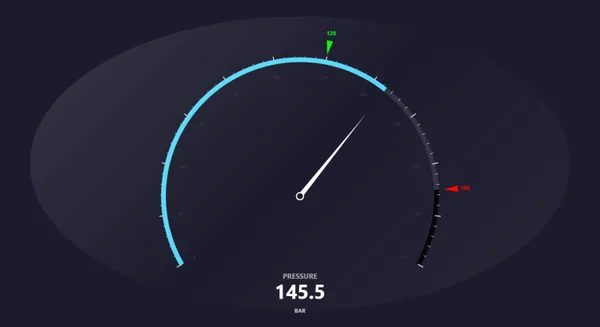
The one built for hydraulics and pneumatics. A white needle sweeps a cyan arc that sits on an elliptical glass backdrop, a green triangle marks the setpoint at 120, a red one marks the high limit and the readout at the bottom says "PRESSURE 145.5 BAR". Anyone who has watched a pressure test knows exactly what those two markers mean.
Its sheet documents 40 properties, with currentValue for the value and startAngle, endAngle and splitNumber for the scale. It is also the most event-rich gauge on the list: HighLimitReached, LimitExceeded and SetpointReached, plus a setLimit method to move the threshold at runtime. Radial offsets such as setpointPadding place each marker exactly where you want it.
What we like
- Setpoint and limit markers with their own events
setLimitchanges the threshold on the fly- Lots of layout control for crowded dashboards
Keep in mind
- The scale numbers barely show in the preview: raise their contrast before using it on a panel
- The elliptical backdrop is wider than the dial; turn off
showGlassEffector changebackgroundColorif it does not fit your style
Bindable properties
- currentValue
- startAngle
- endAngle
- splitNumber
- showGlassEffect
- pointerColor
- backgroundColor
- setpointPadding
06Best minimal gauge for small panels
Gauge
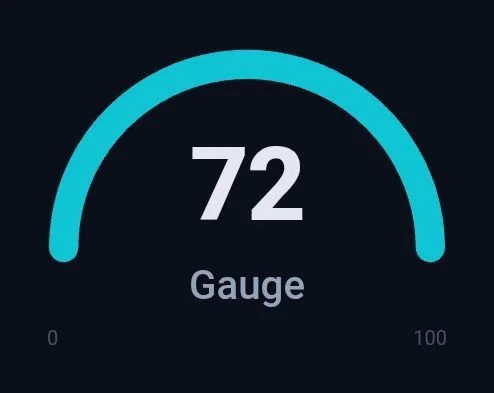
Sometimes less is more. This one is a thick cyan semicircle with a big "72" in the middle, the label "Gauge" underneath and the range ends, 0 and 100, at the bottom. No ticks, no glass, nothing to distract: the kind of tile that sits comfortably in a row of KPIs on a Unified Comfort Panel.
Its eight properties are easy to bind in a minute: gaugeValue, minValue and maxValue for the data, gaugeLabel and unitText for the text, zones for coloured segments, plus backgroundColor and needleColor. A ThresholdExceeded event fires when the value moves between zones, and resetValue brings it back to its baseline.
What we like
- Huge, legible value: perfect for KPI rows
- Only eight properties
- Its sheet says it is optimised for desktop and mobile HMI panels
Keep in mind
- In the preview the arc looks completely full at 72 and no needle is visible, although there is a
needleColorproperty: test how the fill behaves before you rely on it - The 0 and 100 labels are faint on the dark background
Bindable properties
- gaugeValue
- minValue
- maxValue
- gaugeLabel
- unitText
- zones
- backgroundColor
- needleColor
Honourable mentions: 5 more gauges and meters worth a look
Good-looking controls that did not make the top six, mostly because their product sheets do not name the properties you would bind. Click any thumbnail to open its product page.
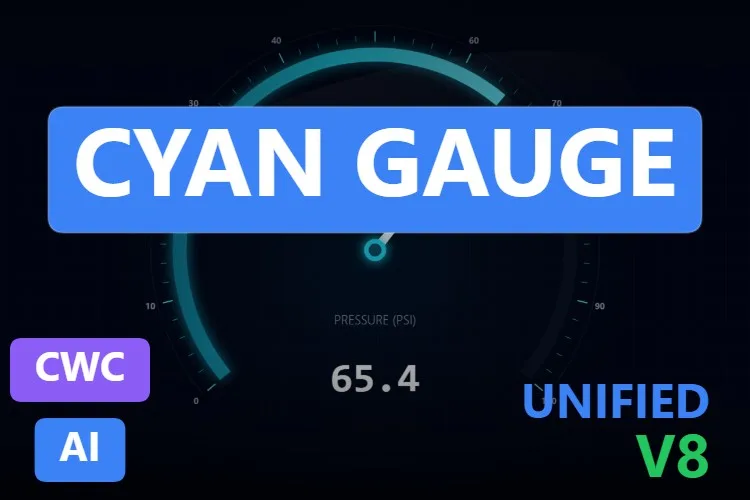
Cyan Gauge
The most downloaded gauge in the catalogue in October 2026, and well rated. Cyan gradients, a glass reflection and warning thresholds; its sheet counts nine properties, two events and two methods without naming them.
View product
Gradient Gauge
A glowing cyan arc around a big percentage readout (70 % in the preview), with configurable gradients and colour thresholds according to its sheet. Very pretty; the sheet is brief.
View product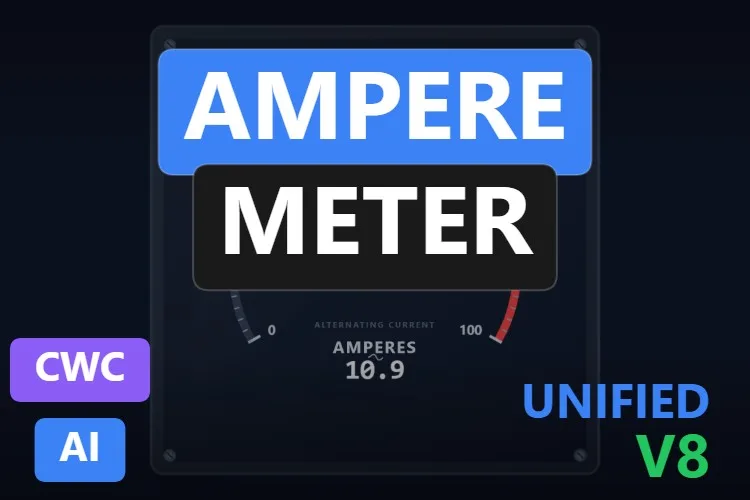
Ampere Meter
A panel-mounted analog ammeter with screws in the corners, amber and red zones and a digital readout in amperes. Ten properties according to its sheet.
View product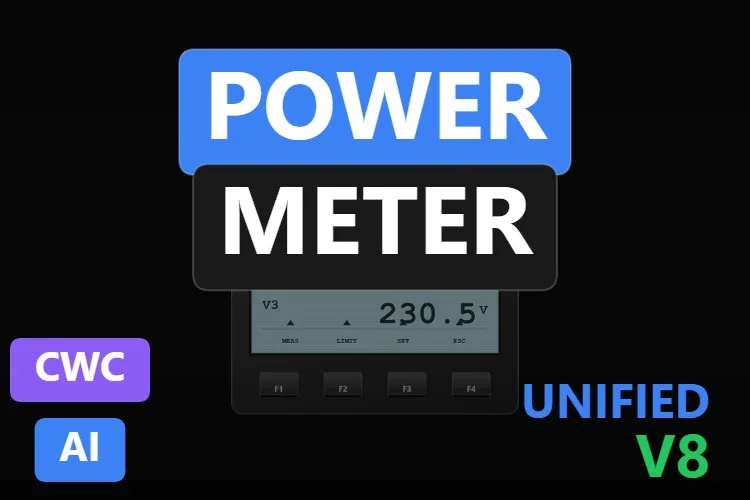
Power Meter
Not a dial but a digital three-phase meter faceplate with soft keys. Its sheet says it is inspired by the SENTRON PAC3200 and that the brand and model text can be changed; 20 properties.
View product
Industrial Flowmeter
A round transmitter head with an LCD showing flow, temperature and pressure plus status indicators. Sixteen properties according to its sheet.
View product
Didn't find your gauge? Make your own (or remix one) with AI, for free
A confession: every gauge in this article was created with the HMIx AI generator. That is why we can say this without blushing: if none of them is exactly what your process needs, you can generate your own in minutes.
Describe the instrument in plain words (for example, "270-degree pressure gauge from 0 to 16 bar, grey ISA-101 palette, high-limit marker and a digital value with one decimal") and the generator walks you through it step by step: the design, the properties, events and methods you will use in WinCC, a simulation to try values and the final Custom Web Control package for WinCC Unified and WinCC V8. The same tool also builds dynamic SVGs when a lightweight drawing is all you need.
- Remix any gauge on this list: on its product page, the "Edit in AI Generator" button opens it straight in the generator, ready for you to ask for changes such as "remove the glass effect", "show the value with two decimals" or "add a low-limit marker". The "Edit it with AI" links in this article do the same.
- Free to try: you can start without an account, with a small daily allowance of credits, and the Community plan is free.
- The result is yours to use: download the package and add it to your TIA Portal project like any other gauge on this page.
How to use a gauge Custom Web Control in WinCC Unified (and WinCC V8)
The short version, for when you have already picked your gauge. Our Custom Web Control guide covers every step with diagrams and screenshots.
Download the ZIP
Open the product page, sign in with your free account and download the gauge. The downloaded ZIP contains the documentation and, inside it, the control package named
{GUID}.zip: that inner file is the one you need.Copy it into your TIA Portal project
Copy the
{GUID}.zipfile, still compressed, into your project folder underUserFiles\CustomControls(create both folders if they do not exist). Do not extract it.Refresh My controls and drag it in
In TIA Portal, open the Tools task card, expand My controls and click Update. The gauge appears in the list: drag it onto your screen and give it a sensible size.
Bind and test the properties
Select the control and open Inspector window → Properties → Properties → Interface. Bind the value property (
value,currentValue,gaugeValue… each gauge names it its own way) to an internal tag, add an I/O field for that tag and start Runtime: type a few values and watch the needle. Only then switch to the real PLC tag.On WinCC V8
Every top pick in this article is tagged as compatible with WinCC V8 on its product page. The package is the same; follow the WinCC V8 documentation for importing and configuring Custom Web Controls in that environment.
Pro tip: a gauge only displays data, so leave Read only enabled when you bind the value. Uncheck it only for a property the control itself must write back to a tag, as the product sheets remind you. And set the range properties to the real span of the instrument: a 0–100 default on a 0–16 bar transmitter puts the needle in the wrong place.
Read the complete Custom Web Control guideFrequently asked questions
Are these gauge Custom Web Controls really free?
Yes. Every gauge in this article is published as a free product on HMIx. You only need a free account to download them.
Do they work on WinCC Unified Comfort Panels and on WinCC V8?
Their product pages list compatibility with WinCC Unified, including Unified Comfort Panels, and with WinCC V8. As with any AI-generated control, test the behaviour in your own project and on your target device before going into production.
Why use a gauge Custom Web Control instead of a dynamic SVG?
A dynamic SVG is a lightweight drawing whose properties you bind to tags, but it cannot change its text at runtime, so it cannot show a live number next to the needle. A Custom Web Control is a small web application: it can draw the value, animate the needle, react to thresholds and fire events to your HMI scripts. For a gauge with a readable value and limits, the CWC is the natural choice.
Where do I copy the ZIP in my TIA Portal project?
Copy the inner {GUID}.zip file, without extracting it, into UserFiles\CustomControls of your project folder. Then click Update in My controls, in the Tools task card, and drag the control onto your screen.
Can I change the colours and zones to follow a high-performance HMI palette?
Yes. All six top picks expose colour properties, and most of them have zones or thresholds. Set grey backgrounds and keep strong colours for the warning and alarm ranges only, so colour means something to the operator.
Can I modify one of these gauges?
Of course. You can edit the HTML, CSS and JavaScript of the control yourself, or press "Edit in AI Generator" on the product page and ask for the changes in plain language. The second option is usually faster, because the generator takes care of the interface and the packaging.
Our verdict
If you only download one, make it the Circular Analog Gauge: needle, digital value and alarm thresholds in a single, honest-looking instrument. For speed or RPM, the Speedometer Gauge; for pressure tests with a setpoint, the Pressure Gauge; if you love to tune every tick, the Generic Gauge; for zoned process values, the Gauge with the blue scale; and for compact KPI rows, the minimal Gauge.
And if your instrument is stranger than all of these (they always are), remember that the generator that built them is just one click away.