Blog · Custom Web Controls
The 6 best trend chart Custom Web Controls for WinCC Unified and WinCC V8 (free)
We opened every trend and line chart Custom Web Control in the HMIx catalogue in October 2026, a dozen candidates, looked at each preview up close, read every product sheet and kept the six we would happily drop into a WinCC Unified or WinCC V8 screen. All free, all packaged as a CWC ZIP, and all with properties named on their sheets so you know what you will bind.
- Custom Web Control
- CWC
- WinCC Unified
- WinCC V8
- TIA Portal
- Trend chart
- HMI dashboard
- SCADA widgets
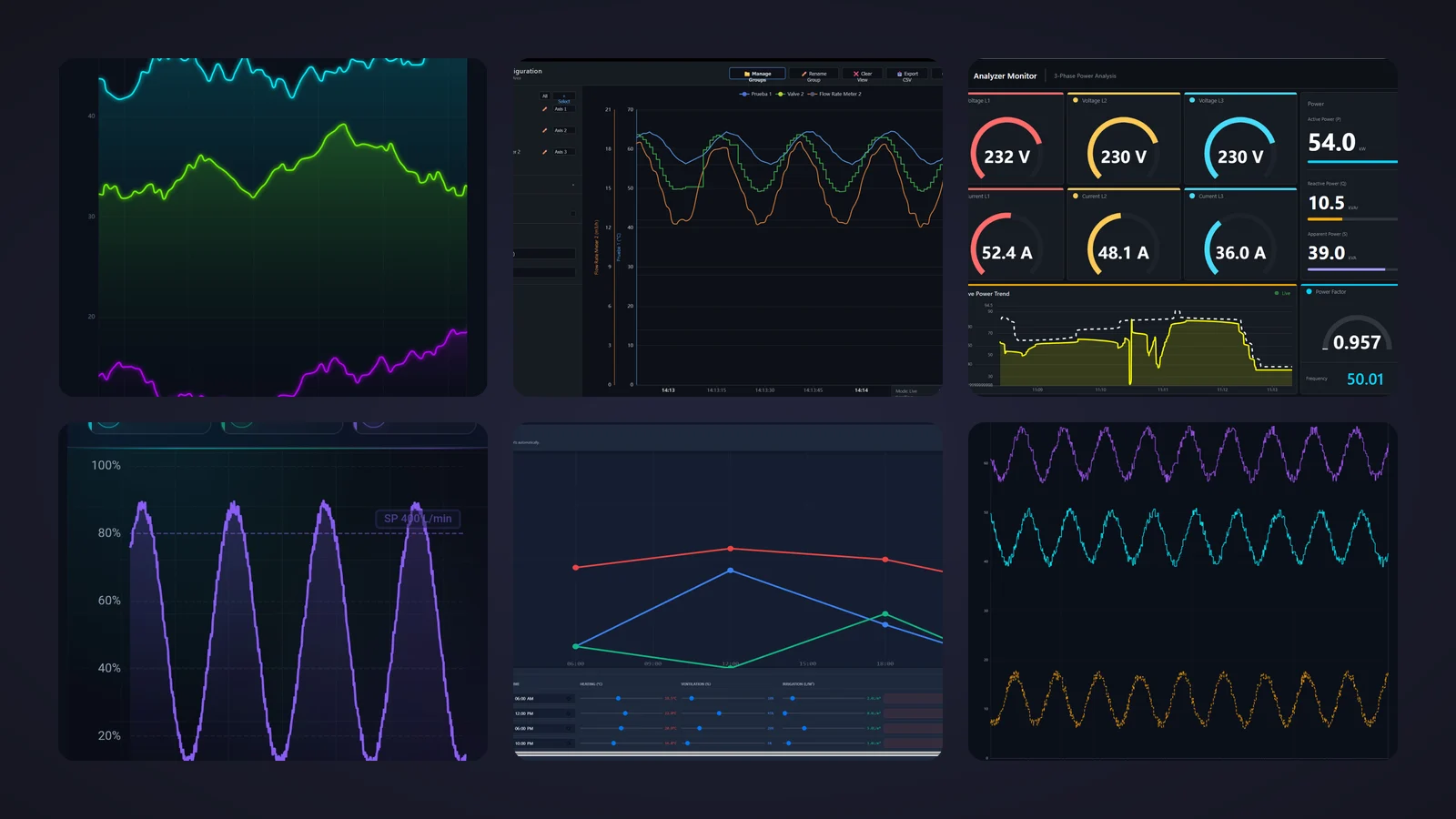
Quick picks
Short on time? Jump straight to the trend chart you need.
- 01Best overallTrend Chart
- 02Best multi-axis trend for control roomsReal-Time Trend Chart
- 03Best for comparing two signalsTrend Chart
- 04Best for energy dashboards (most downloaded)Power Monitor Dashboard
- 05Best sparkline tile for overview screensKPI Sparkline Tile
- 06Best for editing setpoint curvesCurve Scheduler
Why a trend chart Custom Web Control is worth it
A number tells the operator where the process is. A trend tells them where it is going. Is the oven still heating or has it levelled off? Did the pressure dip before or after the valve moved? That is why trend charts end up on almost every WinCC Unified screen, from a single tank page to the control-room wall.
WinCC Unified already ships a trend control for logged and live tags, and for many screens it is all you need. A trend chart Custom Web Control (CWC) earns its place when you want something the standard object does not give you as is: three independent axes with a signal sidebar, a sparkline inside a KPI tile, a trend embedded in an energy dashboard or curves the operator can drag. A CWC is a small web application, HTML, CSS and JavaScript packaged as a ZIP, that WinCC Unified (TIA Portal) and WinCC V8 run inside the screen. It exposes properties such as timeRangeSeconds or yAxisMax that you bind to HMI tags, and it can fire events, such as LimitExceeded, to your HMI scripts.
What makes a trend chart Custom Web Control worth downloading
Before the list, the yardstick. This is what we looked for, roughly in order of how much it annoys us when it is missing:
- A time axis you can trust. Real timestamps, a rolling window you can set and a scale that does not jump around with every new sample.
- Scaling under control. Automatic scaling for commissioning, fixed
yAxisMinandyAxisMaxfor production, and separate axes when you mix bar, °C and m³/h. - Limits and events. Limit overlays and an event when a value crosses them turn a pretty line into something the operator can act on.
- A documented interface. Properties named on the product sheet, so you know what you will bind before you open TIA Portal. Sheets that only count their properties went to the honourable mentions.
- The right trend for the job. A full analysis viewer, a two-signal comparison, a tile for overviews, a dashboard and a setpoint editor: we picked one champion per job.
How we picked them (and what we did not do)
We searched the HMIx catalogue in October 2026 for every free Custom Web Control built around a line over time: trend viewers, multi-trend charts, sparkline tiles, dashboards with a trend panel and setpoint curve editors. Bar charts already have their own article. For each candidate we looked at its real preview (not the catalogue cover with the big title on top) and read its product sheet to see which properties, events and methods it documents. Downloads only worked as tie-breakers.
Controls whose sheets do not name their properties, or whose previews show visible glitches, went to the honourable mentions, even good-looking ones. Two were discarded: one gallery preview is a blank white image, and in the other the sparkline the control is named after does not appear. And a fair warning: we judged previews and documentation; we did not run these controls in a live Runtime. They were generated with AI and every product page reminds you to test them in your own TIA Portal project before production.
The 6 best trend chart Custom Web Controls, one by one
Each entry shows the real preview, what we liked, what to keep in mind and the properties named on its product sheet, followed by the catalogue thumbnail: click it to open the product page and download the trend chart for free.
01Best overall
Trend Chart
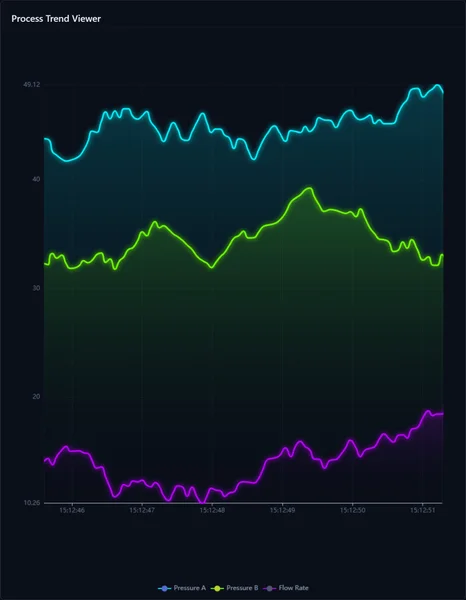
If we could only keep one, it would be this one. "Process Trend Viewer" sits on top of a dark card, and three glowing lines, Pressure A in cyan, Pressure B in green and Flow Rate in purple, run over softly shaded areas against a time axis with real timestamps. A legend at the bottom names each signal. It looks modern without shouting, and it is the most downloaded pure trend chart in the catalogue in October 2026.
According to its sheet it runs on the ECharts engine, and its interface is short and to the point: the lines array carries the series with their colours and data, timeRangeSeconds sets the sliding window, autoScaleY or the fixed yAxisMin and yAxisMax decide the scale, and showLimits draws a setpoint overlay. chartTitle, showGrid and backgroundColor do the rest. Two events make it useful beyond looking at it: LimitExceeded fires when a value crosses its threshold and PointClicked reports the point the operator tapped.
What we like
- Several signals in one chart with a clean, legible style
- Limit overlay plus a
LimitExceededevent for your scripts - Short interface that is quick to bind
Keep in mind
- In the preview the scale is auto-fitted to odd ends (10.26 to 49.12): fix
yAxisMinandyAxisMaxfor production - All series share one axis, so mix only signals with similar ranges
Bindable properties
- lines
- autoScaleY
- yAxisMin
- yAxisMax
- showLimits
- timeRangeSeconds
- chartTitle
- showGrid
- backgroundColor
02Best multi-axis trend for control rooms
Real-Time Trend Chart
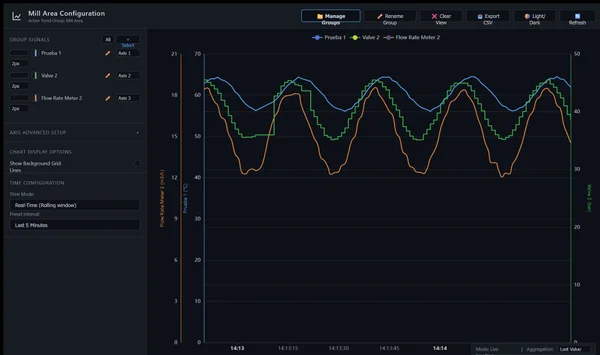
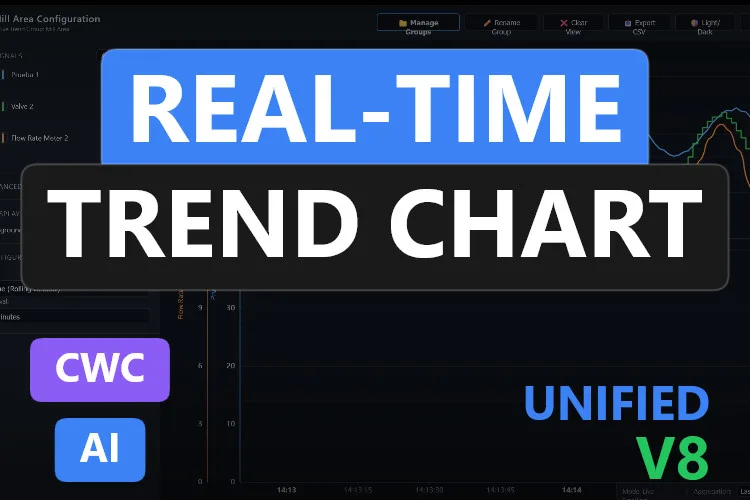
The closest thing to a full trend viewer in this list. "Mill Area Configuration" heads a toolbar with Manage Groups, Rename Group, Clear View, Export CSV, Light/Dark and Refresh. On the left, a sidebar lists the group signals, each assigned to Axis 1, 2 or 3 with its line width, plus chart display options and the time configuration: Real-Time (Rolling window) over the last 5 minutes. On the right, three signals in °C, bar and m³/h share the chart on three independent axes, one of them drawn as a step line.
Its sheet counts 21 bindable properties. axis1, axis2 and axis3 configure the axes, maxPointsPerLine caps the internal buffer, timeRangeSeconds sets the rolling window, and autoScaleY or yAxisMin and yAxisMax handle scaling. showLimits, showGrid, backgroundColor and chartBackgroundColor finish the look. LimitExceeded fires when a signal crosses its threshold, and the exportToCSV method saves the data for analysis.
What we like
- Three independent axes for signals with different units
- Signal groups, a rolling window and CSV export
- Dark and light themes from the toolbar
Keep in mind
- Busy: give it a large screen. In the preview some button labels wrap and "+ Select" spills out of its button
- One signal in the preview is called "Prueba 1" (Spanish for "Test 1"): rename your signals before the client sees it
Bindable properties
- axis1
- axis2
- axis3
- maxPointsPerLine
- autoScaleY
- yAxisMin
- yAxisMax
- timeRangeSeconds
- showLimits
- showGrid
- backgroundColor
- chartBackgroundColor
03Best for comparing two signals
Trend Chart
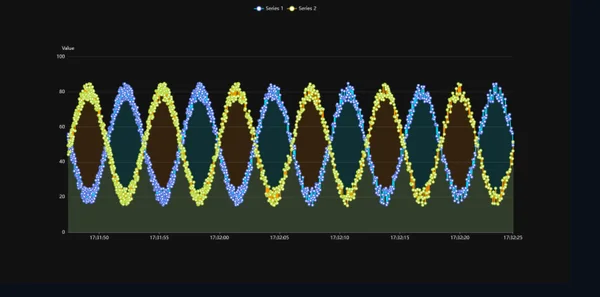
Sometimes the question is simply "does B follow A?". This dual-series trend answers it: Series 1 in blue and Series 2 in yellow oscillate out of phase on a 0 to 100 "Value" axis, with timestamps along the bottom and filled areas that make the crossing points obvious.
Its sheet lists 13 properties and names twelve of them. curveData1 and curveData2 carry the two data streams, labelCurve1, labelCurve2, colorCurve1 and colorCurve2 name and colour them, and lineThickness, showGrid and backgroundColor set the look. Scaling is either automatic with autoScale or fixed with yAxisMin and yAxisMax. The PointSelected event fires when a point is clicked, and two handy methods round it off: clearChart for a fresh cycle and exportAsImage to save the current view as a PNG.
What we like
- Made for setpoint versus actual or inlet versus outlet
- Export to PNG built in
- Names and colours of both curves are bindable
Keep in mind
- The preview draws a marker on every sample, which turns dense data into beads: check how it looks with your sample rate
- The overlapping fills mix into brown and teal; the labels still read "Series 1" and "Series 2" until you set them
Bindable properties
- curveData1
- curveData2
- labelCurve1
- labelCurve2
- colorCurve1
- colorCurve2
- lineThickness
- autoScale
- yAxisMin
- yAxisMax
- showGrid
- backgroundColor
04Best for energy dashboards (most downloaded)
Power Monitor Dashboard
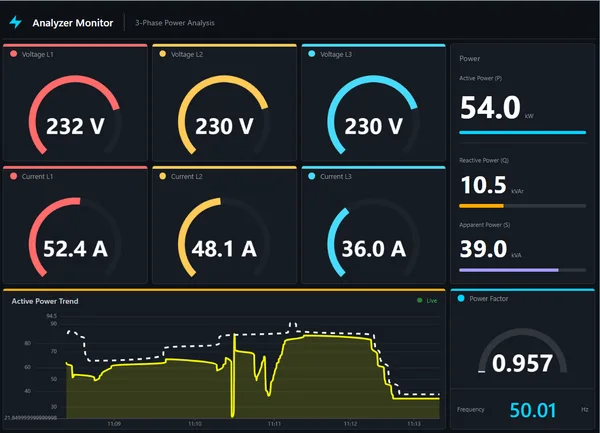
Not a trend chart on its own, but the trend is what makes this dashboard. Under "Analyzer Monitor, 3-Phase Power Analysis", six arc gauges show voltage and current on L1, L2 and L3, a column on the right holds active, reactive and apparent power with their bars, a power factor gauge reads 0.957 and the frequency 50.01 Hz. Along the bottom, an "Active Power Trend" with a "Live" badge draws the yellow power line against a dashed white limit line.
It is the most downloaded control in this article, with 42 downloads and three five-star reviews in October 2026. Its sheet counts 34 properties and names a handful: voltageMax and currentMax for the gauge scales, text labels such as labelVoltage and labelTrend, and backgroundColor. It describes the trend's configurable time range, auto-scaling Y axis and limit lines, two events, PowerLimitExceeded and PhaseImbalanceDetected, and a resetTrend method.
What we like
- A complete three-phase overview with the trend built in
- Events for power limit and phase imbalance
- The crowd favourite, so the most tried by other users
Keep in mind
- The preview prints the bottom of the trend axis as 21.849999999999998
- Its sheet names only a few of its 34 properties, and the demo values in the preview are placeholders (apparent power is shown lower than active power): check the Interface list in TIA Portal before binding
Bindable properties
- voltageMax
- currentMax
- labelVoltage
- labelTrend
- backgroundColor
05Best sparkline tile for overview screens
KPI Sparkline Tile
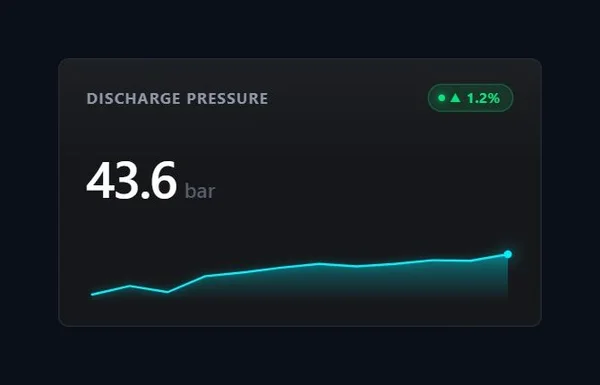
A trend does not have to be big to be useful. This tile reads "DISCHARGE PRESSURE", shows 43.6 bar in large type, a green badge with an up arrow and 1.2 %, and a cyan sparkline underneath that ends in a bright dot on the latest value. Ten of these on an overview screen and the operator sees which values are drifting before reading any of them.
Its sheet counts 8 bindable properties. trendData feeds the sparkline, deltaValue drives the coloured badge, title and unit label it, and sparklineColor and backgroundColor set the palette. highThreshold is the clever one: above it, the tile switches to an alarm state with a pulsing red border. KPITileClicked opens the door to a detail screen, triggerAlarmManual lets you test the alarm look and resetTrend clears the history.
What we like
- Value, change and recent history in a small tile
- Alarm state with a pulsing border above
highThreshold - Click event for drill-down navigation
Keep in mind
- The published preview is a small tile in a large empty canvas (we cropped it for this article)
- The pulsing alarm border is not shown in the preview, so test it with
triggerAlarmManual
Bindable properties
- trendData
- deltaValue
- highThreshold
- title
- unit
- sparklineColor
- backgroundColor
06Best for editing setpoint curves
Curve Scheduler
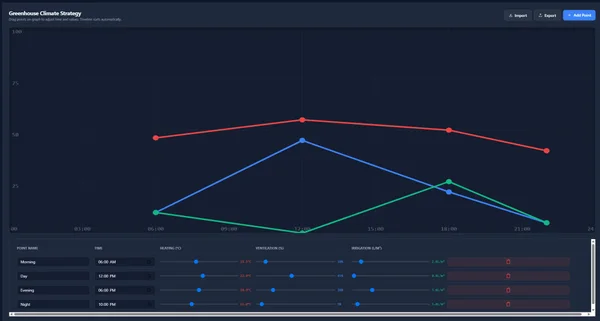
The odd one out, and a welcome one: a trend you write instead of read. "Greenhouse Climate Strategy" draws three setpoint curves, red, blue and green, across a 24-hour axis, and a hint says it all: "Drag points on graph to adjust time and values. Timeline sorts automatically." Below, a table lists the points (Morning, Day, Evening and Night at 06:00, 12:00, 18:00 and 22:00) with sliders for heating in °C, ventilation in % and irrigation in L/m², plus Import, Export and Add Point buttons.
Its sheet names the colours and units of each variable (heatingColor, ventilationColor, irrigationColor, heatingUnit, ventilationUnit, irrigationUnit), the scale limits heatingMax and irrigationMax, labels such as nameColumnLabel and importBtnLabel, and backgroundColor. The important one is scheduleData: when the operator edits a curve, OnDataChanged fires and the updated JSON goes back to the tag, so this is one of the properties where you must untick Read only. SetStrategyData, AddPoint and ClearAllPoints are there for scripts.
What we like
- Operators edit the profile on the chart or in the table
- Writes the schedule back as JSON with an event
- Fits drying, batch heating and greenhouse cycles
Keep in mind
- The three variables share one 0 to 100 axis, so read exact values in the table
- The first and last time labels are clipped at the edges of the preview
Bindable properties
- scheduleData
- heatingColor
- ventilationColor
- irrigationColor
- heatingUnit
- ventilationUnit
- irrigationUnit
- heatingMax
- irrigationMax
- nameColumnLabel
- importBtnLabel
- backgroundColor
Honourable mentions: 4 more trend charts worth a look
Good controls that did not make the top six, because a sibling did, their product sheets do not name their properties or their previews show a glitch worth checking first. Click any thumbnail to open its product page.
Process Trend Monitor
A sibling of the Real-Time Trend Chart with a collapsible sidebar, CSV export,
View productPointAddedandExportTriggeredevents and support for file-based historical data inlines. In the preview the lines run off the plot area and an axis label is cut to "38.684...".
Trend Viewer with Crosshair
A tall viewer with a live clock, three value chips (86.8 °C, 5.58 bar, 73 L/min) and a purple trend with a dashed setpoint line. Its sheet describes crosshair inspection and zoom controls but does not name its 10 properties.
View product
Neon line chart
Three neon traces, purple, cyan and a dashed orange, on a 0 to 70 axis with live timestamps. Its sheet mentions data buffering, configurable time ranges and limit monitoring, and counts 9 properties, 1 event and 2 methods without naming them.
View product
KPI Card with line chart
A value over a background trend with
View productmaxPoints,decimalPlacesand a switch fromthemeColortoalertColorwhenThresholdExceededfires. In the preview the label overlaps the line and the trend only fills part of the card.
Didn't find your trend chart? Make your own (or remix one) with AI, for free
A confession: every trend chart in this article was created with the HMIx AI generator. That is why we can say this without blushing: if none of them shows your process the way you need, you can generate your own in minutes.
Describe the chart in plain words (for example, "trend of two oven temperatures over the last 30 minutes, grey ISA-101 palette, a dashed high limit line and an event when either crosses it") and the generator walks you through it step by step: the design, the properties, events and methods you will use in WinCC, a simulation to try values and the final Custom Web Control package for WinCC Unified and WinCC V8. The same tool also builds dynamic SVGs when a lightweight drawing is all you need.
- Remix any chart on this list: on its product page, the "Edit in AI Generator" button opens it straight in the generator, ready for you to ask for changes such as "use a grey palette", "remove the markers on each point" or "add a second Y axis". The "Edit it with AI" links in this article do the same.
- Free to try: you can start without an account, with a small daily allowance of credits, and the Community plan is free.
- The result is yours to use: download the package and add it to your TIA Portal project like any other chart on this page.
How to use a trend chart Custom Web Control in WinCC Unified (and WinCC V8)
The short version, for when you have already picked your chart. Our Custom Web Control guide covers every step with diagrams and screenshots.
Download the ZIP
Open the product page, sign in with your free account and download the chart. The downloaded ZIP contains the documentation and, inside it, the control package named
{GUID}.zip: that inner file is the one you need.Copy it into your TIA Portal project
Copy the
{GUID}.zipfile, still compressed, into your project folder underUserFiles\CustomControls(create both folders if they do not exist). Do not extract it.Refresh My controls and drag it in
In TIA Portal, open the Tools task card, expand My controls and click Update. The chart appears in the list: drag it onto your screen and give it enough room for its axes and legend.
Bind and test the properties
Select the control and open Inspector window → Properties → Properties → Interface. Most of these charts take their series as an array or JSON string (
lines,curveData1,trendData…), so start with an internal tag, add an I/O field or a small test script that writes a few values and start Runtime. Once the lines move as expected, switch to the real PLC tags.On WinCC V8
Every top pick in this article is tagged as compatible with WinCC V8 on its product page. The package is the same; follow the WinCC V8 documentation for importing and configuring Custom Web Controls in that environment.
Pro tip: these charts keep their own history in a buffer (timeRangeSeconds, maxPointsPerLine, maxPoints…), so they show what happened since the screen opened, not what your archive holds. If the operator needs past shifts, fill the data from your logging in a script, or use them for live views next to the standard trend control. And fix the scale to the real range of your process: an axis that rescales with every sample makes slow drifts invisible.
Frequently asked questions
Are these trend chart Custom Web Controls really free?
Yes. Every trend chart in this article is published as a free product on HMIx. You only need a free account to download them.
Does WinCC Unified have a trend chart out of the box?
Yes, WinCC Unified includes a trend control for live and logged tags, and for many screens it is enough. A trend chart Custom Web Control is useful when you want a different look or extra behaviour, such as three independent axes with a signal sidebar, a sparkline inside a KPI tile, a trend inside an energy dashboard or curves the operator can drag.
Do they work on WinCC Unified Comfort Panels and on WinCC V8?
Their product pages list compatibility with WinCC Unified, including Unified Comfort Panels, and with WinCC V8. As with any AI-generated control, test the behaviour in your own project and on your target device before going into production, especially the update rate and the number of points you keep.
Do these trend charts read my historical logs?
Not by themselves. They build their own rolling history from the values you send them while the screen is open, up to the limit set by properties such as timeRangeSeconds or maxPointsPerLine. To show past data, read it in a script and write it into the chart's data property, and check the exact format in the documentation included in the download.
Where do I copy the ZIP in my TIA Portal project?
Copy the inner {GUID}.zip file, without extracting it, into UserFiles\CustomControls of your project folder. Then click Update in My controls, in the Tools task card, and drag the control onto your screen.
Can I modify one of these trend charts?
Of course. You can edit the HTML, CSS and JavaScript of the control yourself, or press "Edit in AI Generator" on the product page and ask for the changes in plain language. The second option is usually faster, because the generator takes care of the interface and the packaging.
Our verdict
If you only download one, make it the Trend Chart (586): clean lines, limits with an event and an interface you will have bound in minutes. For a control room with mixed units, the Real-Time Trend Chart and its three axes; for setpoint against actual, the dual-series Trend Chart (681); for overview screens, the KPI Sparkline Tile; for energy, the Power Monitor Dashboard; and when the operator has to draw the profile, the Curve Scheduler.
And if your process needs a trend none of these draws (it always does), remember that the generator that built them is just one click away.