Blog · Custom Web Controls
The 11 best bar chart Custom Web Controls for WinCC Unified and WinCC V8 (free)
We opened every bar chart Custom Web Control in the HMIx catalogue in October 2026, eighteen candidates once you count the grouped, stacked and waterfall variants, looked at each preview up close, read every product sheet and kept the eleven we would happily drop into a WinCC Unified or WinCC V8 screen. All free, all packaged as a CWC ZIP, and all with properties named on their sheets so you know what you will bind.
- Custom Web Control
- CWC
- WinCC Unified
- WinCC V8
- TIA Portal
- Bar chart
- HMI dashboard
- SCADA widgets
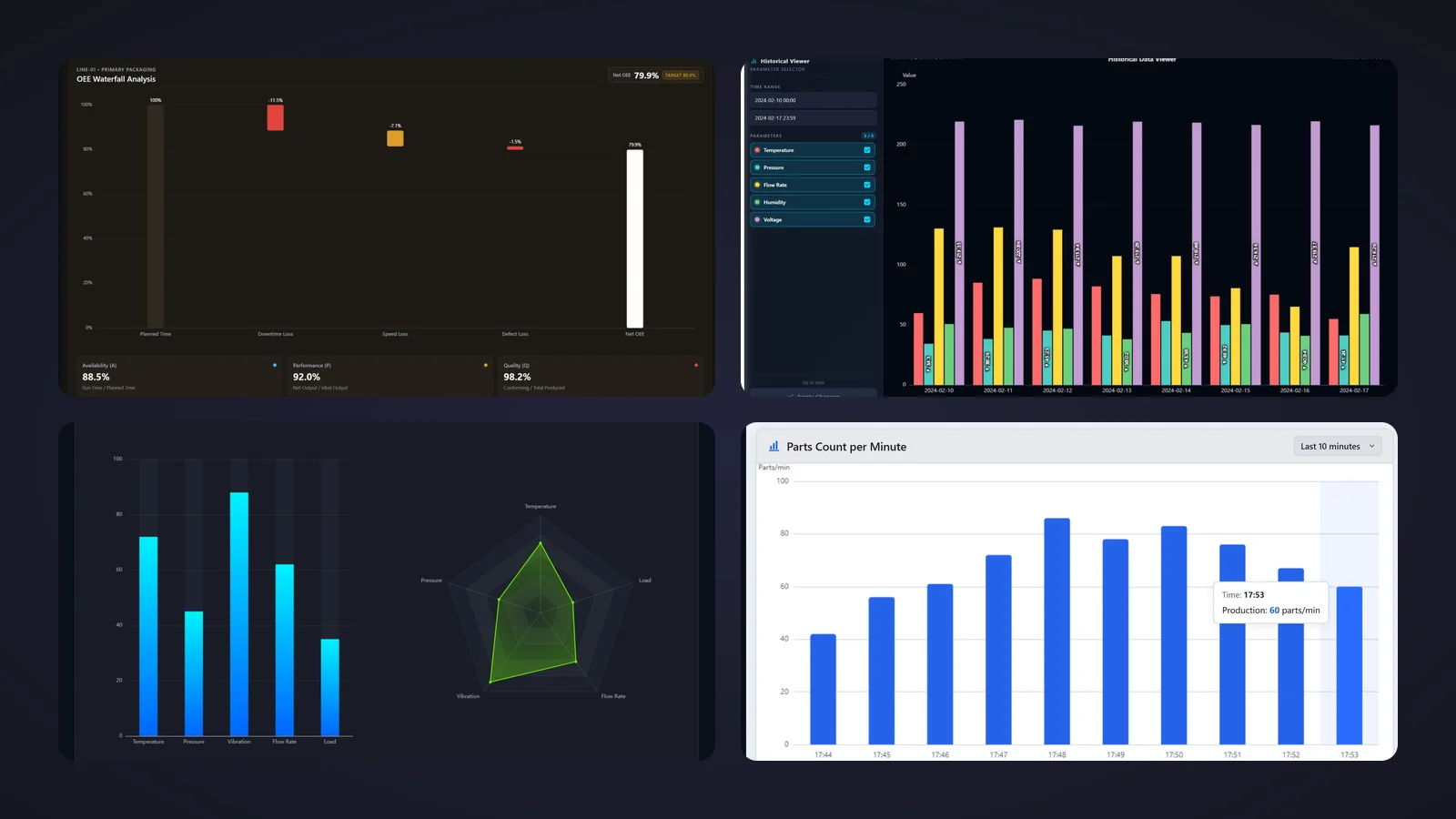
Quick picks
Short on time? Jump straight to the bar chart you need.
- 01Best overallBar Chart with Limits
- 02Best for narrow and portrait panelsAuto Adjust Bar Chart
- 03Best stacked bar chartStacked Bar Chart
- 04Best for historical comparisonsHistorical Bar Chart Viewer
- 05Best for a different target on every barBar Chart with individual targets
- 06Best bullet chart for actual vs targetBullet bar Chart
- 07Best for live production rateProduction Parts Per Minute Chart
- 08Best for defect and downtime analysisPareto Chart
- 09Best for OEE loss analysisOEE Waterfall Chart
- 10Best for multi-variable machine healthSynchronized Bar and Radar Chart
- 11Best for showroom and visitor screensFuturistic Bar Chart
Why a bar chart Custom Web Control is worth it
A bar chart is how a shift supervisor thinks. Which line produced most? Which zone is over its energy budget? Which defect keeps coming back? Put the answers side by side as bars and the operator sees the outlier before reading a single number, which is why bar charts end up on so many WinCC Unified dashboards.
The standard toolbox gives you a Bar object for a single value and trend controls for time series. Comparing many categories, stacking shifts, drawing a Pareto or an OEE waterfall is where a bar chart Custom Web Control (CWC) earns its place. It is a small web application, HTML, CSS and JavaScript packaged as a ZIP, that WinCC Unified (TIA Portal) and WinCC V8 run inside the screen. It exposes an interface of properties such as alarmThreshold or yAxisMax that you bind to HMI tags, and it can fire events, such as a bar being clicked, to your HMI scripts.
What makes a bar chart Custom Web Control worth downloading
Before the list, the yardstick. This is what we looked for, roughly in order of how much it annoys us when it is missing:
- Readable at a glance. Clear axes, sensible scales and labels you can read from a metre away. A chart that hides half of its category names is a puzzle, not a display.
- Limits and targets. Warning and alarm lines, per-bar targets or colour changes turn a pretty chart into one that tells the operator when to act.
- A documented interface. Properties named on the product sheet, so you know what you will bind before you open TIA Portal. Sheets that only count their properties went to the honourable mentions.
- The right chart for the job. Stacked bars for shares, grouped bars for history, a Pareto for defects, a waterfall for OEE losses: we picked one champion per question.
- Calm looks. Dark, flat backgrounds and colours you can tone down for high-performance screens in the ISA-101 spirit, with strong colours saved for limits.
How we picked them (and what we did not do)
We searched the HMIx catalogue for every free Custom Web Control with bars at its heart in October 2026: plain, stacked, grouped, bullet, Pareto and waterfall charts. Single progress bars, menu bars and status timelines were left out. For each candidate we looked at its real preview (not the catalogue cover with the big title on top) and read its product sheet to see which properties, events and methods it documents. Downloads only worked as tie-breakers, because a chart published last month has not had time to collect any.
Charts whose sheets do not name their properties, or whose previews show visible glitches, went to the honourable mentions, even popular ones. Two more were discarded: one preview only shows the control's icon and another is washed out with its threshold label stuck on the axis. And a fair warning: we judged previews and documentation; we did not run these controls in a live Runtime. They were generated with AI and every product page reminds you to test them in your own TIA Portal project before production.
The 11 best bar chart Custom Web Controls, one by one
Each entry shows the real preview, what we liked, what to keep in mind and the properties named on its product sheet, followed by the catalogue thumbnail: click it to open the product page and download the chart for free.
01Best overall
Bar Chart with Limits
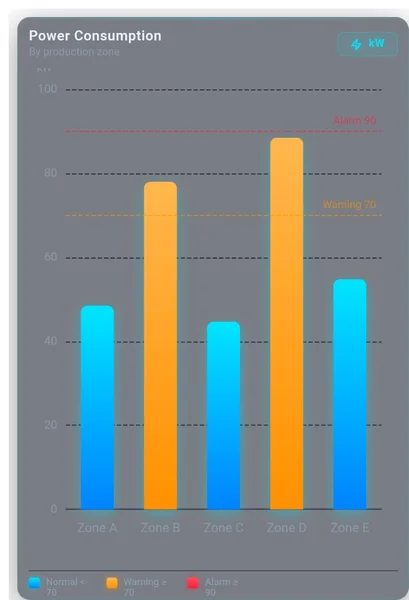
If we could only keep one, it would be this one. "Power Consumption, by production zone" sits over five bars on a 0 to 100 scale, a dashed amber line marks "Warning 70" and a dashed red one "Alarm 90". The two zones above the warning line have turned amber on their own, and a legend at the bottom spells out the rule: Normal < 70, Warning ≥ 70, Alarm ≥ 90. A small kW badge in the corner names the unit.
Its sheet documents 13 properties and names almost all of them: warningThreshold and alarmThreshold for the limits, yAxisMax for the scale, title, subtitle and unit for the text (bindable, so the label can follow the process), normalColorStart, normalColorEnd, warningColor and alarmColor for the palette, plus showGrid and backgroundColor. Tooltips, an OnBarClicked event and the refreshChart and clearData methods round it off.
What we like
- Warning and alarm limits drawn and applied to the bar colours
- Self-explaining legend for the operator
- Rich, well-named interface
Keep in mind
- The published preview looks washed out, with a grey card and faint labels, and the unit above the axis is clipped: set
backgroundColorand check it in your project - One series per chart: for several values per category, look at the stacked or historical charts
Bindable properties
- warningThreshold
- alarmThreshold
- yAxisMax
- title
- subtitle
- unit
- normalColorStart
- normalColorEnd
- warningColor
- alarmColor
- showGrid
- backgroundColor
02Best for narrow and portrait panels
Auto Adjust Bar Chart
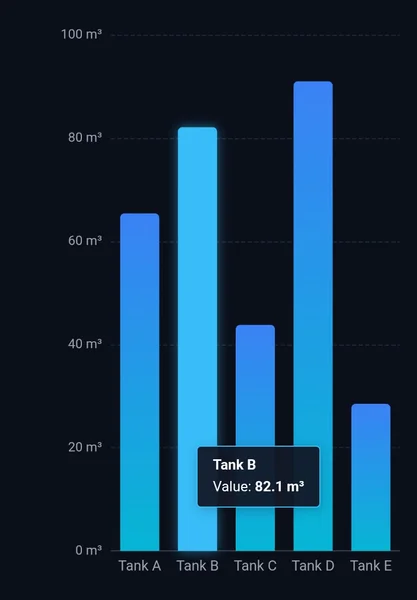
The one that fits wherever you drop it. Five gradient bars compare Tank A to Tank E on a scale from 0 to 100 m³, and in the preview Tank B is highlighted with a tooltip reading "Value: 82.1 m³". Neat, legible and with the unit on every axis tick.
Its trick, according to its sheet, is that it detects its own aspect ratio and switches between vertical and horizontal bars, so it suits a wide control-room monitor and a narrow slot on a Unified Comfort Panel alike. Six properties drive it: data, unit, barColorStart, barColorEnd, showGrid and backgroundColor. Tapping a bar shows its tooltip and fires BarClicked; clearSelection closes it from your scripts.
What we like
- Switches orientation to fit the space
- Unit shown on the axis and in the tooltip
- Only six properties
Keep in mind
- No limits or targets: it shows values, nothing more
- The preview only shows the vertical layout, so try the horizontal one in your own screen
Bindable properties
- data
- unit
- barColorStart
- barColorEnd
- showGrid
- backgroundColor
03Best stacked bar chart
Stacked Bar Chart
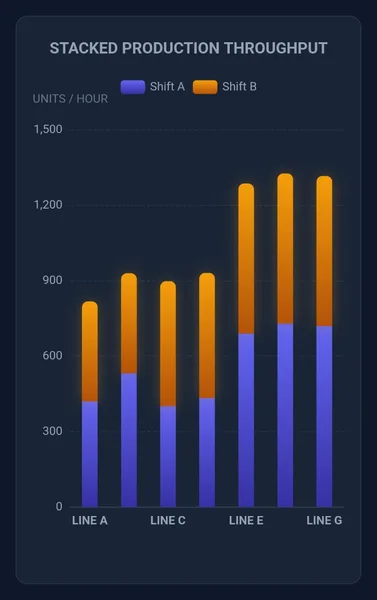
The classic shift report, done properly. "STACKED PRODUCTION THROUGHPUT" sits on top, a legend tells Shift A (indigo) from Shift B (orange), and seven production lines stack both shifts on a scale from 0 to 1,500 units per hour. You see the total and who contributed what in a single glance.
The data lives in the series array, which sets the values and colours of every stacked layer, while xAxisLabels takes a JSON array for the categories. chartTitle, yAxisTitle and backgroundColor do the rest. Its sheet also names two handy methods: exportAsImage, which downloads the current view as a PNG for the shift report, and refreshChart.
What we like
- Totals and contributions in one bar
- Export to PNG built in
- Short, easy-to-bind interface
Keep in mind
- With seven lines the preview only labels every other one (LINE A, C, E, G): give it enough width
- Its sheet does not name any event, so check the Interface list in TIA Portal if you need click interaction
Bindable properties
- series
- xAxisLabels
- chartTitle
- yAxisTitle
- backgroundColor
04Best for historical comparisons
Historical Bar Chart Viewer
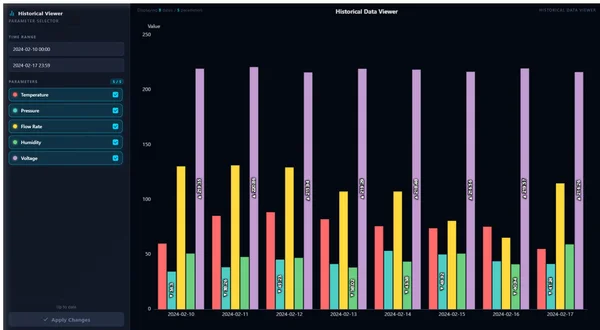
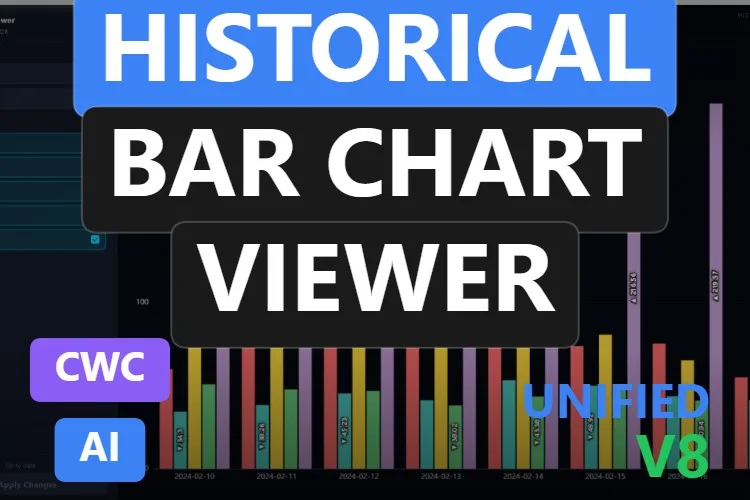
A small analysis tool rather than a chart. A sidebar holds the time range (from 2024-02-10 00:00 to 2024-02-17 23:59 in the preview), five parameters with checkboxes and an Apply Changes button; on the right, eight days of grouped bars compare temperature, pressure, flow rate, humidity and voltage. The highest and lowest values are written vertically inside the bars with little arrows, so the extremes jump out.
Its sheet describes seven core properties: historicalData, parameters, startDate, endDate, chartTitle, yAxisLabel and backgroundColor. When the operator changes the dates, FilterChanged fires so your script can fetch new data; ParameterToggled reports shown or hidden series; and refreshChart and setTimeRange let other screens drive it.
What we like
- Date range and series selection built into the control
- Min and max values highlighted inside the bars
- Events ready for scripted data fetching
Keep in mind
- It does not read your archives by itself: your script has to fill
historicalDatawhenFilterChangedfires - All series share one axis, so in the preview the voltage, around 220, dwarfs the other four: group parameters with similar ranges
Bindable properties
- historicalData
- parameters
- startDate
- endDate
- chartTitle
- yAxisLabel
- backgroundColor
Historical Bar Chart Viewer
Free · WinCC Unified & V8 · CWC (.zip)
05Best for a different target on every bar
Bar Chart with individual targets
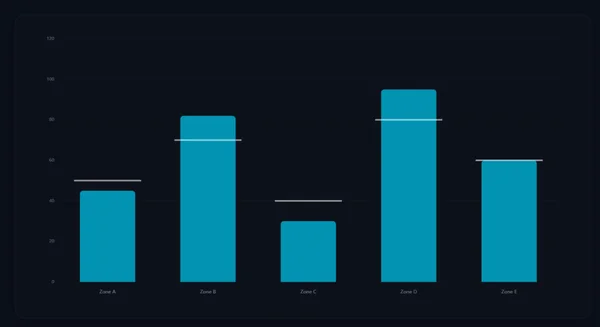
Every line has its own goal, and this chart respects that. Five teal bars, Zone A to Zone E, each carry their own light grey target line on a 0 to 120 scale: Zone A falls short, Zone B and Zone D clear their targets and Zone E lands exactly on it. No legend needed; the picture explains itself.
Its sheet names yAxisMax for the scale, barWidth, positiveColor, showGrid, gridColor and backgroundColor for the look, and tooltipValueLabel and tooltipTargetLabel so the tooltip speaks your language ("Actual" and "Plan", for example). A BarClicked event opens the door to diagnostic pop-ups, and refreshChart and clearData are there for scripts.
What we like
- One target per category, not a single line for all
- Tooltip labels you can rename
- Clean, quiet look
Keep in mind
- The axis numbers and zone names are tiny and faint in the preview
- In the preview every bar keeps the same colour whether it beats its target or not
Bindable properties
- yAxisMax
- barWidth
- positiveColor
- tooltipValueLabel
- tooltipTargetLabel
- showGrid
- gridColor
- backgroundColor
Bar Chart with individual targets
Free · WinCC Unified & V8 · CWC (.zip)
06Best bullet chart for actual vs target
Bullet bar Chart
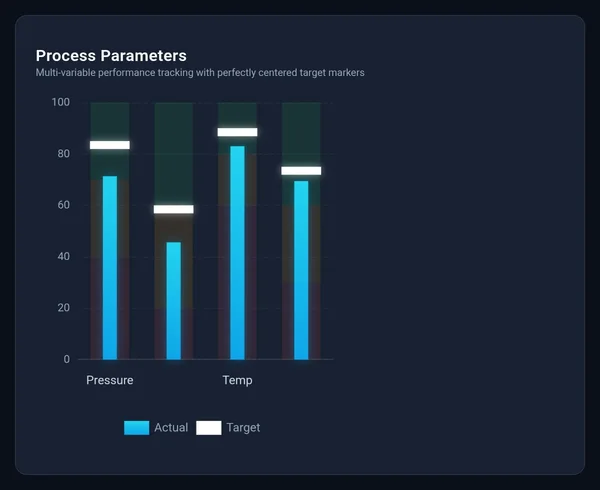
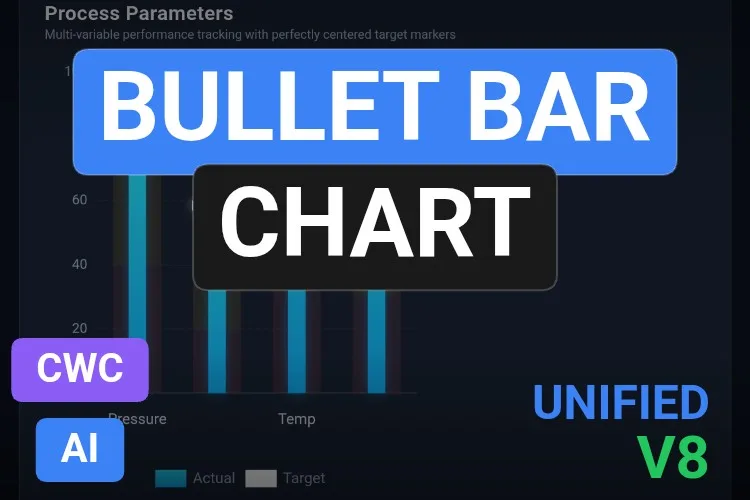
The bullet chart is the dashboard designer's answer to the gauge: same information, a fraction of the space. Under the title "Process Parameters", four slim cyan bars show the actual values, a bright white marker shows each target and faint red, amber and green bands behind them hint at the quality ranges. An Actual/Target legend closes the card.
Its sheet lists nine properties. The parameters array holds the data points, title and subtitle the text, and actualColor, targetColor and backgroundColor the palette. actualBarWidth and targetMarkerWidth set the visual hierarchy between value and setpoint, and horizontalOffset fine-tunes how the markers sit over the bands. An OnParameterSelected event and a refreshChart method complete the interface.
What we like
- Value, target and quality ranges in very little space
- Clear Actual/Target legend
OnParameterSelectedfor drill-down pop-ups
Keep in mind
- In the preview the chart only fills the left half of the card and two of the four bars have no label
- The background bands are very faint: check them at your real screen brightness
Bindable properties
- parameters
- title
- subtitle
- actualColor
- targetColor
- actualBarWidth
- targetMarkerWidth
- horizontalOffset
- backgroundColor
07Best for live production rate
Production Parts Per Minute Chart
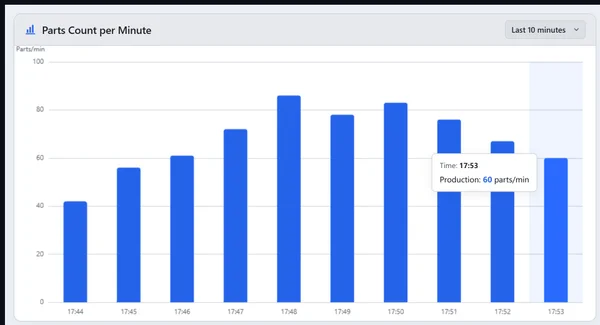
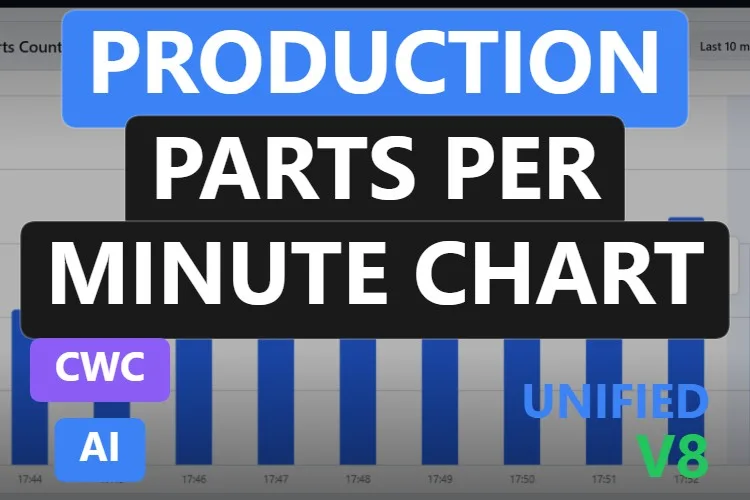
The only light-themed pick, and a very practical one. "Parts Count per Minute" shows one blue bar per minute, from 17:44 to 17:53 in the preview, a "Last 10 minutes" selector in the corner and a tooltip on the latest bar: 60 parts/min. Your line's heartbeat, in one card.
You feed it one sample at a time through productionValue and timestamp, and an internal rolling buffer keeps up to historyLength samples. maxYAxis fixes the scale, and chartTitle, yAxisLabel, barColor and backgroundColor style it; its sheet counts nine properties. The dropdown changes the time window and fires TimeframeChanged, SampleAdded and BarClicked report the rest, and addProductionSample and clearHistory manage the data at a batch change.
What we like
- Builds its own rolling history from a single tag
- Time window selectable by the operator
- Clean light design, with colours you can change
Keep in mind
- The light card stands out on a dark HMI theme until you change
backgroundColorandbarColor - The history lives in the control's buffer: check what it keeps after a screen change before you use it for reporting
Bindable properties
- productionValue
- timestamp
- historyLength
- maxYAxis
- chartTitle
- yAxisLabel
- barColor
- backgroundColor
Production Parts Per Minute Chart
Free · WinCC Unified & V8 · CWC (.zip)
08Best for defect and downtime analysis
Pareto Chart
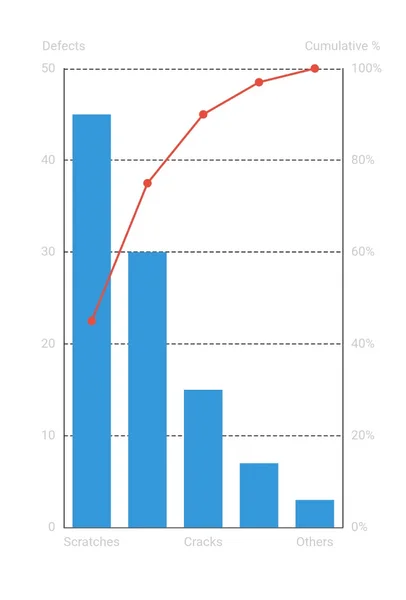
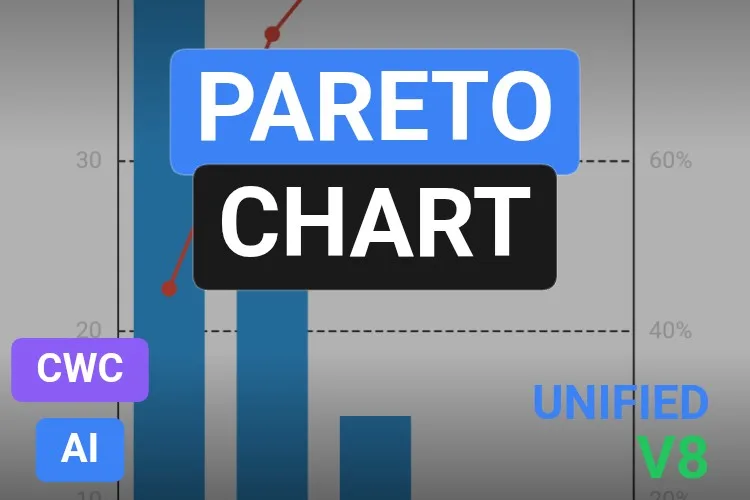
The 80/20 rule, ready to bind. Blue bars count defects in descending order, from scratches at 45 down to "Others", and a red line with dots climbs the cumulative percentage on a second axis until it reaches 100 %. Two titles, "Defects" and "Cumulative %", leave no doubt about which axis is which.
The nice part is that you do not have to sort or add anything: according to its sheet, the control sorts the data and calculates the cumulative totals itself. Eight properties shape it, among them barColor, lineColor, leftAxisTitle, rightAxisTitle, animationDuration, showGrid and backgroundColor. An OnPointClick event lets the operator drill into a defect type, and refresh and exportAsImage are there for updates and reports.
What we like
- Sorting and cumulative percentage calculated for you
- Dual axis with clear titles
- Export to image for quality meetings
Keep in mind
- The light grey labels on a white background are faint; raise their contrast or switch to a dark
backgroundColor - The preview only labels three of the five categories
Bindable properties
- barColor
- lineColor
- leftAxisTitle
- rightAxisTitle
- animationDuration
- showGrid
- backgroundColor
09Best for OEE loss analysis
OEE Waterfall Chart
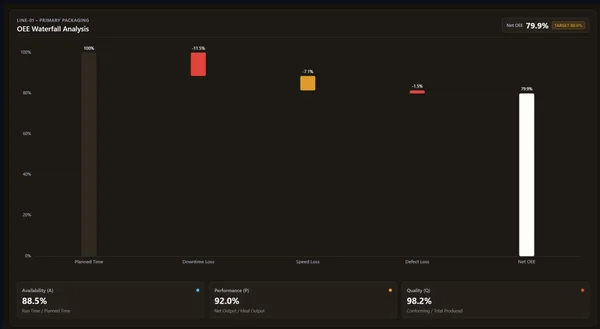
The most complete dashboard on the list. "LINE-01 • PRIMARY PACKAGING" and "OEE Waterfall Analysis" head the card, a badge shows Net OEE 79.9 % against a target of 80.0 %, and the waterfall walks from 100 % planned time through downtime loss (−11.5 %), speed loss (−7.1 %) and defect loss (−1.5 %) to the final 79.9 %. Below, three cards show availability 88.5 %, performance 92.0 % and quality 98.2 %, each with its formula.
Its sheet names targetOee for the benchmark, equipmentTag and panelTitle for the header, text properties such as availabilityLabel and performanceFormula for the cards, and backgroundColor. TargetThresholdCrossed fires when OEE drifts across the target, FactorCardClicked opens a deep dive, and setFactors updates all three factors in one go so the picture never shows half-updated data. It is the newest pick, published in September 2026.
What we like
- Shows where the efficiency goes, not just the final number
- Factor cards with their formulas, ideal for shift meetings
setFactorsupdates everything at once
Keep in mind
- Wide layout: it needs a large slot to stay readable
- The planned-time bar is barely darker than the background in the preview
Bindable properties
- targetOee
- equipmentTag
- panelTitle
- availabilityLabel
- performanceFormula
- backgroundColor
10Best for multi-variable machine health
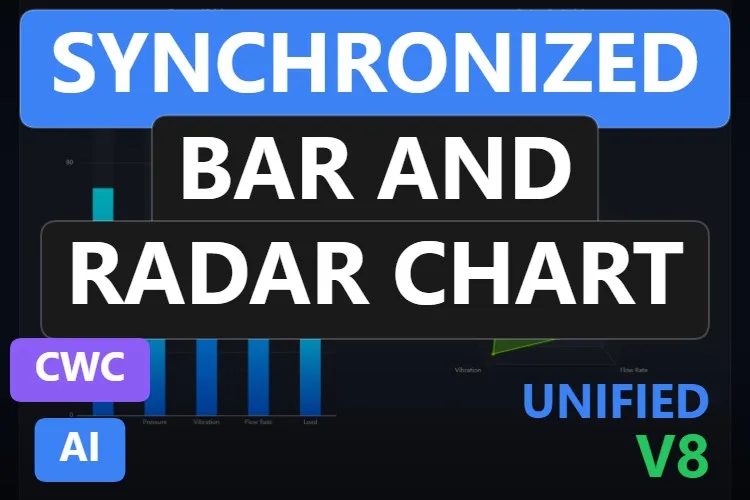
Synchronized Bar and Radar Chart
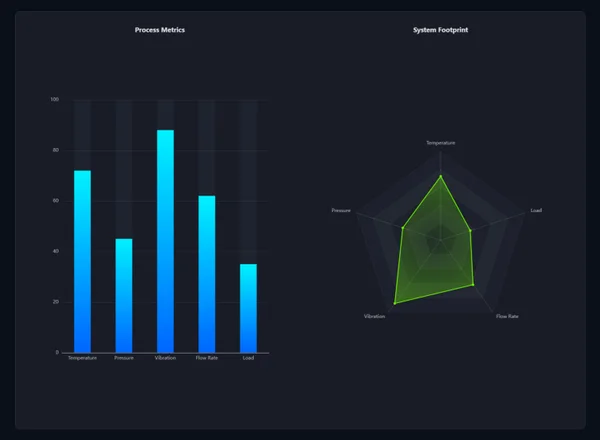
Two views of the same five numbers. On the left, "Process Metrics" shows temperature, pressure, vibration, flow rate and load as cyan-to-blue bars on a 0 to 100 scale, each with a dark track behind it. On the right, "System Footprint" draws the same metrics as a green radar shape. The bars give exact comparisons; the radar gives the machine a fingerprint you learn to recognise.
Its sheet names alarmThreshold, which turns bars and radar points red when values exceed the limit, barColorStart and barColorEnd for the gradient, barChartTitle and radarChartTitle, showTooltips and backgroundColor. All metrics are managed through one structured array. An OnMetricSelected event and a refreshCharts method are there for scripting.
What we like
- Exact values and overall shape side by side
- One alarm threshold colours both charts
- A natural fit for motor and pump condition screens
Keep in mind
- The preview leaves a lot of empty space above and below both charts
- The radar's axis labels are small: check them on a panel
Bindable properties
- alarmThreshold
- barChartTitle
- radarChartTitle
- barColorStart
- barColorEnd
- showTooltips
- backgroundColor
Synchronized Bar and Radar Chart
Free · WinCC Unified & V8 · CWC (.zip)
11Best for showroom and visitor screens
Futuristic Bar Chart
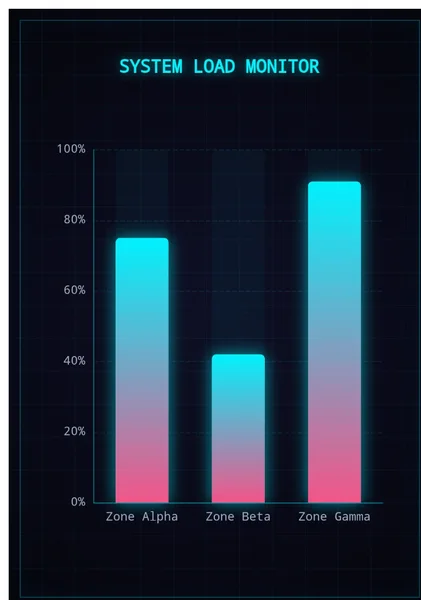
Not every screen is for the control room. "SYSTEM LOAD MONITOR" glows in neon cyan over a faint grid, and three wide bars, Zone Alpha, Beta and Gamma, fade from cyan to pink on a 0 to 100 % scale. It is the chart you put on the big display in the visitor corridor or the trade-fair demo.
Its six properties are simple: the bars array for the data, maxValue for the scale, title, showGrid, showScanlines for an optional CRT effect and backgroundColor. A BarClicked event and a refreshChart method cover interaction.
What we like
- Striking look that photographs well
- Only six properties
- Optional scanlines and grid
Keep in mind
- Designed around three bars: not the one for long category lists
- The neon style is the opposite of a calm ISA-101 screen; keep it away from the operator's main view
Bindable properties
- bars
- maxValue
- title
- showGrid
- showScanlines
- backgroundColor
Honourable mentions: 5 more bar charts worth a look
Good controls that did not make the top eleven, because their product sheets do not name their properties or their previews show a glitch worth checking first. Click any thumbnail to open its product page.
Modern Bar Chart
The most downloaded bar chart in the catalogue in October 2026: twelve monthly bars with value labels and an indigo-to-teal gradient. Its preview is in Spanish ("Rendimiento Operativo", ENE to DIC), the bars run past the bottom of the card, and its sheet counts ten properties, two events and two methods without naming them.
View product
Grouped Bars Charts
A close cousin of the Historical Bar Chart Viewer with quick 7 Days, 30 Days and All buttons, parameter cards with units and values inside the bars. Thirteen properties; choose it if you prefer quick ranges to typed dates.
View product
Grouped Bar Chart
Grouped bars with a searchable parameter sidebar, Select All and Clear All buttons and a date range. Ten properties according to its sheet; the preview is sparse, with three groups of thin bars.
View product
Bar Chart with limit
Neon gradient bars that turn red above
View productalarmThreshold, with an optional glow and 16 properties. In the preview no threshold line is visible, although its sheet listsshowThresholdLine: worth checking.
Monthly Energy Bar Chart
Calculates monthly consumption from cumulative PLC totalizers and colours the bars that exceed
View productconsumptionSetpoint. A great idea; the preview has very faint labels on white and a top axis value printed as 1,650.0000000000002.
Didn't find your bar chart? Make your own (or remix one) with AI, for free
A confession: every bar chart in this article was created with the HMIx AI generator. That is why we can say this without blushing: if none of them answers exactly the question your plant asks, you can generate your own in minutes.
Describe the chart in plain words (for example, "horizontal bar chart of energy per department in kWh, grey ISA-101 palette, one target line per bar and the bar turns amber above its target") and the generator walks you through it step by step: the design, the properties, events and methods you will use in WinCC, a simulation to try values and the final Custom Web Control package for WinCC Unified and WinCC V8. The same tool also builds dynamic SVGs when a lightweight drawing is all you need.
- Remix any chart on this list: on its product page, the "Edit in AI Generator" button opens it straight in the generator, ready for you to ask for changes such as "use a dark background", "show the value on top of each bar" or "add a target line". The "Edit it with AI" links in this article do the same.
- Free to try: you can start without an account, with a small daily allowance of credits, and the Community plan is free.
- The result is yours to use: download the package and add it to your TIA Portal project like any other chart on this page.
How to use a bar chart Custom Web Control in WinCC Unified (and WinCC V8)
The short version, for when you have already picked your chart. Our Custom Web Control guide covers every step with diagrams and screenshots.
Download the ZIP
Open the product page, sign in with your free account and download the chart. The downloaded ZIP contains the documentation and, inside it, the control package named
{GUID}.zip: that inner file is the one you need.Copy it into your TIA Portal project
Copy the
{GUID}.zipfile, still compressed, into your project folder underUserFiles\CustomControls(create both folders if they do not exist). Do not extract it.Refresh My controls and drag it in
In TIA Portal, open the Tools task card, expand My controls and click Update. The chart appears in the list: drag it onto your screen and give it enough room for its labels.
Bind and test the properties
Select the control and open Inspector window → Properties → Properties → Interface. Most of these charts take their data as an array or JSON string (
data,series,bars…), so start by binding it to an internal string tag, add an I/O field or a test script that writes a few values and start Runtime. Once the bars behave, switch to the real PLC data.On WinCC V8
Every top pick in this article is tagged as compatible with WinCC V8 on its product page. The package is the same; follow the WinCC V8 documentation for importing and configuring Custom Web Controls in that environment.
Pro tip: a chart only displays data, so leave Read only enabled when you bind its properties. Uncheck it only for a property the control itself must write back to a tag, as the product sheets remind you. And fix the scale (yAxisMax, maxValue, maxYAxis…) to the real range of your process: a scale that jumps with every update makes bars impossible to compare.
Frequently asked questions
Are these bar chart Custom Web Controls really free?
Yes. Every bar chart in this article is published as a free product on HMIx. You only need a free account to download them.
Does WinCC Unified have a bar chart out of the box?
WinCC Unified includes a Bar object for a single value and trend controls for values over time. For comparing categories, stacking series, Pareto analysis or an OEE waterfall, a bar chart Custom Web Control like the ones in this article is the practical way to get it on a screen.
Do they work on WinCC Unified Comfort Panels and on WinCC V8?
Their product pages list compatibility with WinCC Unified, including Unified Comfort Panels, and with WinCC V8. As with any AI-generated control, test the behaviour in your own project and on your target device before going into production.
How do I send several values to a bar chart from PLC tags?
Most of these charts take their data as an array or JSON string property, such as data, series or bars. Build that string from your tags in a script or bind it to a string tag, and check the exact format in the documentation included in the download. The Production Parts Per Minute Chart is the exception: it takes one value at a time and builds its own history.
Where do I copy the ZIP in my TIA Portal project?
Copy the inner {GUID}.zip file, without extracting it, into UserFiles\CustomControls of your project folder. Then click Update in My controls, in the Tools task card, and drag the control onto your screen.
Can I modify one of these bar charts?
Of course. You can edit the HTML, CSS and JavaScript of the control yourself, or press "Edit in AI Generator" on the product page and ask for the changes in plain language. The second option is usually faster, because the generator takes care of the interface and the packaging.
Our verdict
If you only download one, make it the Bar Chart with Limits: warning and alarm lines that colour the bars on their own and a legend the operator understands. For a target per category, the Bar Chart with individual targets or the compact Bullet bar Chart; for shifts, the Stacked Bar Chart; for history, the Historical Bar Chart Viewer; for live output, the Production Parts Per Minute Chart; for quality, the Pareto Chart; for efficiency, the OEE Waterfall Chart. Machine health goes to the Synchronized Bar and Radar Chart, narrow panels to the Auto Adjust Bar Chart and the visitor screen to the Futuristic Bar Chart.
And if your plant asks a question none of these answers (they always do), remember that the generator that built them is just one click away.