Blog · Dynamic SVG
The 12 best dynamic SVG HVAC symbols for WinCC Unified and WinCC V8 (free)
We opened every fan, blower, compressor, heat exchanger, chiller, cooling tower and boiler in the HMIx catalogue, 31 dynamic SVGs in November 2026, looked at each render up close, read every product sheet and kept the twelve dynamic SVG HVAC symbols we would happily drop into a WinCC Unified or WinCC V8 screen tomorrow morning. All free, all in .svghmi format, and every one with properties you can bind to a tag.
- Dynamic SVG
- SVGHMI
- WinCC Unified
- WinCC V8
- TIA Portal
- HVAC symbols
- Building automation
- SCADA symbols
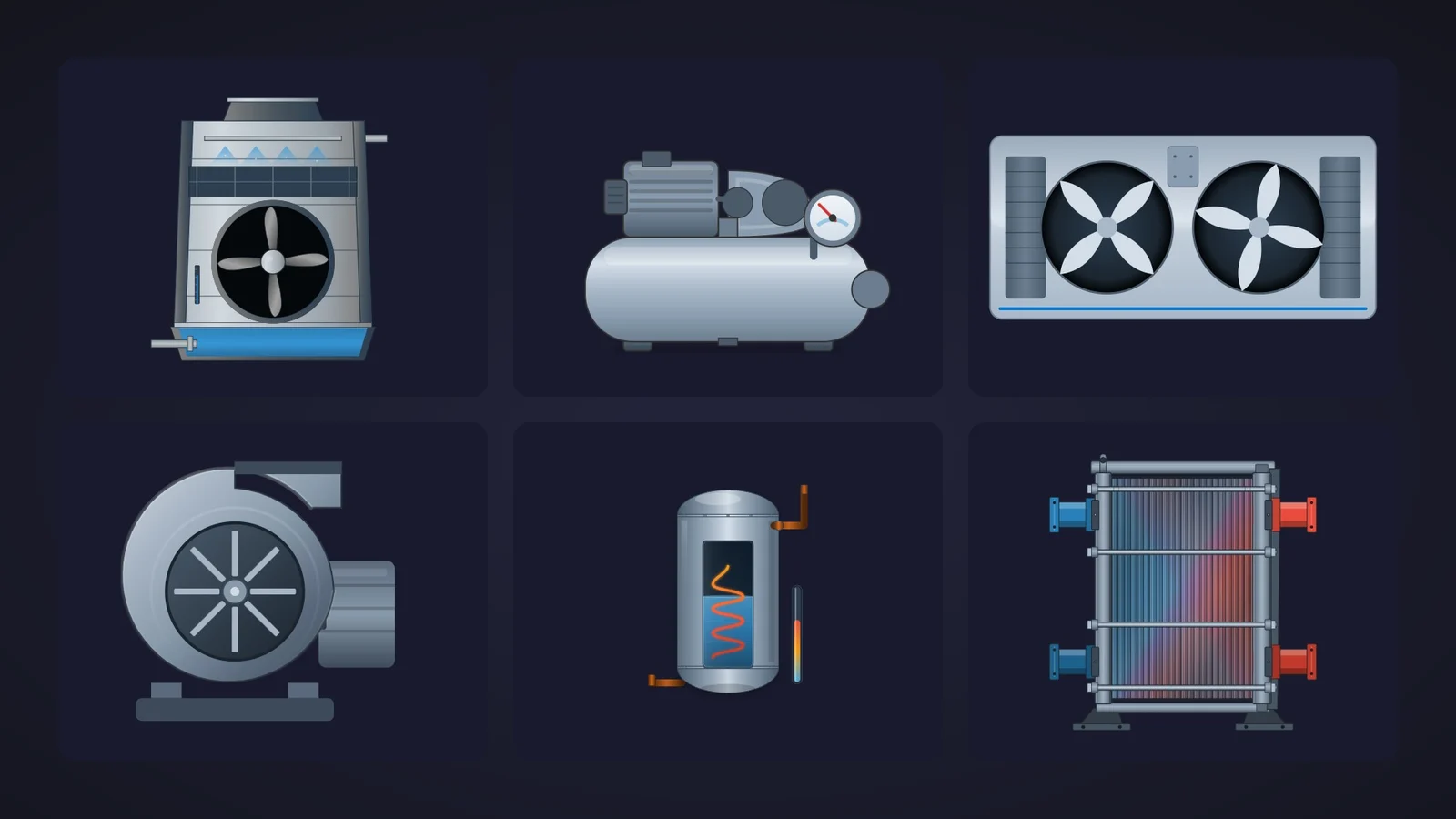
Quick picks
Short on time? Jump straight to the equipment you need.
- 01Best cooling tower (overall winner)Cooling Tower
- 02Best air compressor with pressure gaugeAir Compressor
- 03Best hot water boiler (calorifier)Water Boiler
- 04Best rooftop unit with two fansHVAC Package Unit
- 05Best centrifugal fan (blower)Centrifugal Fan
- 06Best axial fanCooling Fan
- 07Best tunnel ventilation fan with dampersVentilation Fan
- 08Best fan symbol with status iconsFan Symbol
- 09Best packaged chillerIndustrial Chiller Unit
- 10Best air handling unit (AHU)Air Handling Unit
- 11Best plate heat exchangerPlate Heat Exchanger
- 12Best shell-and-tube heat exchangerHeat Exchanger Symbol
Why HVAC and utility screens deserve better than spinning clip art
Utilities are the part of the plant nobody draws with love. The compressed air station is a grey rectangle labelled C-01, the cooling tower is a trapezoid, and the air handling unit is a box with a fan icon borrowed from a 2005 web page. Then the chilled water temperature creeps up on a Friday afternoon and the operator has to guess, from a wall of identical boxes, which fan stopped and which tower is spraying.
Dynamic SVG HVAC symbols fix that cheaply. In WinCC Unified (TIA Portal) and in WinCC V8, a dynamic SVG, the .svghmi format, is a vector drawing that exposes properties such as FanSpeed or PressureValue. You drag it onto the screen, bind those properties to HMI tags and the drawing reacts: the fan turns, the gauge needle moves, the boiler coil glows. No scripts, no JavaScript, and it stays sharp from a 7-inch Unified Comfort Panel to a 4K control-room wall.
What makes a dynamic SVG HVAC symbol worth downloading
Before the list, the yardstick. This is what we looked for, roughly in order of how much it annoys us when it is missing:
- Motion where it makes sense. A fan that faces you can spin; a fan drawn side-on cannot, however hard the property tries. We favoured symbols whose rotating parts actually face the viewer.
- State built into the drawing. A water level, a glowing heating coil, a gauge needle or a hot and a cold pipe colour: something you bind to a tag so the picture tells the operator what the equipment is doing.
- Properties named in the sheet. You should know what you are binding before you download. Sheets that announce nine properties and name none lose points, however pretty the drawing.
- The right style for the right screen. Building management and utility overviews love realistic equipment; dense plant overviews prefer compact symbols with status icons. We kept both, and we tell you which is which.
- Variety. Instead of twelve fans, one champion per job: cooling tower, compressor, boiler, rooftop unit, centrifugal, axial and tunnel fans, chiller, air handling unit and two kinds of heat exchanger.
How we picked them (and what we did not do)
We searched the catalogue for every fan, blower, compressor, heat exchanger, chiller, cooling tower, boiler, heater, damper and air handling unit published on HMIx and ended up with 31 dynamic SVGs in November 2026 (pumps, motors and tanks with agitators have their own articles). For each one we looked at its real render, the drawing itself rather than the catalogue cover, and read its product sheet to see which properties it exposes. Downloads only worked as tie-breakers: the most downloaded item of the search had 15.
We dropped two items whose preview never rendered, a chiller whose sheet describes a whole refrigeration cycle with condenser, expansion valve and evaporator while the render is a closed box, a hot air heater whose glowing coil and airflow arrows we could not see in the preview, a damper that looks like four coloured bars and a "heat exchanger" that looks like a tank. A fair warning, too: for this article we judged drawings and documentation; we did not run these symbols in a live Runtime. They were generated with AI and every product page reminds you to test them in your own TIA Portal project before production.
The 12 best dynamic SVG HVAC symbols, one by one
Each entry shows the real SVG render, what we liked, what to keep in mind and the properties you can bind, followed by the catalogue thumbnail: click it to open the product page and download the symbol for free.
01Best cooling tower (overall winner)
Cooling Tower
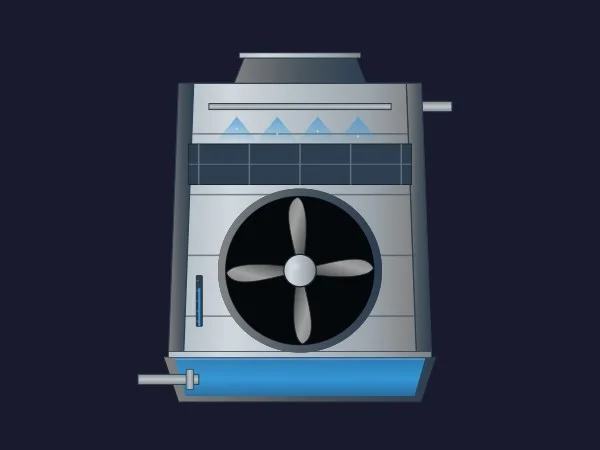
If we could only keep one, it would be this one. A cooling tower you can read: a steel casing with a large fan facing you, a row of blue spray nozzles at the top, the fill section beneath them, a small vertical gauge on the side and a blue water basin with its drain at the bottom.
It is also the best-documented symbol on the list: the sheet names all seven properties and says what each one does. FanSpeed turns the fan rotor, WaterLevel sets the basin level, SprayActive switches the spray on and off, PackingVisibility shows or hides the fill, and GaugeLevel drives the side gauge. WaterColor and BasicColor finish the job.
Fan, spray and basin in one symbol cover what an operator checks first on a cooling water circuit: is the tower running, is it spraying and is there water.
What we like
- Fan, spray and basin level in one symbol
- All seven properties named and explained
- The fan faces the viewer, so rotation looks right
Keep in mind
- The name
FanSpeedsuggests a speed, but the sheet describes a rotation: test which values it expects - The side gauge is tiny at overview sizes
Bindable properties
- FanSpeed
- WaterLevel
- SprayActive
- PackingVisibility
- GaugeLevel
- WaterColor
- BasicColor
02Best air compressor with pressure gauge
Air Compressor
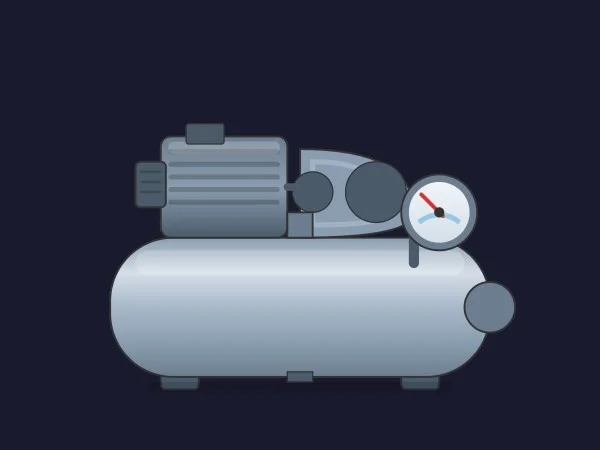
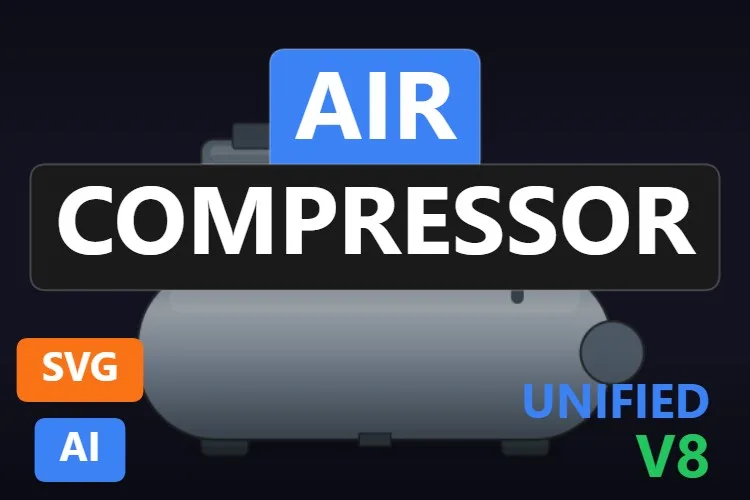
The compressor everyone recognises: a horizontal steel receiver tank with the motor and the pulleys on top and a round pressure gauge with a red needle. It suits workshop air, small compressed air stations and any utilities screen that needs a compressor without a lecture on screw elements.
All six properties are named and useful. PressureValue drives the gauge needle, MotorRunning switches on the motor highlights, PulleyRotation turns the pulley and ShowBeltGuard shows or hides the belt guard. MotorColor and BasicColor take care of the state colours.
What we like
- A pressure needle and a run state in one symbol
- Six properties, all named
- Recognisable at any size
Keep in mind
- The gauge has no numbers: add a WinCC I/O field for the actual pressure
- The sheet does not give the range of
PressureValue: test it before you scale it
Bindable properties
- PressureValue
- MotorRunning
- PulleyRotation
- ShowBeltGuard
- MotorColor
- BasicColor
03Best hot water boiler (calorifier)
Water Boiler
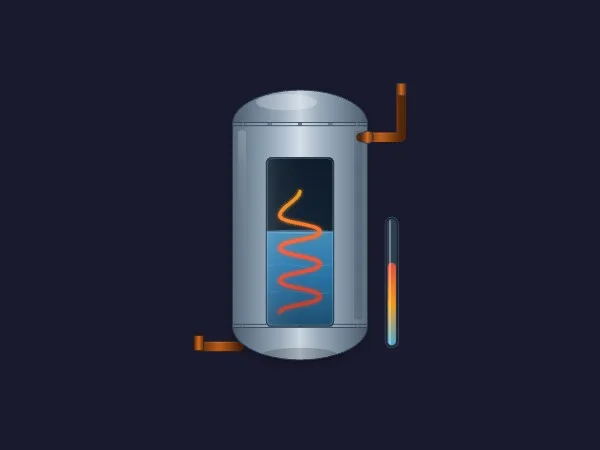
A vertical hot water cylinder, which the sheet calls a domestic water calorifier: a steel shell with a cutaway window that shows the water and an orange heating coil inside, copper pipes top and bottom and a thermometer bar on the right.
It packs three useful states into one drawing. WaterLevel fills the window, TemperatureValue drives the thermometer and HeatingActive makes the coil glow, so the operator sees at once whether the heater is on and how hot the water is. ShowCutaway hides the window for a calmer look, and CoilColor, PipeColor and BasicColor handle the colours.
What we like
- Level, temperature and heating state in one symbol
- The cutaway makes the inside readable
- Seven properties, all named
Keep in mind
- It is a hot water cylinder, not a steam boiler: no burner and no flame
- The thermometer has no scale: add the temperature with an I/O field
Bindable properties
- WaterLevel
- TemperatureValue
- HeatingActive
- ShowCutaway
- CoilColor
- PipeColor
- BasicColor
04Best rooftop unit with two fans
HVAC Package Unit
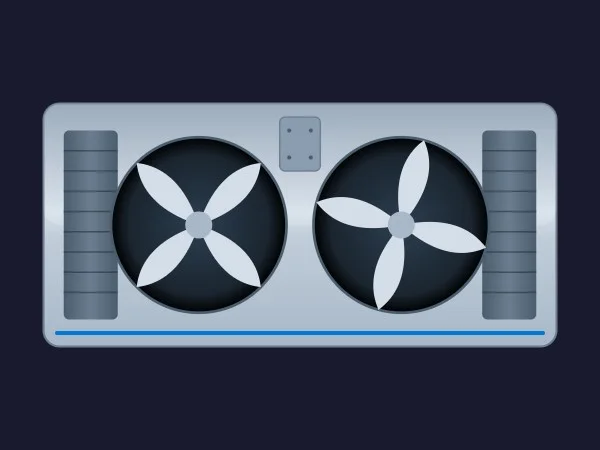
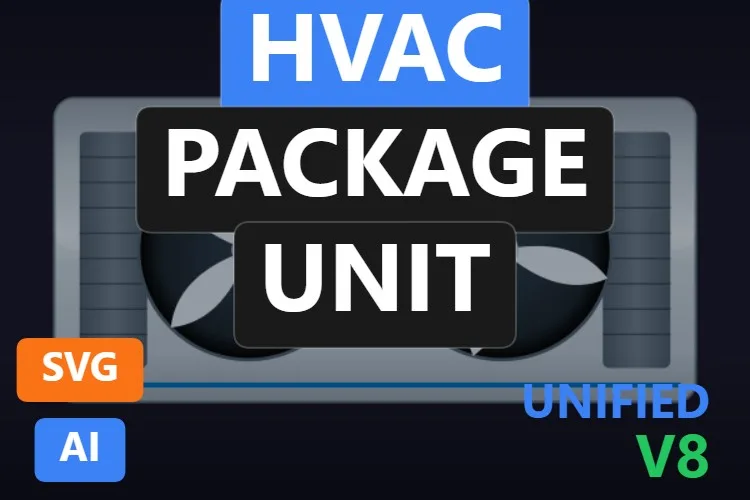
A rooftop or condensing unit in brushed aluminium: two big front-facing fans, coil grilles on both sides and a thin blue accent line along the bottom. It is the most eye-catching drawing on the list and fills a building management screen nicely.
The two fans are independent, and that is the point. Fan1Speed and Fan2Speed turn them separately, Fan1Visible and Fan2Visible hide one for single-fan models, and Fan1Color and Fan2Color show which stage is running. GlassOpacity tunes the glass overlay, and GrilleColor, AccessPanelColor, AccentColor and BasicColor cover the casing: eleven properties, all named.
What we like
- Two fans with their own speed, colour and visibility
- Eleven properties, all named
- Front-facing fans, so rotation looks right
Keep in mind
- Very wide: it dominates small screens
- No fault lamp: use the fan colours or
AccentColorfor alarms
Bindable properties
- Fan1Speed
- Fan2Speed
- Fan1Visible
- Fan2Visible
- Fan1Color
- Fan2Color
- GlassOpacity
- GrilleColor
- AccessPanelColor
- AccentColor
- BasicColor
05Best centrifugal fan (blower)
Centrifugal Fan

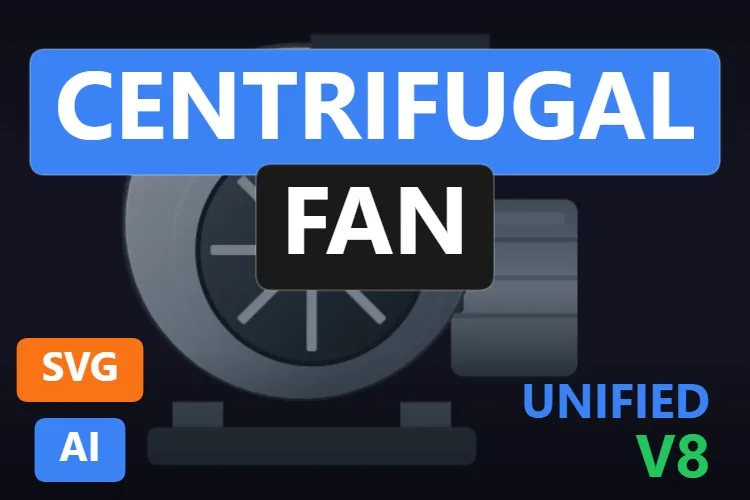
The workhorse of extraction and process air: a steel scroll housing with the outlet at the top, a spoked impeller visible through the inlet, the drive motor on the right and a base frame underneath. It reads as a centrifugal fan from across the room, which is exactly what you want on an exhaust or combustion air screen.
Its six properties are all named. RotationAngle turns the impeller, and because the inlet faces you, the rotation looks right. ShowMotor and ShowBase strip the drawing down for tight layouts, and ImpellerColor, MotorColor and BasicColor let you paint the run or fault state on whichever part you prefer.
What we like
- Instantly recognisable scroll housing
- Rotation on a part that genuinely faces the viewer
- Six properties, all named
Keep in mind
RotationAngleis an angle: a spinning effect needs a value that keeps changing- No status lamp: drive a colour from the run feedback
Bindable properties
- RotationAngle
- ShowMotor
- ShowBase
- ImpellerColor
- MotorColor
- BasicColor
06Best axial fan
Cooling Fan
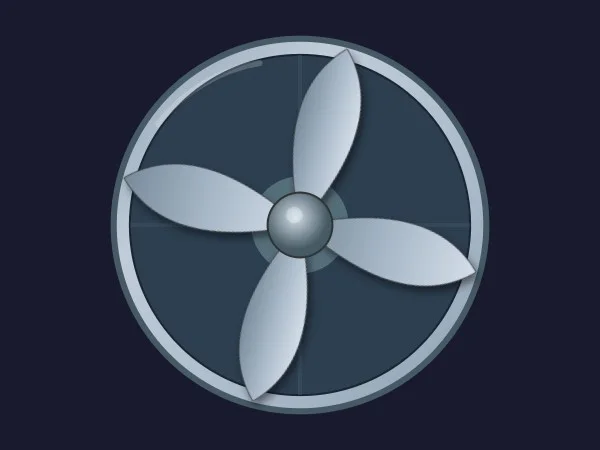
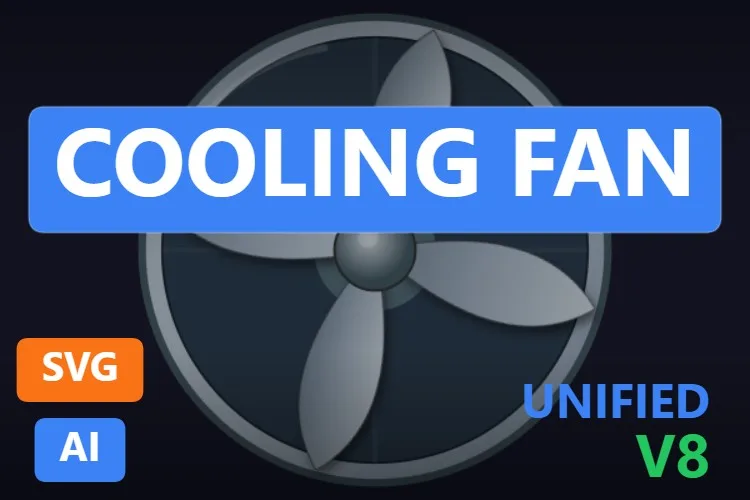
The most downloaded fan of our search (13 downloads in November 2026): an axial fan seen from the front, with four wide swept blades around a chrome hub inside a round ring. Clean and simple, it works for cabinet cooling, radiator fans and wall extractors alike.
Five properties, all named: RotationAngle turns the blade assembly, BladeColor and MotorColor carry the state, ShowHighlights switches the metallic reflections off for flat screens, and BasicColor sets the ring.
What we like
- Big, readable blades that look good spinning
- Flat or glossy finish on demand
- Five properties: bound in a minute
Keep in mind
- No housing or status lamp: pair it with a colour state
- Its two reviews average 3.5 stars (November 2026): test it before you commit
Bindable properties
- RotationAngle
- BladeColor
- MotorColor
- ShowHighlights
- BasicColor
07Best tunnel ventilation fan with dampers
Ventilation Fan
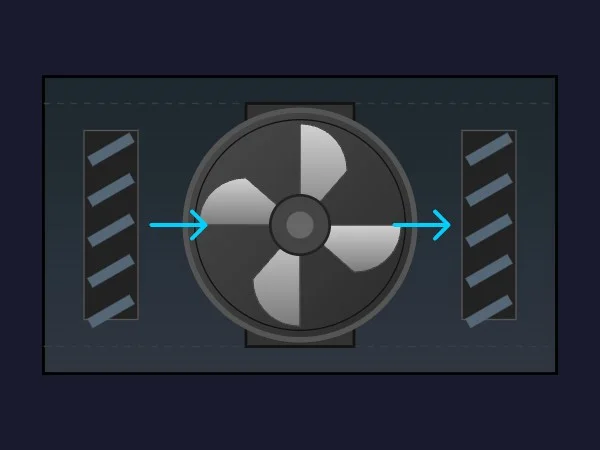
Built for tunnels, car parks and mines: a dark housing with an axial fan in the middle, a louvred damper on each side and two cyan arrows showing which way the air goes. It is the only symbol on the list that tells the whole story of a ventilation cell in one drawing.
The properties are the right ones. FanRotation turns the impeller, DamperLeftAngle and DamperRightAngle set each damper separately, and ShowFlow with ArrowRotation shows or flips the airflow arrows, which the sheet suggests for injection versus extraction. FlowColor can separate fresh air from smoke exhaust, and ImpellerColor, DamperBladeColor and BackgroundColor handle the rest.
What we like
- Fan, two dampers and airflow direction in one symbol
- Damper angles bindable one by one
- Arrows that flip for supply or extraction
Keep in mind
- The sheet announces 10 properties and names 9
- The black-framed housing is heavy on light screens: adjust
BackgroundColor
Bindable properties
- FanRotation
- DamperLeftAngle
- DamperRightAngle
- ShowFlow
- ArrowRotation
- FlowColor
- ImpellerColor
- DamperBladeColor
- BackgroundColor
08Best fan symbol with status icons
Fan Symbol

Not every screen wants a photorealistic fan. This is a compact round fan symbol in brushed steel, paired with the four status icons that HMIx uses across its symbol families: alarm, interlock, manual mode and maintenance.
RotationAngle turns the blades, ShowIconAlarm, ShowIconLock, ShowIconManual and ShowIconMaintenance switch each icon, and colour properties such as ColorAlarm and ColorMaintenance tint them. On an overview with twenty roof fans, the operator sees at once which one is locked out or in manual.
What we like
- Equipment state at a glance, without extra symbols
- The same icon language as the HMIx pump, valve and motor symbols
- Legible at small sizes
Keep in mind
- The sheet announces 11 properties and names 9 (only two of the four icon colours)
- Too plain for a building management showcase screen
Bindable properties
- RotationAngle
- ShowIconAlarm
- ShowIconLock
- ShowIconManual
- ShowIconMaintenance
- ColorAlarm
- ColorMaintenance
- BladeColor
- BasicColor
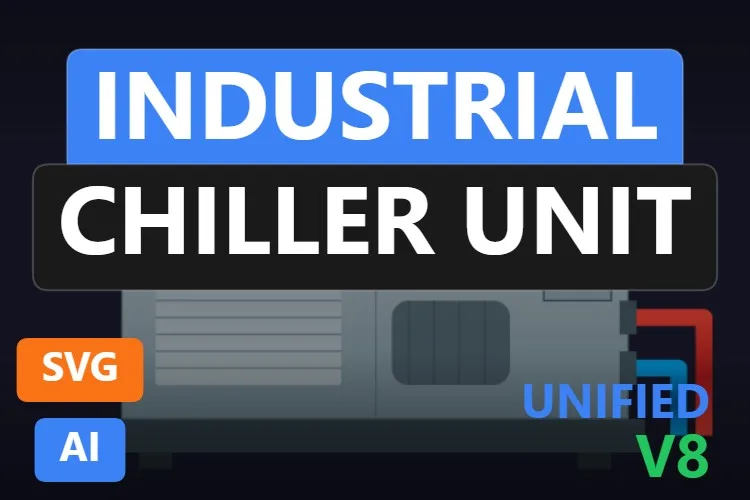
09Best packaged chiller
Industrial Chiller Unit
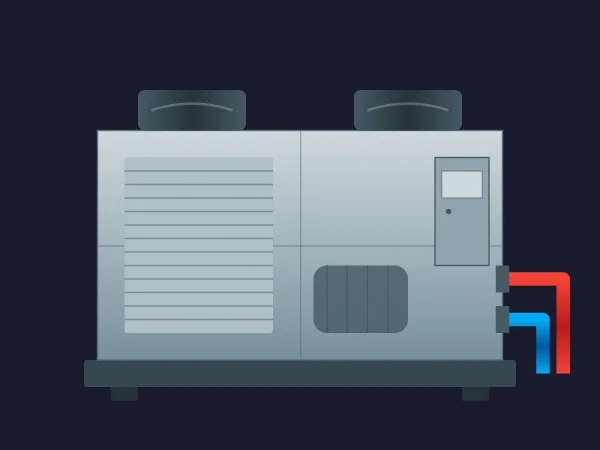
A packaged chiller as you would see it on the plant floor: a two-section steel cabinet with a louvred panel, a control door with a small display, two fans on top and a red and a blue pipe on the right for the warm return and the chilled supply.
It is the most configurable symbol in the article. PipeColdColor and PipeWarmColor colour the two water lines, Fan1Rotation and Fan2Rotation turn the fans, and ShowCompressor, ShowFans and ShowPiping switch whole sections for simpler views. CompressorColor, DisplayColor, GrillColor, PanelLineColor, SupportColor and BasicColor cover the looks.
What we like
- Separate colours for chilled and warm water
- Sections that can be hidden for overviews
- Fits injection moulding, food and data centre cooling screens
Keep in mind
- The fans are drawn side-on, so their rotation barely shows: signal the state with colour
- The sheet announces 14 properties; one is called
Property776with no explanation
Bindable properties
- Fan1Rotation
- Fan2Rotation
- PipeColdColor
- PipeWarmColor
- ShowCompressor
- ShowFans
- ShowPiping
- CompressorColor
- DisplayColor
- GrillColor
- PanelLineColor
- SupportColor
- BasicColor
10Best air handling unit (AHU)
Air Handling Unit
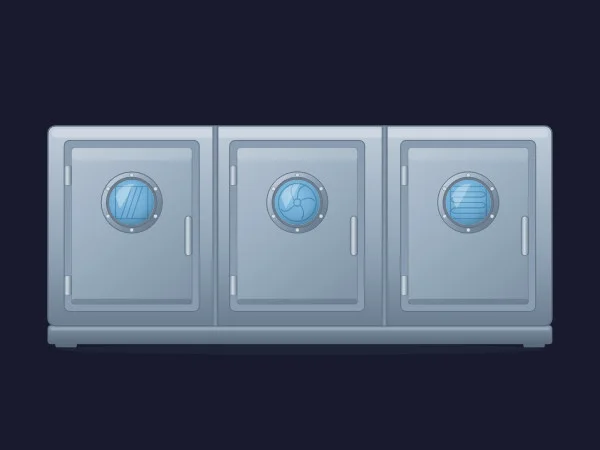
A closed air handling unit casing in brushed steel: three access doors side by side on a plinth, each with a round sight glass. Behind the glasses, says the sheet, you see a filter bank, a fan and a coil, one per section. Its sheet is refreshingly honest: the artwork is static and shows the unit only, without ducts, dampers or labels.
Five properties, all named and explained. FanRotation turns the fan behind the second sight glass, and FanColor, FilterColor and CoilColor set the stroke colour of each silhouette, which is enough to flag a dirty filter or a coil in alarm. BasicColor sets the casing.
What we like
- Recognisable AHU with filter, fan and coil sections
- Separate colours to flag filter, fan or coil
- Honest sheet: you know exactly what you get
Keep in mind
- The sight glasses are small: at overview sizes the fan and its colours are hard to see
- Its only review so far gives it one star (November 2026)
Bindable properties
- FanRotation
- FanColor
- FilterColor
- CoilColor
- BasicColor
11Best plate heat exchanger
Plate Heat Exchanger
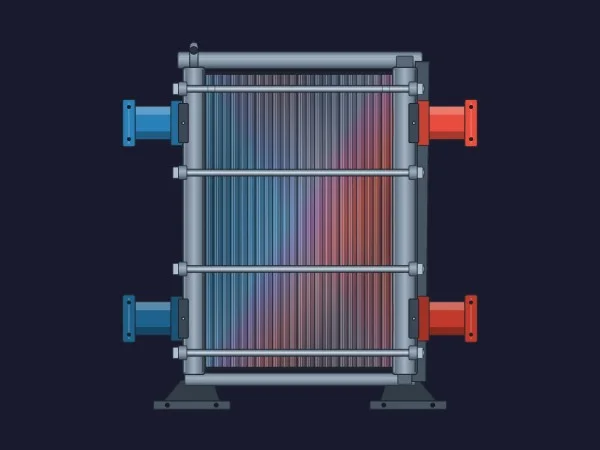
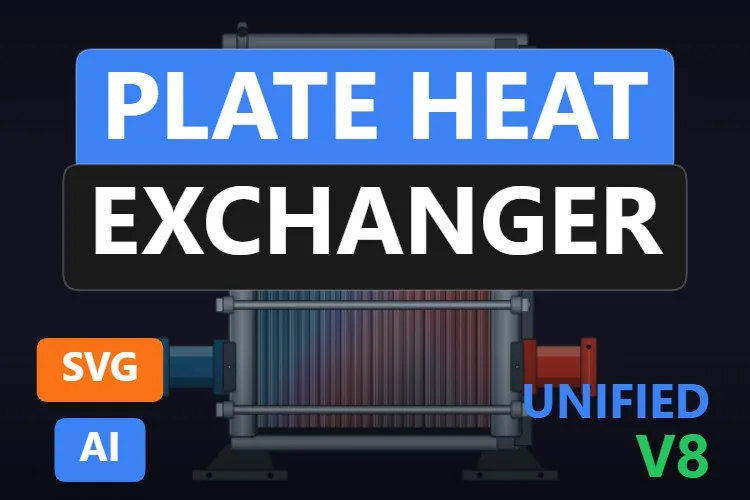
A plate heat exchanger with its frame, tie bars and feet, and a plate pack that shades from blue to red. Two blue connections on the left and two red ones on the right make the cold and hot sides obvious, which is exactly how you would explain it to a new operator.
Its five properties are colours, one per connection: Medium1InletColor, Medium1OutletColor, Medium2InletColor and Medium2OutletColor, plus BasicColor for the body. Bind them to temperature bands or to the flow state of each circuit and the drawing shows which side is hot, cold or idle.
What we like
- One colour per connection, for both circuits
- Hot and cold sides obvious from the drawing alone
- Five properties, all named
Keep in mind
- Colours only: no flow animation and no temperature display
- A near twin of the most downloaded item of the search, whose sheet does not name its properties (see the mentions)
Bindable properties
- Medium1InletColor
- Medium1OutletColor
- Medium2InletColor
- Medium2OutletColor
- BasicColor
12Best shell-and-tube heat exchanger
Heat Exchanger Symbol
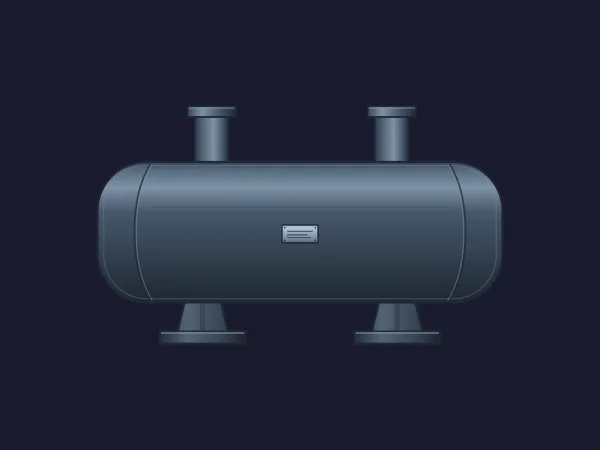
A shell-and-tube heat exchanger in a calm blue-grey: a horizontal shell with domed ends, two nozzles on top, two saddle feet and a small nameplate in the middle. Subdued on purpose, it sits well on high-performance HMI screens where only abnormal states should shout.
Six properties, all named. InletColor and OutletColor colour the connections for temperature or flow, ShellAlarmColor gives the shell an alarm colour, ShowNameplate hides the plate, EquipmentOpacity fades the whole unit, for example when it is out of service, and BasicColor sets the body.
What we like
- A dedicated alarm colour for the shell
- Opacity to fade out units that are not in service
- Six properties, all named
Keep in mind
- Dark on a dark background: on night themes it almost disappears
- The sheet mentions side connections that we could not see in the preview
Bindable properties
- InletColor
- OutletColor
- ShellAlarmColor
- ShowNameplate
- EquipmentOpacity
- BasicColor
Honourable mentions: 7 more HVAC symbols worth a look
They did not make the top twelve, usually because the sheet leaves too much unsaid or a sibling did the job better, but each one has a good reason to exist. Click any thumbnail to open its product page.
Plate Heat Exchanger
The most downloaded item of our search (15 downloads and 4 stars from 7 reviews in November 2026) and a near twin of our plate heat exchanger pick. Its sheet does not give the exact property names.
View product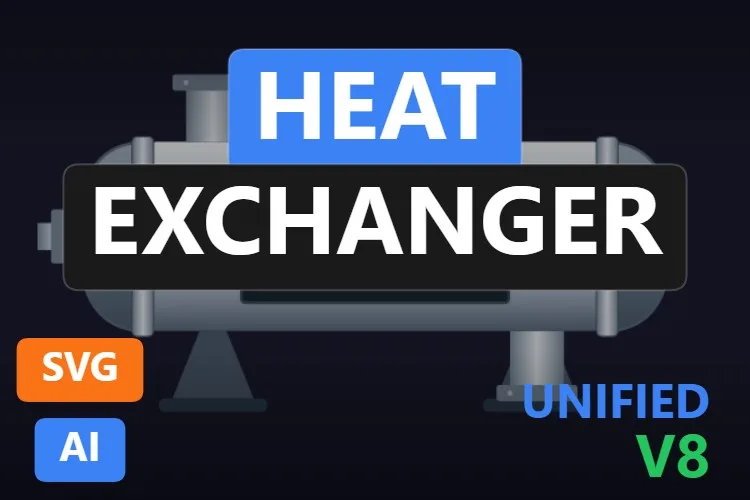
Heat Exchanger
A bright, realistic shell-and-tube exchanger on two saddles. Its sheet announces nine properties without giving their exact names.
View product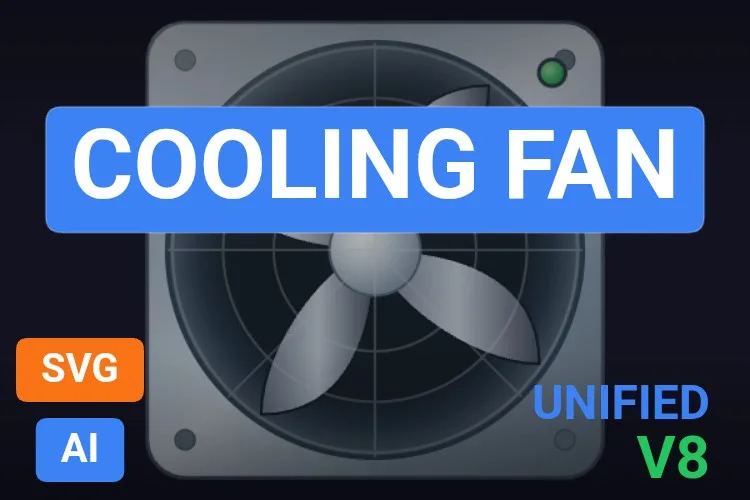
Cooling Fan
A square-housed axial fan with a grille and a status LED, driven by
View productFanRotation,StatusColorandShowStatus.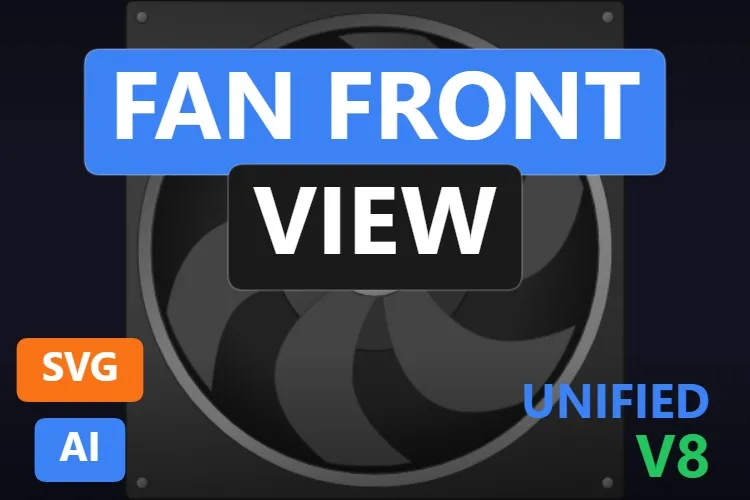
Fan Front View
A square-framed fan with seven curved blades, with
View productFanRotationplus colours for the blades, motor, bolts, axle and ring.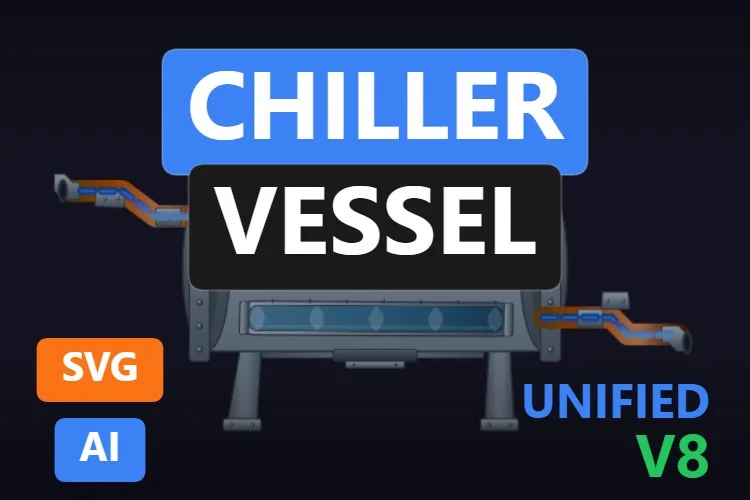
Chiller Vessel
A horizontal refrigerant vessel with a sight glass and copper pipes, with
View productRefrigerantLevel,FlowAnimationSpeedandShowFlowIndicators.
Compressor Symbol
A P&ID-style compressor symbol with the alarm, lock, manual and maintenance icons. Its sheet describes a pressure gauge that we could not see in the preview.
View product
Industrial Screw Compressor
A compressor cabinet with a window onto the twin screws and a small display. It announces eight properties without naming them.
View product
Didn't find your equipment? Make your own (or remix one) with AI, for free
A confession: every symbol in this article was created with the HMIx AI generator. That is why we can say this without blushing: if none of them is exactly the fan, chiller or dryer in your plant, you can generate your own in minutes.
Describe it in plain words (for example, "rooftop air handling unit with supply and return fans, a mixing damper whose angle follows a tag and a red filter alarm") and the generator walks you through it step by step: the drawing, the properties you will bind in WinCC, a simulation to try values and the final .svghmi package for WinCC Unified and WinCC V8. The same tool builds Custom Web Controls when you need live temperatures, energy trends or buttons that an SVG cannot provide.
- Remix any symbol on this list: on its product page, the "Edit in AI Generator" button opens it straight in the generator, ready for you to ask for changes such as "make it ISA-101 grey", "add a run lamp to the fan" or "add a third fan to the rooftop unit". The "Edit it with AI" links in this article do the same.
- Free to try: you can start without an account, with a small daily allowance of credits, and the Community plan is free.
- The result is yours to use: download the package and drop it into your TIA Portal project like any other symbol on this page.
How to use a dynamic SVG HVAC symbol in WinCC Unified (and WinCC V8)
The short version, for when you have already picked your symbol. Our dynamic SVG guide covers every step with diagrams and screenshots.
Download the .svghmi file
Open the product page, sign in with your free account and download the file. All the symbols in this article are free.
Copy it into your TIA Portal project
In WinCC Unified, put the file in your project folder under
UserFiles\SVGControls(create both folders if they do not exist). Back in TIA Portal, refresh Dynamic widgets in the Tools task card and drag the symbol onto your screen.Bind the properties
Select the symbol and, in the Inspector window, find its state properties (
FanSpeed,PressureValue,HeatingActive… each symbol names them its own way) and bind them to HMI tags. Do the same with colours and visibility switches if you need them.Test before connecting the PLC
Bind a state property to an internal tag, add an I/O field for that same tag and start Runtime: change the value and watch the fan turn, the needle move or the coil glow. Only then switch to the real PLC tag.
On WinCC V8
WinCC V8 also supports SVGHMI dynamic graphics, which you configure in Graphics Designer. The file is the same; the engineering steps are those of that environment.
Pro tip: a spinning fan is the most convincing lie on an HMI screen. Drive rotation from the run feedback (the contactor auxiliary or the drive status), never from the start command, and always pair it with a colour or a status icon. If the connection drops, a fan frozen mid-turn still looks perfectly normal, while a grey or flashing fan does not.
Read the complete dynamic SVG guideFrequently asked questions
Are these dynamic SVG HVAC symbols really free?
Yes. Every symbol in this article is published as a free product on HMIx. You only need a free account to download them.
How do I make a fan rotate in WinCC Unified with a dynamic SVG?
Bind the fan's rotation property (RotationAngle, FanRotation or FanSpeed, depending on the symbol) to an HMI tag. Most of them take an angle, so a continuous spin needs a value that keeps changing, for example a counter that increases while the fan runs and stays still when it stops. The sheets do not always say whether they expect an angle or a speed, so test it in your own project.
Can a dynamic SVG show temperature, pressure or airflow values?
Not by itself. A dynamic SVG can change colours, visibility, positions, angles and sizes, but it cannot rewrite text. Place a WinCC I/O field next to or over the symbol and bind it to the measured value. For HVAC dashboards with live numbers and trends, a Custom Web Control is the better tool.
Do they work on WinCC Unified Comfort Panels and on WinCC V8?
Their product pages list compatibility with WinCC Unified, including Unified Comfort Panels, and with WinCC V8. As with any AI-generated graphic, test the behaviour in your own project and on your target device before going into production.
Can I use these symbols for building automation (BMS) screens?
Yes. Several were drawn with building services in mind, such as the HVAC Package Unit, the Air Handling Unit, the Water Boiler and the Industrial Chiller Unit. In WinCC Unified you bind them to tags from your PLC or building controller just like any other dynamic SVG.
Can I modify one of these HVAC symbols?
Of course. You can open the .svghmi file in any text or vector editor, or press "Edit in AI Generator" on the product page and ask for the changes in plain language. The second option is usually faster, because the generator takes care of the properties and the packaging.
Our verdict
If you only download one, make it the Cooling Tower: fan, spray and basin level in one symbol, and a sheet that tells you exactly what every property does. For compressed air, the Air Compressor; for hot water, the Water Boiler; for rooftop units, the HVAC Package Unit; for fans, the Centrifugal Fan, the Cooling Fan or, in tunnels, the Ventilation Fan; and for heat transfer, the Plate Heat Exchanger and the Heat Exchanger Symbol.
And if your equipment is stranger than all of these (a desiccant dryer, an evaporative condenser, that one heat recovery wheel nobody has drawn yet), remember that the generator that drew them is just one click away.