Blog · Custom Web Controls
The 9 best tank and process equipment Custom Web Controls for WinCC Unified and WinCC V8: mixers, silos, pipes, valves, pumps and 3D twins (free)
We opened every tank and process equipment Custom Web Control in the HMIx catalogue in late November 2026, mixers, tanks, silos, pipes, valves, pumps, cranes and 3D twins, looked at each preview up close, read every product sheet and kept the nine we would actually drop onto a WinCC Unified or WinCC V8 process screen. All free, all packaged as a CWC ZIP, and each one the best at a different job: from an agitated reactor to a vacuum chamber recipe.
- Custom Web Control
- CWC
- WinCC Unified
- WinCC V8
- TIA Portal
- Tank level
- Process graphics
- 3D digital twin
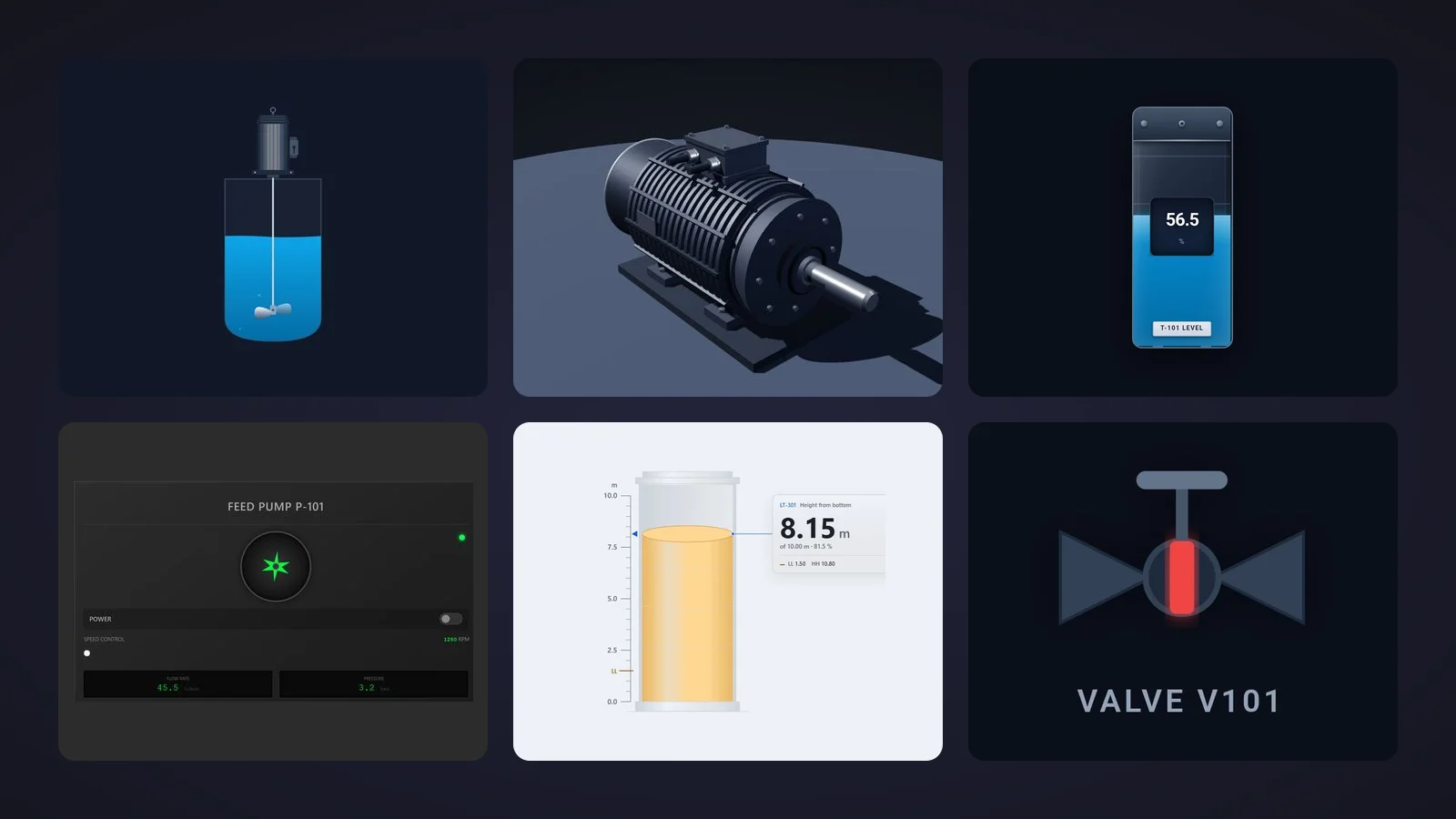
Quick picks
Short on time? Jump straight to the piece of equipment you need.
- 01Best overall: animated mixing tankTank Mixer with animation
- 02Best single tank level with alarm limitsDynamic Tank with Limits
- 03Best tank farm overview (several tanks in one control)Multiple Tank Level Visualization
- 04Best silo level in metres (bulk solids and liquids)3D Silo Nivel
- 05Best animated pipe flowMetal Pipe Flow
- 06Best animated on/off valve symbolValve Symbol with animation
- 07Best pump faceplate (start, speed, flow and pressure)Pump
- 08Best 3D digital twin (electric motor)3D Electric Motor Twin
- 09Best recipe faceplate for a process unit (vacuum chamber)Vacuum Chamber Faceplate
Why use a Custom Web Control for tanks and process equipment
A process screen is mostly equipment: tanks that fill, mixers that turn, pipes that carry something, valves that open and pumps that run. WinCC Unified gives you basic shapes, bars and the dynamic SVG widgets, and for a clean P&ID-style overview that is often the right choice. But some screens ask for more than a coloured shape: a tank that shows its own level, limits and name, a pump with its readings and controls on one card, or a motor you can rotate in 3D.
That is where a tank or process equipment Custom Web Control (CWC) earns its place. A CWC is a small web application, HTML, CSS and JavaScript packaged as a ZIP, that WinCC Unified (TIA Portal) and WinCC V8 run inside the screen. Unlike an SVG it can draw its own text and numbers, animate freely, even render a 3D scene, and its properties appear in the Interface list like any other: bind liquidLevel, value or rpm to a tag and the drawing follows the process, while events such as LimitViolation or TankClicked let your scripts react.
What makes a process equipment control worth downloading
Before the list, the yardstick we applied to every candidate:
- It looks like the equipment. An operator should recognise a mixer, a silo or a valve without reading the label, in the preview and not only in the product name.
- Clear about what it shows. Named properties on the product sheet, ideally one obvious value property (level, speed, state), so you know which tag to bind.
- Limits and states built in. High and low limits, an alarm colour or a running/stopped state turn a pretty picture into something an operator can act on.
- Events for your scripts.
LimitViolation,TankClickedorFlowStartedlet you open a faceplate, log or chain actions without polling tags. - The right drawing for the job. A mixing tank, a single tank, a tank farm, a silo, a pipe, a valve, a pump panel, a 3D motor and a recipe faceplate: we picked one champion per job.
How we picked them (and what we did not do)
We searched the HMIx catalogue in late November 2026 for every free Custom Web Control that draws a piece of process equipment: tanks, mixers, silos, pipes, valves, pumps, cranes, conveyors, motors and faceplates. For each candidate we looked at its real preview (not the catalogue cover with the big title on top) and read its product sheet to see which properties, events and methods it documents. Downloads only worked as tie-breakers. Dashboards and charts were left out: they have their own articles.
Five controls went to the honourable mentions. We discarded a Pump symbol with animation whose preview is a huge cyan disc covering the whole pump, two Gantry Crane with Gripper controls (one gallery only shows the control's icon, the other an empty 3D scene next to its jog panel), a Conveyor Digital Twin whose gallery image is blank, and a 3D Color Block that is a status indicator rather than equipment. Where a gallery published a small control in the middle of a huge empty canvas, we cropped the empty background for this article, without touching the drawing. And a fair warning: we judged previews and documentation; we did not run these controls in a live Runtime. They were generated with AI and every product page reminds you to test them in your own TIA Portal project before production.
The 9 best tank and process equipment Custom Web Controls, one by one
Each entry shows the real preview, what we liked, what to keep in mind and the properties named on its product sheet, followed by the catalogue thumbnail: click it to open the product page and download the control for free.
01Best overall: animated mixing tank
Tank Mixer with animation
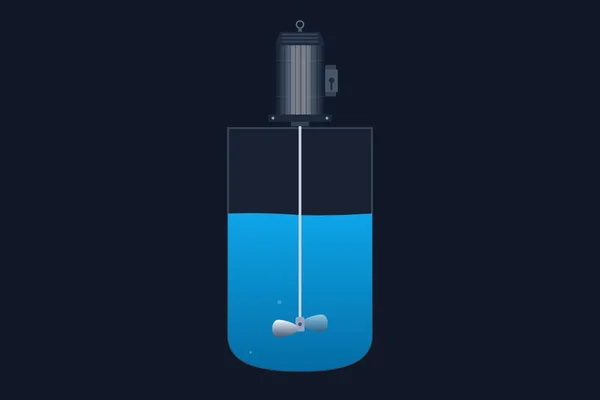
The most downloaded control in this article, and the one that best answers "I need a mixer on my screen". A dark vessel with a rounded bottom, an electric motor with a ribbed housing and a terminal box on top, a thin shaft down to a two-blade propeller and light blue liquid filled to a little over half, with a couple of tiny bubbles. It is simple, clean and instantly readable. In November 2026 it had 21 downloads and two five-star reviews.
Its sheet counts 8 properties and names them all. liquidLevel takes the fill from 0 to 100 %, mixerSpeed in RPM drives the blade rotation, and showBubbles adds bubbles during mixing. liquidColorTop and liquidColorBottom set the liquid gradient (water, oil, a chemical), bladeColor and motorColor match the real hardware and backgroundColor blends it into your screen. Two tags, level and speed, and the operator sees at a glance whether the reactor is full and stirring.
What we like
- Recognisable mixer: motor, shaft, blades and liquid
- Level and speed are the only two tags you need
- All eight properties named on the sheet
Keep in mind
- The sheet names no events or methods: for high and low level alarms, see its sibling in the mentions
- No scale or numeric readout in the drawing: pair it with an I/O field for the exact level
Bindable properties
- mixerSpeed
- liquidLevel
- liquidColorTop
- liquidColorBottom
- bladeColor
- motorColor
- showBubbles
- backgroundColor
02Best single tank level with alarm limits
Dynamic Tank with Limits
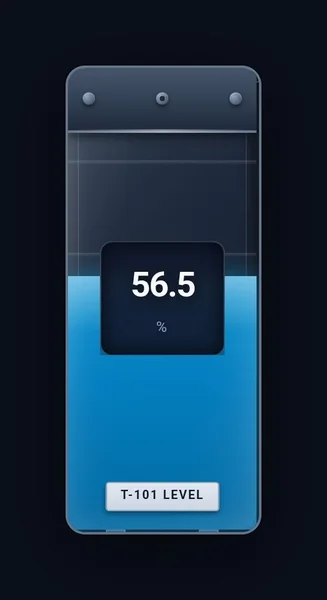
The tank you would put on a storage overview. A tall, rounded metallic front with a bolted cap on top, a glassy body with blue liquid, a dark readout plate in the middle ("56.5 %") and a nameplate at the bottom ("T-101 LEVEL"). Level, number and name in one object, which is exactly what an operator scans for. In November 2026 it had 12 downloads.
Its sheet counts 12 properties and names ten exactly. value takes the level from 0 to 100 %, highLimit and lowLimit set the thresholds and, when one is crossed, the liquid switches from fluidColor to alarmColor and the LimitViolation event fires. tankName fills the nameplate, highLimitLabel and lowLimitLabel caption the limit markers, showGrid adds measurement lines and tankBodyColor sets the metal. The sheet also mentions a LevelChanged event.
What we like
- Level, value and tag name in a single object
- Alarm colour and event when a limit is crossed
- Metallic look that still reads well on dark screens
Keep in mind
- The limit markers and grid are not visible in the preview: check them in your own test
- The unit property is described but not named exactly: look for it in the Interface list
Bindable properties
- value
- highLimit
- lowLimit
- fluidColor
- alarmColor
- tankName
- tankBodyColor
- showGrid
- highLimitLabel
- lowLimitLabel
03Best tank farm overview (several tanks in one control)
Multiple Tank Level Visualization
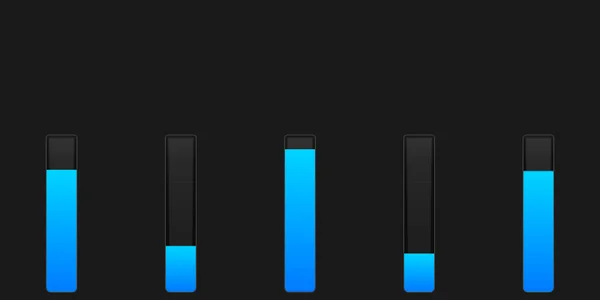
When the screen is a tank farm, not a tank. Five slim vertical tanks in dark rounded frames on a charcoal background, each filled with a cyan-to-blue gradient at a different level: two high, two low and one almost full. It is the bargraph view an operator wants on an overview screen, where the question is "which one is running empty?". In November 2026 it had 13 downloads.
The interesting part is the tanks array: one property holds the whole fleet, so adding a sixth tank is a data change, not a new object on the screen. showTicks adds a scale, tooltipValueLabel and tooltipRangeLabel set the texts of the hover tooltip and backgroundColor themes it. The HighLimitReached event warns of an overflow, TankClicked lets the operator open the detail of a tank, and the refreshLayout method redraws it after a configuration change.
What we like
- One control for a whole row of tanks
- Click event per tank to open details or faceplates
- High-limit event for overflow warnings
Keep in mind
- The preview shows no names, values or ticks: the details live in the tooltip, which a touch panel cannot hover
- The sheet does not describe the fields of each element of
tanks
Bindable properties
- tanks
- showTicks
- tooltipValueLabel
- tooltipRangeLabel
- backgroundColor
Multiple Tank Level Visualization
Free · WinCC Unified & V8 · CWC (.zip)
04Best silo level in metres (bulk solids and liquids)
3D Silo Nivel
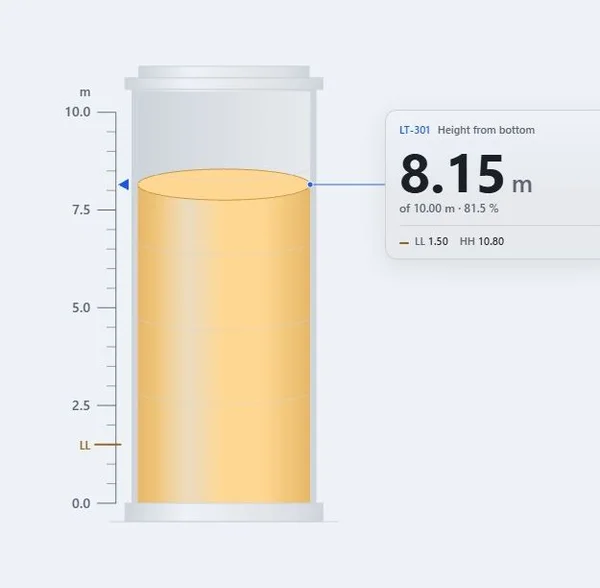
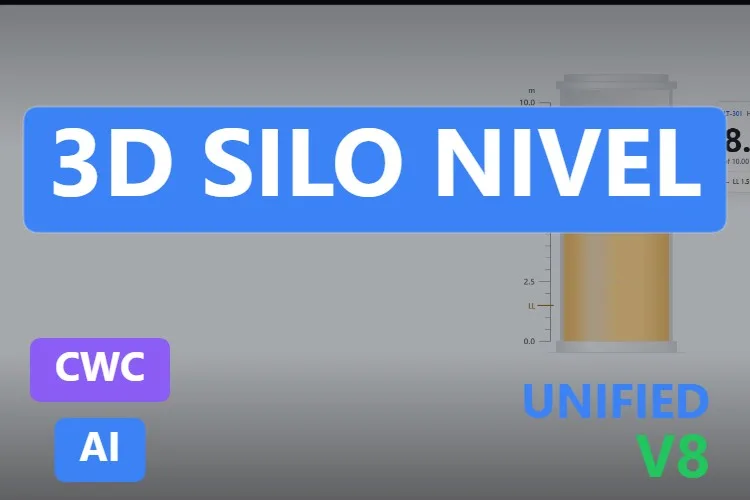
The newest control in this article (published on 20 November 2026) and the most "engineered" one. A cylindrical silo with a translucent upper part and amber product, a height scale in metres from 0.0 to 10.0 with major and minor ticks, an "LL" marker near the bottom and a blue pointer at the product surface linked to a readout card: "LT-301 Height from bottom", "8.15 m", "of 10.00 m · 81.5 %" and "LL 1.50 HH 10.80". The name is half Spanish ("nivel" means level), the drawing is fully international.
Its sheet is clear and complete. Bind level and maxLevel to your tags, then lowLimit and highLimit (with lowLimitLabel and highLimitLabel) draw the limits on the scale and fire LimitExceeded with the limit name and the level. decimals sets the precision, tagText, labelText and unitText the readout texts, and productColor, limitColor and backgroundColor the colours. LevelClicked returns the level in metres and setLevel and setMaxLevel update it from scripts.
What we like
- Level in engineering units, not just a percentage
- Readout that follows the product surface
- Limit markers, limit event and click event documented
Keep in mind
- In the preview the high limit (HH 10.80) sits above the 10 m scale, so only the LL marker is drawn
- Small silo on a large light canvas in the gallery (cropped for this article), and the readout card touches its right edge
Bindable properties
- level
- maxLevel
- lowLimit
- highLimit
- lowLimitLabel
- highLimitLabel
- decimals
- tagText
- labelText
- unitText
- productColor
- limitColor
05Best animated pipe flow
Metal Pipe Flow
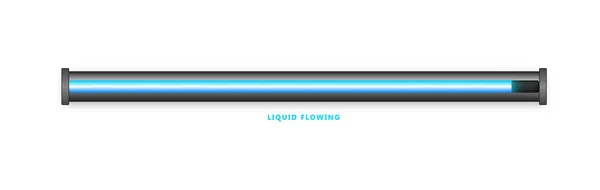
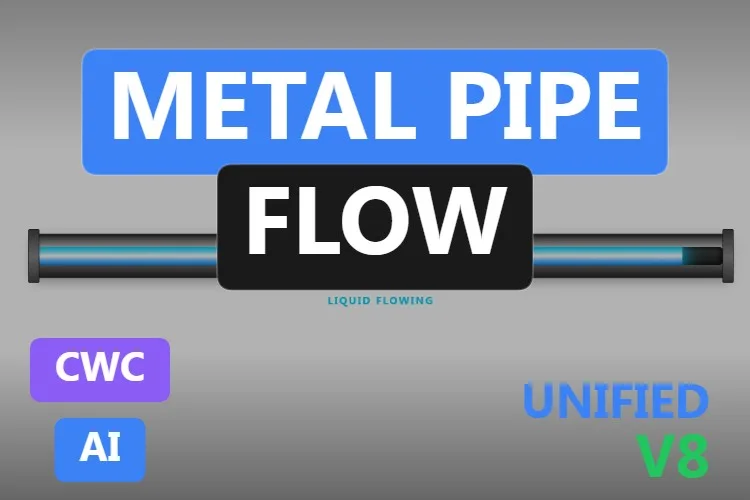
The classic "is anything moving in this line?" answer. A horizontal metallic pipe with dark flanged ends, a glowing cyan stream running through it and a small "LIQUID FLOWING" caption underneath. According to its sheet, the liquid carries a bubble system whose speed, size and density you control, so the flow reads as motion rather than as a coloured bar. In November 2026 it had 13 downloads.
Its sheet counts 10 properties and names nine. liquidColor and bubbleColor match the medium, flowSpeed, bubbleSize and bubbleDensity tune the animation, glowIntensity sets how loudly it shines, statusTextActive and statusTextIdle set the caption for each state and backgroundColor fits it into a light or dark screen. The FlowStarted and FlowStopped events and the setFlowState method let a script follow and drive it.
What we like
- Flow reads as motion, visible from across the room
- Start and stop events for logging or interlocks
- Captions for both states, easy to translate
Keep in mind
- A straight horizontal run only: the sheet mentions no elbows, tees or vertical version
- The property that switches the flow on is not named exactly (its sibling in the mentions calls it
flowActive)
Bindable properties
- liquidColor
- bubbleColor
- flowSpeed
- bubbleSize
- bubbleDensity
- glowIntensity
- statusTextActive
- statusTextIdle
- backgroundColor
06Best animated on/off valve symbol
Valve Symbol with animation
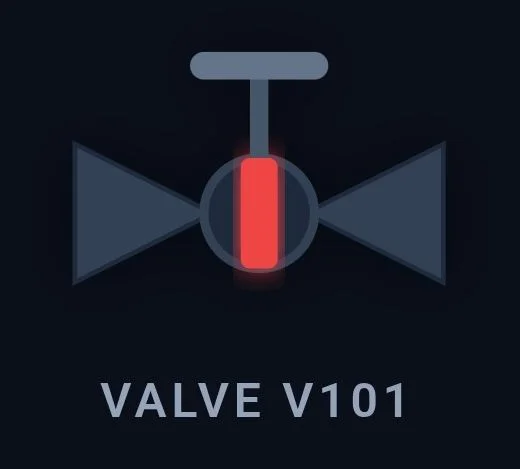
A P&ID-flavoured valve that tells you its state with colour and motion. A slate grey bow-tie symbol with a T-shaped actuator on top, a central disc with a glowing red vertical bar (closed in the preview) and "VALVE V101" in spaced capitals underneath. According to its sheet, the bar rotates and changes colour when the state changes, over the time set in animationDuration.
Its sheet counts 8 properties and names seven. colorOpen and colorClosed set the state colours, showFlow adds an animated dashed line when the valve is open, label and labelVisible handle the tag name and backgroundColor blends it in. The StateChanged and Clicked events are the useful part: a click can open your valve faceplate or, if you want, send the command.
What we like
- State visible from colour and bar position
- Clicked event to open a faceplate
- Minimal design that fits P&ID-style screens
Keep in mind
- The property that sets open or closed is not named on the sheet: look for it in the Interface list
- The preview only shows the closed state, without the flow line
Bindable properties
- colorOpen
- colorClosed
- showFlow
- animationDuration
- label
- labelVisible
- backgroundColor
Valve Symbol with animation
Free · WinCC Unified & V8 · CWC (.zip)
07Best pump faceplate (start, speed, flow and pressure)
Pump
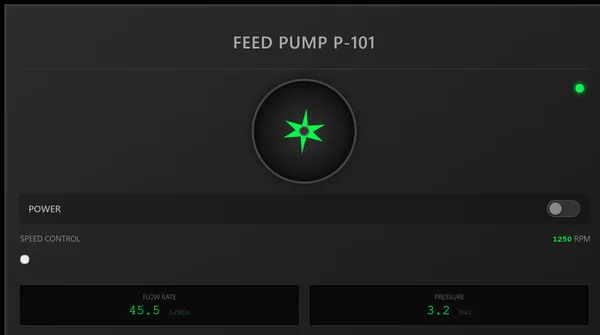
More faceplate than symbol, and that is the point. A dark card titled "FEED PUMP P-101", a round impeller with green star-shaped blades and a green LED, a "POWER" row with a toggle switch, a "SPEED CONTROL" row with "1250 RPM" and two green monospaced readouts: flow rate "45.5 L/min" and pressure "3.2 bar". Everything the operator needs to run one pump, on one card.
Its sheet counts 13 properties and names twelve. isRunning and speedRPM drive the impeller animation, flowRate and pressure feed the readouts, pumpName sets the title, powerLabel, speedLabel, flowLabel and pressureLabel translate the rows, flowUnit and pressureUnit set the units and backgroundColor themes it. The PowerToggled and SpeedChanged events report the operator's commands and the setSpeed and emergencyStop methods drive it from scripts.
What we like
- Status, command and readings on one card
- All row labels and units translatable
- Events for the operator's power and speed commands
Keep in mind
- The preview's demo state is inconsistent: the power switch looks off while the LED is green and the pump shows 1250 RPM, and the speed slider shows only its thumb
- Despite the
emergencyStopmethod, a screen command never replaces a hardwired emergency stop: keep interlocks in the PLC
Bindable properties
- isRunning
- speedRPM
- flowRate
- pressure
- pumpName
- powerLabel
- speedLabel
- flowLabel
- pressureLabel
- flowUnit
- pressureUnit
- backgroundColor
08Best 3D digital twin (electric motor)
3D Electric Motor Twin

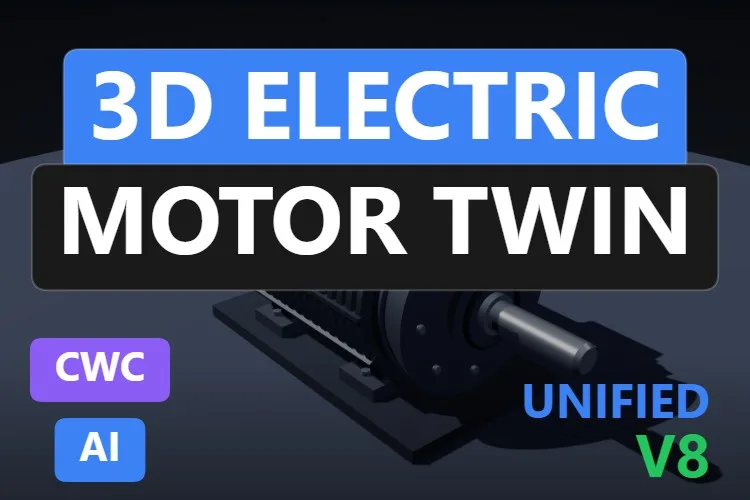
The showpiece. A real 3D motor built with Three.js: a dark housing with deep cooling fins, a terminal box on top, a bolted flange, a polished shaft and a base with mounting feet, casting a shadow on a round slate-blue floor. According to its sheet, operators can orbit and zoom it with touch or mouse, the shaft and fan turn with the speed, and the housing glows as the temperature rises.
Its sheet counts 7 properties and names them all. rpm and maxRpm drive the rotation (with inertia, so speed changes look smooth), temperature and temperatureAlarmThreshold drive the heat colouring, enableVibration shakes it to show a mechanical fault, state switches the operating mode and backgroundColor sets the scene. AlarmTriggered fires when the threshold is exceeded, and setSpeed and resetView (with its CameraReset event) control it from scripts.
What we like
- A real 3D model the operator can rotate and zoom
- Speed, heat and vibration shown on the machine itself
- Short interface: all seven properties named
Keep in mind
- 3D rendering is heavier than a 2D drawing: test the frame rate on your target panel
- The values of the
stateproperty are not listed on the sheet
Bindable properties
- rpm
- maxRpm
- temperature
- temperatureAlarmThreshold
- enableVibration
- state
- backgroundColor
09Best recipe faceplate for a process unit (vacuum chamber)
Vacuum Chamber Faceplate
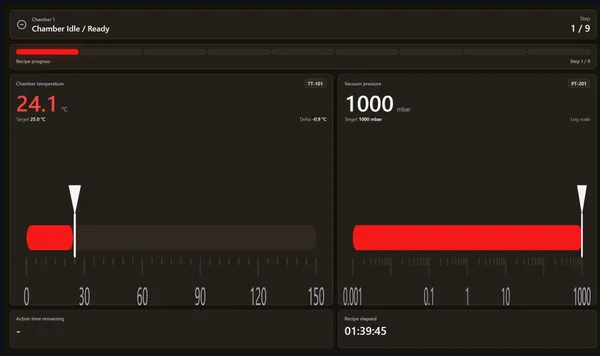
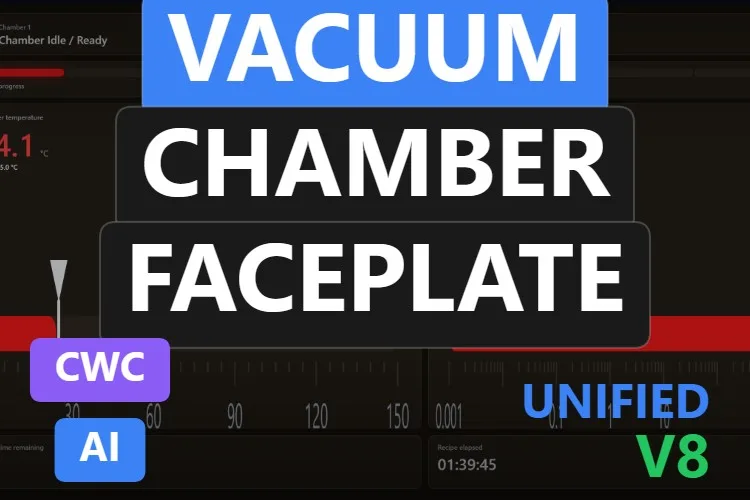
The most complete faceplate in this search. A dark panel with a header ("Chamber 1", "Chamber Idle / Ready", "Step 1 / 9"), a segmented recipe progress strip, two large instruments, chamber temperature "TT-101" at "24.1 °C" against a 25.0 °C target with the delta, and vacuum pressure "PT-201" at "1000 mbar" on a logarithmic scale from 0.001 to 1000, plus "Action time remaining" and "Recipe elapsed 01:39:45" cards. It is built for vacuum coating and heat treatment, but the layout is a lesson for any batch unit.
Its sheet describes a read-only control with no commands. statusTextId picks the banner text from statusTexts, activeRecipeStep and totalRecipeSteps fill the progress strip (up to 15 steps), actualTemp and targetTemp and actualPressure and targetPressure drive the instruments, and waitingForOtherChamber and vacuumIsolatedByOther light chips for a roughing pump shared between chambers. Chamber name, headings, tag names, units and chip texts are all properties, so one design serves several chambers.
What we like
- Recipe step, timers and two instruments on one faceplate
- Logarithmic pressure scale suited to vacuum
- Read-only by design: nothing to write by accident
Keep in mind
- Very specific to vacuum chambers; elsewhere you will rename a lot of texts
- The interlock chips do not appear in the preview, and the temperature shows in red although it is within 1 °C of its target
Bindable properties
- statusTextId
- statusTexts
- activeRecipeStep
- totalRecipeSteps
- actualTemp
- targetTemp
- actualPressure
- targetPressure
- waitingForOtherChamber
- vacuumIsolatedByOther
Honourable mentions: five more process controls worth a look
Five controls that did not make the top nine because of their previews, their sheets or a sibling that does the job better. Click the thumbnail to open the product page.
Tank Mixer
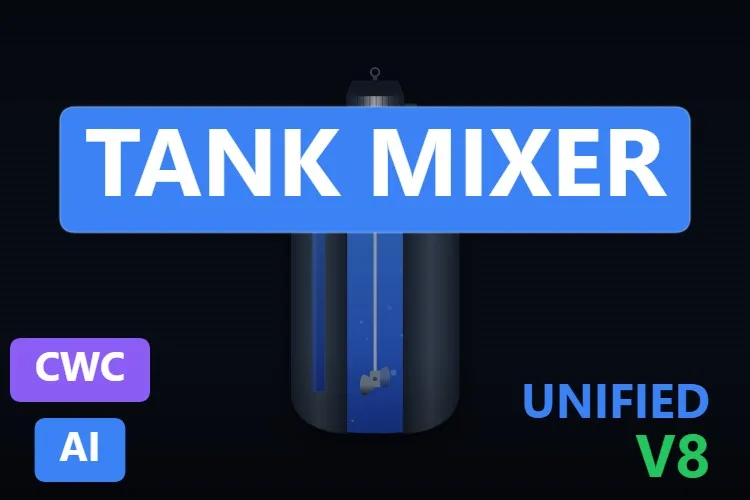
The sibling of our top pick, with a sight-glass level column on the side of the vessel and the same eight properties. What it adds is on the script side:
View productHighLevelAlarm(at 95 %) andLowLevelAlarm(at 5 %) events,SpeedChangedandLevelChanged, andsetSpeed,setLevelandtoggleBubblesmethods. The narrow liquid window makes the preview less readable.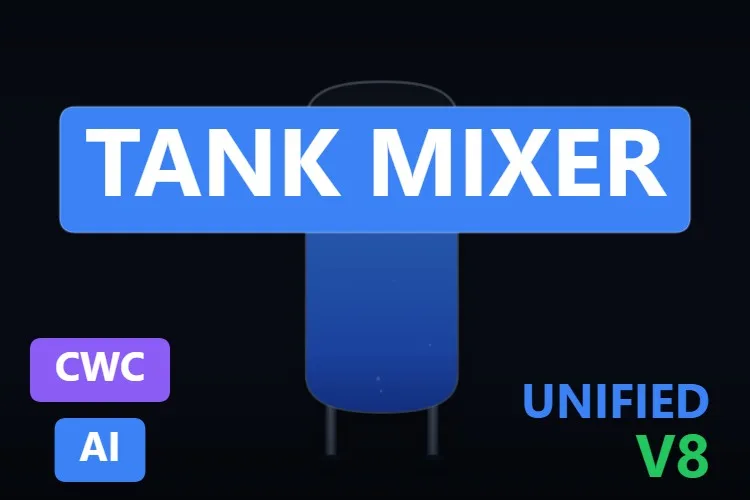
Tank Mixer
A simple vessel on two legs with a wave animation whose strength
View productwaveIntensitysets from 0 to 100,showBubblesand aLevelThresholdReachedevent. Despite the name, there is no agitator in the preview.
Metal Pipe Flow
The sibling of our pipe pick, with 12 properties named (including
View productflowActive,activeLabelandidleLabel) andsetFlowState,toggleFlowandresetAnimationmethods. Its preview only shows the grey "Flow Stopped" state, so you never see the flow.
Valve Quadrant
Not a valve symbol but a valve health chart: it plots
View productrodPositionagainstflowValue, compares the flow with what the opening should give and firesThresholdExceededwhen it is too high. Useful for predictive maintenance; the preview is a single point on an empty chart.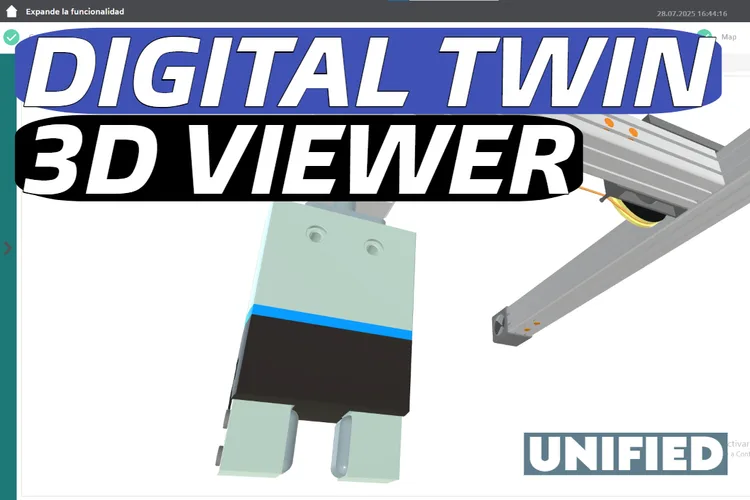
Digital Twin & 3D Viewer
By far the most downloaded control in this search (265 downloads and 15 five-star reviews in November 2026): it loads your own 3D models and colours, hides or moves their parts from live data, with clickable parts, a dark mode and a developer mode, plus instructions, a video and a demo project. It is tagged for WinCC Unified only, and its gallery is a screenshot of a demo project with a Spanish interface.
View product
Didn't find your equipment? Make your own (or remix one) with AI, for free
A confession: every top pick in this article was created with the HMIx AI generator (the 3D viewer in the mentions is a hand-built veteran). That is why we can say this without blushing: if none of them looks like the equipment on your P&ID, you can generate your own in minutes.
Describe the control in plain words (for example, "conical-bottom mixing tank with an anchor agitator, a level scale in percent, high and low limit markers and an alarm colour, a numeric readout and a click event") and the generator walks you through it step by step: the design, the properties, events and methods you will use in WinCC, a simulation to try values and the final Custom Web Control package for WinCC Unified and WinCC V8. The same tool also builds dynamic SVGs when a lightweight drawing is all you need.
- Remix any control on this list: on its product page, the "Edit in AI Generator" button opens it straight in the generator, ready for you to ask for changes such as "add a level scale to the mixer", "make the pipe vertical" or "show the valve's flow line in the preview". The "Edit it with AI" links in this article do the same.
- Free to try: you can start without an account, with a small daily allowance of credits, and the Community plan is free.
- The result is yours to use: download the package and add it to your TIA Portal project like any other control on this page.
How to use a tank or process equipment Custom Web Control in WinCC Unified (and WinCC V8)
The short version, for when you have already picked your control. Our Custom Web Control guide covers every step with diagrams and screenshots.
Download the ZIP
Open the product page, sign in with your free account and download the control. The downloaded ZIP contains the documentation and, inside it, the control package named
{GUID}.zip: that inner file is the one you need.Copy it into your TIA Portal project
Copy the
{GUID}.zipfile, still compressed, into your project folder underUserFiles\CustomControls(create both folders if they do not exist). Do not extract it.Refresh My controls and drag it in
In TIA Portal, open the Tools task card, expand My controls and click Update. The control appears in the list: drag it onto your screen and size it.
Bind the process values and test with an internal tag
Select the control and open Inspector window → Properties → Properties → Interface. Bind the value properties (
liquidLevel,value,level,rpm,speedRPM…) to internal tags first. Untick Read only only where the control must write back, as with the pump's power and speed commands. Add an I/O field that changes the same tag, start Runtime and check that the drawing, the limits and the alarm colours follow. Once they do, switch to your real PLC tags.On WinCC V8
Every top pick in this article is tagged as compatible with WinCC V8 on its product page. The package is the same; follow the WinCC V8 documentation for importing and configuring Custom Web Controls in that environment.
Pro tip: an equipment drawing should never be the only place an alarm lives. Keep the limits and interlocks in the PLC and the alarms in the WinCC alarm system, and use the control's colours and events (LimitViolation, LimitExceeded, HighLimitReached) as a visual echo and a shortcut to the right faceplate. And on Unified Comfort Panels, try animations and 3D on the real device before filling a screen with them.
Frequently asked questions
Are these tank and process equipment Custom Web Controls really free?
Yes. Every control in this article is published as a free product on HMIx. You only need a free account to download them.
How do I show an animated tank level in WinCC Unified?
Add a tank Custom Web Control, such as the Dynamic Tank with Limits or the Tank Mixer with animation, to your screen and bind its level property (value or liquidLevel, from 0 to 100 %) to the level tag in Inspector window → Properties → Properties → Interface. The fill moves with the tag in Runtime, and controls with limits also change colour and fire an event when a threshold is crossed.
Custom Web Control or dynamic SVG for process equipment: which should I use?
A dynamic SVG (.svghmi) is lighter and perfect for P&ID-style symbols that change colour, fill or position, but it cannot change its own text or numbers or raise events. A Custom Web Control can draw values, captions and scales, animate freely, render 3D and fire events for your scripts. Many projects use SVG symbols for the overview and CWCs for detailed equipment and faceplates.
Can I show a 3D model or digital twin in WinCC Unified?
Yes, through a Custom Web Control. The 3D Electric Motor Twin in this article renders a motor with Three.js that rotates with the speed and changes colour with the temperature, and the Digital Twin & 3D Viewer in the mentions loads your own 3D models (tagged for WinCC Unified only). Test the performance on your target device, because 3D is heavier than 2D drawings.
Do these controls work on a Unified Comfort Panel?
The product pages of all the top picks list compatibility with WinCC Unified, including Unified Comfort Panels, and with WinCC V8. As with any AI-generated control, test the behaviour and the animation smoothness in your own project and on your target device before going into production.
Can I modify one of these process equipment controls?
Of course. You can edit the HTML, CSS and JavaScript of the control yourself, or press "Edit in AI Generator" on the product page and ask for the changes in plain language. The second option is usually faster, because the generator takes care of the interface and the packaging.
Our verdict
If you only download one, make it the Tank Mixer with animation: a mixer anyone recognises, driven by just two tags. For a storage tank with alarm limits, the Dynamic Tank with Limits; for a row of tanks, the Multiple Tank Level Visualization; for a silo in metres, the 3D Silo Nivel; for a line that visibly flows, the Metal Pipe Flow; for valves, the Valve Symbol with animation; for running a pump from one card, the Pump; for a showpiece, the 3D Electric Motor Twin; and for a batch unit with recipe steps, the Vacuum Chamber Faceplate.
And if your plant has a piece of equipment none of these draws (it always does), remember that the generator that built them is just one click away.